Showing posts with label Horizon. Show all posts

Thursday, September 11, 2025

Troubleshooting Edifact Import Files on SirsiDynix Horizon ILS

Some libraries use edifact files for automating purchasing from different vendors.  In this case acquisition librarian uses an FTP client to download and load the edifact file into the ILS.  Errors can easily happen where you can then no longer access the invoice from the vendor and a new edifact file must be issued and imported into horizon.

What is an Edifact File?

The UN/EDIFACT Syntax Rules were approved as the ISO standard ISO 9735 by the International Standardization Organization.


The EDIFACT standard provides:

  • a set of syntax rules to structure data

  • an interactive exchange protocol (I-EDI)

  • standard messages which allow multi-country and multi-industry exchange


Read more about it here

Edifact File Sample

UNA:+.? '

UNB+UNOC:3+###:###+####:###+250903:1557+B000025704'

UNH+B000025707+INVOIC:D:###:UN:EAN008'

Header

BGM+380+#####+43'

DTM+137:20250903:102'

NAD+BY+####::###'

NAD+SU+#####::###'

NAD+SU+++Name.+Address .+City+Province+PostalCode+Country'

CUX+2:CAD:4'

Vendor Info

LIN+000001'

IMD+L+050+:::Library MARC - CUSTOM'

ALC+C++++ABK::28'

QTY+$$$$'

MOA+####'

RTE+Quantity:1.07'

RFF+LI:'

PO/Item Info

UNS+S'

CNT+2:8'

MOA+####'

TAX+7+GST'

MOA+#####'


Summary

UNT+69+B000025707'

UNZ+1+B000025704'

Footer


The UNB number the B number MUST match the B number in UNZ, also the UNH B number MUST match the UNZ B number.  These are unique identifiers for the invoice generated by the vendor.  If there is an issue with the import of an invoice such as cancelled items on the PO, or any other error you will need to get a new Edifact file from the vendor.


How to check the error on edifact files in Horizon


To check for errors on edifact imports (uploads) you need to view them in table Editor


Double click table editor to open up the search and type in edifact


Then select double click on “edifact exceptions” and scroll to the bottom for the most recent errors.  You will want to look for the errors highlighted in Green, not errors stating the edifact file has already been uploaded.


If you try import a file and it fails do the following:


  1. Ask the vendor for a new Edifact File with new header numbers.  (Once you try import it once it can not be imported again with the same header numbers)

  2. Check the PO in horizon, verify everything is ok and there is nothing cancelled, etc.

  3. Check for error codes in table editor using the edifact exceptions view

  4. Either fix the PO or remove the troublesome line in the edifact file using Notepad.

  5. Once the PO or the edifact file is fixed, reimport (upload) the file into horizon.


Additional Error info:


If you get an error like Process Invoice Error PO/Line, means there is a mismatch with the PO and the invoice, and the PO in Horizon needs to be fixed or an item in the edifact file needs to be removed shown in the example in orange.  Verify the PO in horizon before trying to re-import the edifact file in Horizon.   The PO either needs to be corrected or remove anything that is not in the PO in the edifact file.


Unfortunately you have to go back to the vendor and ask for a new edifact file because there was an error on import and a new header needs to be generated so the Unique identifier matches what the vendor gives for the import and once a file has been imported it can not be easily deleted in Horizon.


Monday, October 25, 2021

PC Reliance receipt printing issue on Windows 10


PC Reliance is a piece of software produced by SirsiDynix and is used for off-line circulation when performing an ILS upgrade or if the ILS is going to be down for a prolonged period of time.  Horizon based libraries have been using this for at least 10 years and the last update for the software was in October 2008.  Under Windows 7, it did not require any changing of the driver default settings.  However if you are running Windows 10 you will have to reconfigure the driver software in this case an Epson TM-T88V.

Going with the default install setting on the Epson TM-T88V, the receipt printer works fine for all applications.  Vend, Horizon ILS Client, notepad, etc.  as shown below.


When you open PC Reliance you don't have many options to configure below is a look at the GUI; and a item put in for checkout so we can do a test print.


However when you try and use PC Reliance you get this when you print the reciept.


The fix is to change the setting on your receipt printer.  Go to your printer right click and select printer properties

Then select Preferences.


Then Select Advanced


By Default, the settings are as follows


You need to change them to the following:

TrueType Font: Substitute with Device Font (Not required to change)

Print Optimizations: Disable


Once that is saved and enabled, your receipt will now print properly.


Monday, September 27, 2021

"LbShrMem.FindName: invalid 'shared memory' pointer" Error when Launching Reports in Horizon on Windows 10

There is a bug in the ILS system for Horizon by SirsiDynix where for what ever reason, reports are not accessible and you get the following errors.


You will need a SirsiDynix account to view the KB https://support.sirsidynix.com/kb/164380 but essentially when you go to run reports the ILS system errors out with a LBShrMem pointer error. In the past, by that I mean going back to Windows Vista putting in a global system variable for the ILS application resolves the error.

Variable name: HzShrMemBase
Variable value: 1912602624

However under windows 10 this prevents access to the ILS application but adding and removing the variable fixes it as does running the app in legacy mode for Windows XP SP2 but this is temporary. After a reboot the issue remains persistent. Doing file system scans (SFC) and check disk also occasionally resolves the issue, but the issue remains persistent and comes back after a couple shutdown and restarts.

After doing some intense investigation into this matter it appears to be related to security and application permissions.  Unfortunately thus far the only resolution I could find had to do with running the ILS application as an administrator and for staff convivence disabling UAC.

Step 1.  - Make the user using the application a local admin as shown below.

Make use a local admin


Step 2. - Set the app to run as administrator


Step 3. - Change UAC (Reason for this is to prevent the popup prompt)


After running the ILS application like this for 3 weeks I am confident that the issue has been mitigated.  Do I recommend running an application like this?  No.  However it was consuming IT resources having to go back and disk scanning, adding/removing system variables to get the report to run.  There is extra security precautions put on to the system for monitoring and firewall blocking.  For now that is all that can be done until an application update.

Wednesday, August 25, 2021

SQL for recovering a pull list on Horizon ILS

The Horizon ILS has a list of holds where the report is run but if the list is not kept it is lost and you have to run a sql script to recover the list.  You will require sql studio, and a login to the database.  Once logged in.

Select your ILS DATABASE using SQL Studio or change "$ILSDatabase" in the script below to be the name of your ILS Database and it will automatically select the database for you.


 USE [$ILSDATABASE]

 GO

update request set fill_date = NULL, fill_location = NULL,
fill_item# = NULL where
fill_date = datediff(dd,'01 jan 1970',getdate())

and fill_location = '$location' and request_status = 0


Below is a sample of what the script looks like in SQL Studio.


In the script change $location with your location code that is setup in Horizon to recover the branch pull list.


Wednesday, January 06, 2021

iTiva import error from Horizon ILS generated notices file

illion i-tiva automated phone software is pretty good but it is quirky.  After disabling the Phone Holds in the iTiva software we started getting import errors; but it wasn't a consistent failure.  As shown in the activity log shown below there was a successful import then 2 failures.


After further investigation by looking at the past notices located in the i-Tiva archive folder, I determined that i-Tiva requires a 1:1 mapping for the notices export from the ILS (in this case Horizon) to the notice.csv file.  When is imported into itivia.   With the covid-19 shutdown it was decided that we would disable the software from making calls when holds were available.  This was not disabled in the ILS and was being included in the generated notices.csv file. With the holds block "$HOLDSBLOCK" being included in the file, the import fails.


"V","","$HOLDSBLOCK","$HOLDSBLOCK","2222200*******","","Frist Name","Last Name","780-***-****","","**","Library Location","3222200*****","13/1/2021","Book Title.","*****-******"

After testing if the the file only had the block "$OVERDUEBLOCK" the import was successful.

"V","","$OVERDUEBLOCK","$NOTICEBLOCK1","2222200*******","","First Name","Last Name","780-***-****","","**","Library Location","3222200*******","19/12/2020","Book Title /","*****-*****"

To fix the export you have to make an edit in the Horizon Table Editor on the Telephone Messaging Control Block.


To apply the fix disable the For: hold notice.  It should appear unchecked as shown below.  That will fix your issue.


A special thanks to Mary Schmidt at SirsiDynix who worked with me as we determined the cause of the issue.

Friday, August 07, 2020

Performing an upgrade for Horizon Web Services

Upgrading Horizon Web Services is unfortunately more/less a full reinstall of the Apache tomcat server and software which you can read my post about here.  This means you will have to re-apply any TLS certificate you have setup with your Horizon Web Services (which is a pain but do able).

On my previous post we installed Horizon Web Services 201709 (you can see the full version number in the picture) and now we are going to upgrade to version 6.0.2R2 from 201709

Now this is a few versions behind and since an upgrade to Horizon 7.5.5 from 7.5.4.1 an app produced by sirsidynix called mobilecirc (mobile staff) available for both android and ios broke and will not allow you to create/register new users.

Before you begin your upgrade you will want to backup your classes directory in the webapps  directory webapps\"YourHorizonWebServicesInstanceName"\WEB-INF\classes

It is safest to stop your service before doing the backup.  In this case "Apache Tomcat HWS"
The web-inf\classes directory is in the web directory you setup when you installed tomcat typically "hzws" if you use the defaults.  I just backed up the whole web directory as a zip file.
Then you should uninstall the version of Web services your using thought the program and features in the control panel.  Since 201709 is running on tomcat 7, and version 6.0.2R2 is on tomcat 8, this will also upgrade our tomcat install.
Once uninstalled reboot the server, and start the installation of Web Services you want to install in this case we are doing 6.0.2R2.
Now for the java vm I am selecting the latest version of java for this.

Then the rest of the install works just like in my post to install Horizon Web Services.  Once the install is done don't forget to go to Services and change the startup type to automatic.


Once the service is started, you will have to fix the TLS certificate.  The installer resets all customized tomcat configurations.


You will have to edit the server.xml file located in Webservices\conf\server.xml and update your keystorefile,  keystorepass, and server values 


Restart Apache tomcat and the TLS Certificate should be working properly.
and our web services is now version 6.0.2.201291521


Saturday, November 23, 2019

How to enable slip and receipt printing on Horizon ILS

This is a how to for enabling receipt and slip printing in Horizon.  This article assumes that the station
you are enabling this on has a network or local receipt printing installed.


Login to horizon and go to Circulation -> CKO Window


Go to CKO Window -> Tools -> Receipt Options.


This is a how to for enabling receipt and slip printing in Horizon. This article assumes that the station you are enabling this on has a network or local receipt printing installed.
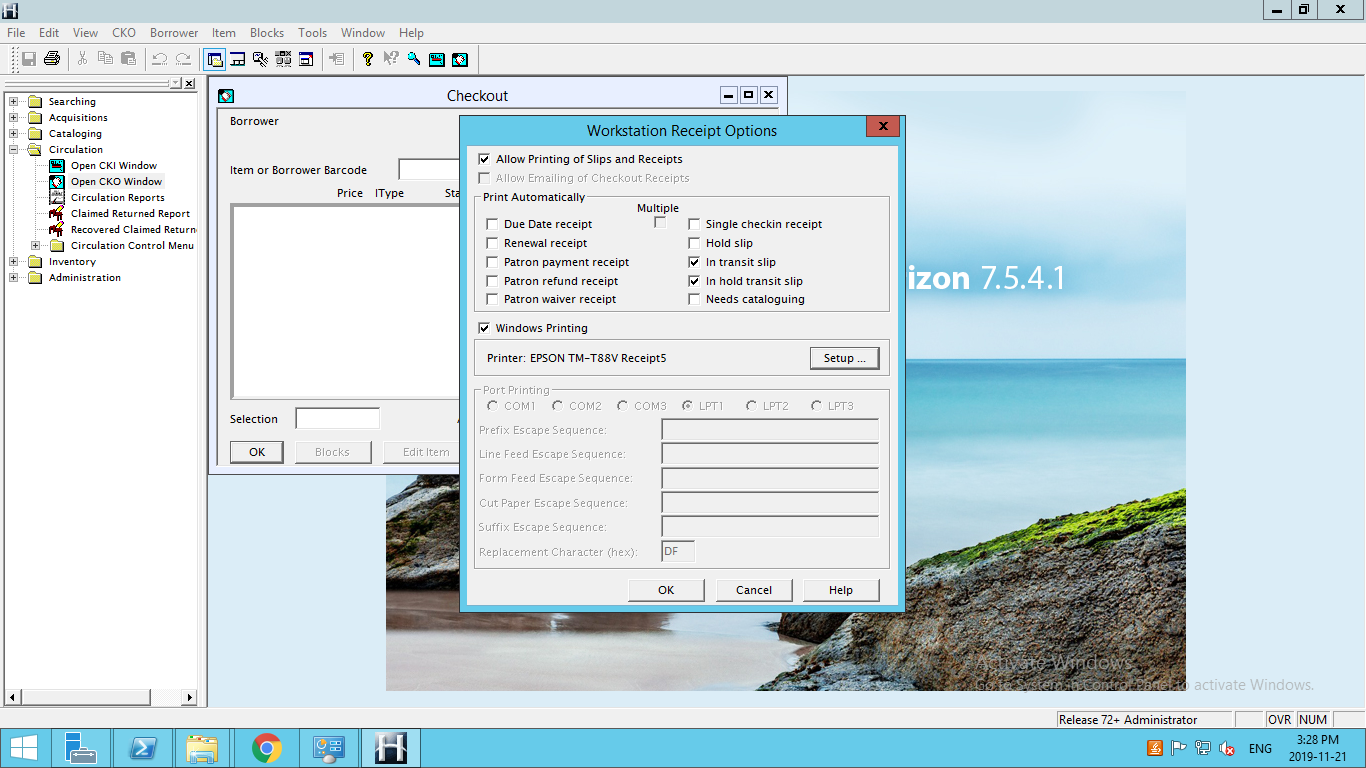
Enable “Allow Printing of Slips and Receipts”


Select the Slips you want to print as shown below.


Enable printing in Windows -> select the receipt printer you want to use.

NOTE: That you may get a font substitution warning.  You must resolve this before being able to continue.  I prefer using Arial as a substitute font.


Select the receipt printer you want to use


Now you should be able to print slips and receipts in Horizon.

Monday, November 20, 2017

SirsiDynix HIP Search Error 30015e

If your orgainization uses SirsiDynix Hip and you get a 30015e Error, The SirsiDynix KB has a post about the iPac 2.x admin tool, the other thing it could be as was in this case if you use a third party for your Customer front end for your catalogue such as bibliocommons having an issue with hold could cause the JBOSS to run out of memory.  Bibliocommons in this case were performing an upgrade that caused an issue with holds.  Since HIP is required for holds it made sense to either try reboot the hip server or try start the JBOSS Service.  Since it is the middle of the day and the Horizon Client requires HIP restarting JBOSS made the most sense.  This can cause the HIP Search to display the error unable to retrieve data. 30015e


Search Error with code 30015e
If you login to your hip server and restart jBOSS your search should come back just fine so long as you haven't modified any of the settings posted in the iPac 2.x admin tool.  If that doesn't resolve your issue follow the instructions in the KB Below.

https://support.sirsidynix.com/kb/129707

Monday, October 30, 2017

How to update a Horizon ILS Training Database

If you're a SirsiDynix Horizon library using SQL server this tutorial is for you.  I will cover how to restore a training database with a backup from the production database and then make changes in the Horizon Client to make those differences visible.

This tutorial assumes you have the proper permissions for both your ILS database and the Horizon client.  With this you can easily update your training database with the latest up to date information and depending on your hardware it can take as little as 5 - 10 minutes.

  1. Log into the Microsoft SQL Management Studio on a workstation that has access to the backup or on the server itself.

  2. Select your training database if not already made. Then select Tasks -> Restore -> Database

  3. Make sure you have the database you want to restore the data to selected.   Then change the source to "From Device" and select your backup database file.  In this case Z:\DBBackup\$DATEOFMYBACKUP.bak


  4. Make sure you check and make sure that Restore is checked.  Then go to options and check Overwrite the existing database. 

    ***IMPORTANT***
    - Make sure the "Restore As" Data and Log files are for the database you have selected otherwise you could overwrite production data. 

    Since we are using the Training_DATA and Training_Logs we know that we are not using the production data because lets assume that the production db is called production.  With our production database called production lets assume our Rows Data is called production_data.mdf and the logs production_log.ldf.


  5. The restore process will take about 5 minutes.  Then you can exit out of SQL Management Studio then open the Horizon Client with an account that has administrator access.

  6. You will get a Middle Tier Error on login. Just note the error and click ok.  We will be fixing this
  7. Once you are logged in go to Administration -> Table Editor -> Matham

  8. Double click on the line in the box.

  9. You want to find and edit two items shown below highlighted in Yellow

    Horizon App Server Version -> Select NO Horizon Application Server.  You don't need to put anything in the Horizon Application Server URL because we just disabled the URL.  I find it is a good idea to put TRAINING or something like that

  10. Now we want to close that window and repeat steps 7 and 8 but now we want to select location

  11. Double click the location line (this will be the name of the production database because we restored the training database from a backup.)

  12. The next thing you want to edit is the Location NAME.  When you change this it will update the Horizon Client Window with a new header.  So I put ***TRAINING*** - $PUTWHATYOUWANTHERE.  You can see it is in the top left corner of the Horizon Client Window


Updating your godaddy certs during the G2 intermediate hierarchy to the TLS Root CA - R1 hierarchy

  If you use godaddy TLS certificates you should be aware of some changes during the transition from the G2 certificates to the new R1 Certi...