Showing posts with label Java. Show all posts

Monday, October 27, 2025

Enabling Java Virtual Console on Windows 11 and Windows Server

I wrote a post about bypassing Java MD5 to run Java KVM viewer, well now to get it to run on the latest version of java and Windows you need to disable it completely or have an alternative to using the iKVM Viewer.

With the MD5 algorithm disabled with the new java, you get an application error attempting to launch the iKVM Viewer as shown below.


To resolve the issue you need to open a text editor program as administrator on windows and browse to your JAVA directory a typical default example is 

"C:\Program Files (x86)\Java\jre-1.8\lib\security\"

Open java.security

an go to line 694 and disable the jdk.jar.disabedAlgorithms by putting a # in front of the line as shown below.


You will then be able to run the iKVM viewer as shown below.


Wednesday, January 05, 2022

Log4J MS Fix with Active Directory and Detection with Lansweeper

Log4J has been in the news for a while, so to patch the windows systems, I updated everyone's version of Java to the latest version.  In accordance with Microsoft's Environmental variable fix, I setup the variable to be deployed with Active Directory (After I verified that no apps would lose functionality).  You can read more about the Environmental variable fix by clicking on this article Microsoft Statement and Mitigations for Log4J.

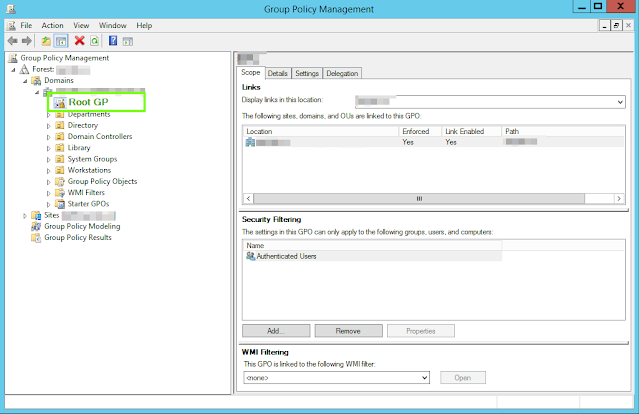
So to deploy the fix I used Active Directory.  I have a global GP for setting basic permissions and it is enforced with everyone so it makes the most sense to put it there.


So edit the policy go to Computer Configuration -> Preferences -> Windows Settings ->Environment.  
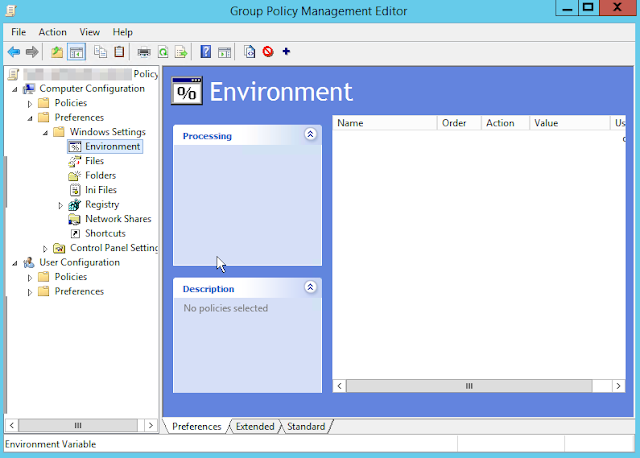

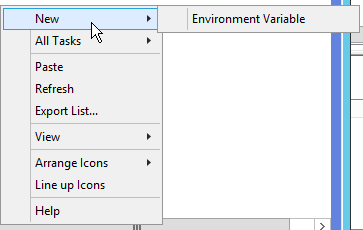
Right click (or under action) New -> Environment Variable

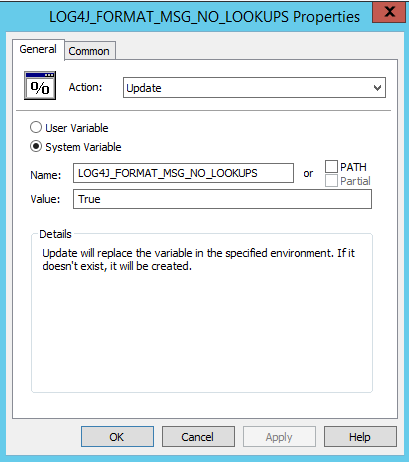
Enter in the following:

NAME = LOG4J_FORMAT_MSG_NO_LOOKUPS

Value=TRUE


Along with the variable, I have also updated Java to the latest version using LANSWEEPER's Software push functions.  I have 70 clients to update, and I deployed this early afternoon, and over half of them were done by the time I left.

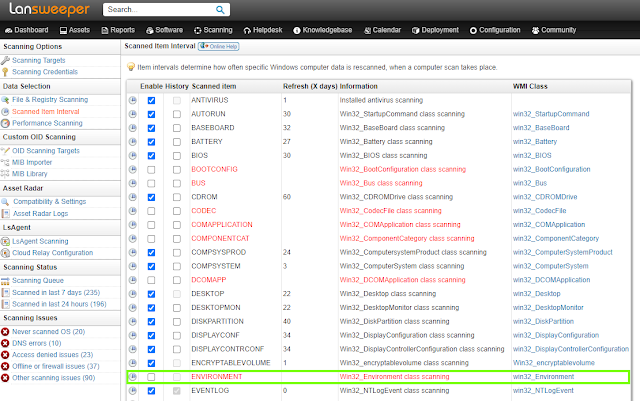
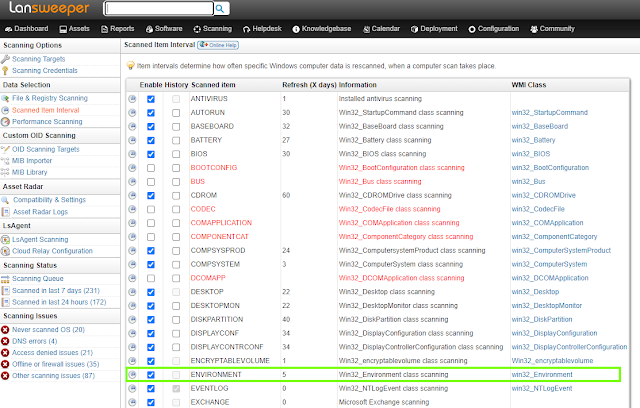
I wrote a script in Lansweeper that checks for the environmental variable.  You first have to enable Environmental scanning.  Under Scanning Select Scanned Item Interval


By default Environment is not checked (disabled) as shown below.


You have to enable it for this detection script to work.


With that done this script will check for to see if the Environmental Variable has been added.

/******************************************************************************/

Select Top 1000000 tblassets.AssetID,

  tblassets.AssetName,

  tsysassettypes.AssetTypename,

  tsysassettypes.AssetTypeIcon10 As icon,

  tblassets.IPAddress,

  tblassets.Lastseen,

  tblassets.Lasttried,

  tblEnvironment.Name As Name1,

  tblEnvironment.VariableValue As VariableValue1

From tblassets

  Inner Join tblassetcustom On tblassets.AssetID = tblassetcustom.AssetID

  Inner Join tsysassettypes On tsysassettypes.AssetType = tblassets.Assettype

  Inner Join lansweeperdb.dbo.tblEnvironment On tblassets.AssetID =

      tblEnvironment.AssetID

Where tblEnvironment.Name = 'LOG4J_FORMAT_MSG_NO_LOOKUPS' And

  tblEnvironment.VariableValue = 'true' And tblassetcustom.State = 1

Monday, September 27, 2021

"LbShrMem.FindName: invalid 'shared memory' pointer" Error when Launching Reports in Horizon on Windows 10

There is a bug in the ILS system for Horizon by SirsiDynix where for what ever reason, reports are not accessible and you get the following errors.


You will need a SirsiDynix account to view the KB https://support.sirsidynix.com/kb/164380 but essentially when you go to run reports the ILS system errors out with a LBShrMem pointer error. In the past, by that I mean going back to Windows Vista putting in a global system variable for the ILS application resolves the error.

Variable name: HzShrMemBase
Variable value: 1912602624

However under windows 10 this prevents access to the ILS application but adding and removing the variable fixes it as does running the app in legacy mode for Windows XP SP2 but this is temporary. After a reboot the issue remains persistent. Doing file system scans (SFC) and check disk also occasionally resolves the issue, but the issue remains persistent and comes back after a couple shutdown and restarts.

After doing some intense investigation into this matter it appears to be related to security and application permissions.  Unfortunately thus far the only resolution I could find had to do with running the ILS application as an administrator and for staff convivence disabling UAC.

Step 1.  - Make the user using the application a local admin as shown below.

Make use a local admin


Step 2. - Set the app to run as administrator


Step 3. - Change UAC (Reason for this is to prevent the popup prompt)


After running the ILS application like this for 3 weeks I am confident that the issue has been mitigated.  Do I recommend running an application like this?  No.  However it was consuming IT resources having to go back and disk scanning, adding/removing system variables to get the report to run.  There is extra security precautions put on to the system for monitoring and firewall blocking.  For now that is all that can be done until an application update.

Sunday, July 01, 2018

How to bypass Java MD5 Security Setting to Run Java iKVM Viewers

You can view a video of the post on my youtube page.

A bit of background: Oracle issued a critical patch to Java in April 2017, JAR files signed using MD5 will no longer be considered as signed by the Oracle JRE. Affected MD5-signed JAR files were no longer be considered trusted and as a result will not be able to run by default, such as in the case of Java applets or Web Start applications.  Now this basically affects any iKVM managers for servers by Supermicro, Lenovo, or any vendor that shipped a remote console that uses java.  By default if you try run these redirected consoles you will be denied.  The fix for this is pretty simple but requires you to bypass disabling the MD5 filter.   You can find out more about this change here.

Please note this post assumes you have a 64 bit version of Java Installed.

Use notepad or a text editor (I prefer sublime text) and run the program as Administrator


Open the file C:\Program Files\Java\$JAVA_VERSION\lib\security\java.secuirty as shown below


You will need to edit the around line 615, I recommend copy and pasting the line and removing the MD5 from the jdk.jar.disabledAlgorithms as shown below then save the file.


Then you will need to open the JAVA Control Panel and whitelist the DNS Name or IP Address (I typically use IP Address) so that we can run the Java Applet.  Enable Java content for browser and Web Start Applications, change the security level to high and and the server to the Exception List as shown below.

Then you will be able to run iKVM java applets from your severs so you can manage them.  You will still get a couple popup prompts about running the Java applets, but after accepting them you will be able to run it.


Then you can manage your server as though you were sitting right in front of it.


You can view a video of this blog post here

Tuesday, November 25, 2014

How to install and Remove Java on Ubuntu

Install Oracle Java in Ubuntu by PPA 


This provides instructions on how to install the Oracle Java JDK (which includes Java JDK, JRE and the Java browser plugin). The PPA provides the full Oracle JDK package. 

To add the PPA and install Oracle Java 7 in Ubuntu use this: 


sudo add-apt-repository ppa:webupd8team/java

sudo apt-get update
sudo apt-get install oracle-java7-installer 

To add the PPA and install Oracle Java 8 in Ubuntu use this: 

sudo add-apt-repository ppa:webupd8team/java
sudo apt-get update
sudo apt-get install oracle-java8-installer 


If you want to see your version of java run the following command in the terminal: 

java -version

It should return something like this 

Java version "1.7.0_51" (version 7) or "1.8.0" (version 8) 
Java(TM) SE Runtime Environment (build 1.7.0_51-b13) - version 7
Java(TM) SE Runtime Environment (build 1.8.0-b132) - version 8
Java HotSpot(TM) 64-Bit Server VM (build 24.51-b03, mixed mode) - version 7
Java HotSpot(TM) 64-Bit Server VM (build 25.0-b70, mixed mode) - version 8 

If the Java version in use is not 1.7.0, you can try to run the following command in the terminal: 

sudo update-java-alternatives -s java-7-oracle 

The installer requires you accept the Oracle license before the installation begins. This is only required once. If you need the installation to be automated, you can run the following command to automatically accept the Oracle license: 

Version 7

echo oracle-java7-installer shared/accepted-oracle-license-v1-1 select true | sudo /usr/bin/debconf-set-selections 

Version 8 

echo oracle-java8-installer shared/accepted-oracle-license-v1-1 select true | sudo /usr/bin/debconf-set-selections 

Setting Java environment variables To automatically set up the Java 7 environment variables, you can install the following package:

sudo apt-get install oracle-java7-set-default 

 If you've already installed oracle-java6-set-default or oracle-java8-set-default, they will be automatically removed when installing oracle-java7-set-default (and the environment variables will be set for Oracle Java 7 instead). Switch back and forth between Java 7 and 8

Switch to Java 7

sudo update-java-alternatives -s java-7-oracle 

 And, switch back to Oracle Java 8 using: 

 sudo update-java-alternatives -s java-8-oracle 

If you get some warnings when running these two commands, ignore them.


How to Remove Oracle Java To remove java on your system and want to go back to OpenJDK or remove java completely, all you have to do is remove the Oracle JDK7 Installer and the previous Java (OpenJDK, etc.) version will be used: 

sudo apt-get remove oracle-java7-installer 

sudo apt-get 
remove oracle-java8-installer    


Special thanks to webupd8.org for their great tutorial for which this is based.

Friday, November 14, 2014

Removing Java Runtime from OS X

Java 8 removes the Medium Security
Setting in OS X

Removing Java From OS X


Since Java 8 came out you no longer have the ability to run self signed java runtimes.  This is a good thing from a security perspective but some devices like iKVM's use java self signed certificates to allow access and if your running Java 8 and OS X you might have a problem.  My solution to this was to uninstall java 8 using the following commands

sudo rm -rf /Library/Java/JavaVirtualMachines/jdk{version}.jdk

sudo rm -rf /Library/PreferencePanes/JavaControlPanel.prefPane

sudo rm -rf /Library/Internet\ Plug-Ins/JavaAppletPlugin.plugin

Then I installed the latest version of Java 7 which will only be available until April 2015, but it will still be made available though the Java Archive.

Updating your godaddy certs during the G2 intermediate hierarchy to the TLS Root CA - R1 hierarchy

  If you use GoDaddy TLS certificates you should be aware of some changes during the transition from the G2 Intermediate certificates to the...