Showing posts with label Horizon ILS. Show all posts

Monday, October 25, 2021

PC Reliance receipt printing issue on Windows 10


PC Reliance is a piece of software produced by SirsiDynix and is used for off-line circulation when performing an ILS upgrade or if the ILS is going to be down for a prolonged period of time.  Horizon based libraries have been using this for at least 10 years and the last update for the software was in October 2008.  Under Windows 7, it did not require any changing of the driver default settings.  However if you are running Windows 10 you will have to reconfigure the driver software in this case an Epson TM-T88V.

Going with the default install setting on the Epson TM-T88V, the receipt printer works fine for all applications.  Vend, Horizon ILS Client, notepad, etc.  as shown below.


When you open PC Reliance you don't have many options to configure below is a look at the GUI; and a item put in for checkout so we can do a test print.


However when you try and use PC Reliance you get this when you print the reciept.


The fix is to change the setting on your receipt printer.  Go to your printer right click and select printer properties

Then select Preferences.


Then Select Advanced


By Default, the settings are as follows


You need to change them to the following:

TrueType Font: Substitute with Device Font (Not required to change)

Print Optimizations: Disable


Once that is saved and enabled, your receipt will now print properly.


Wednesday, August 25, 2021

SQL for recovering a pull list on Horizon ILS

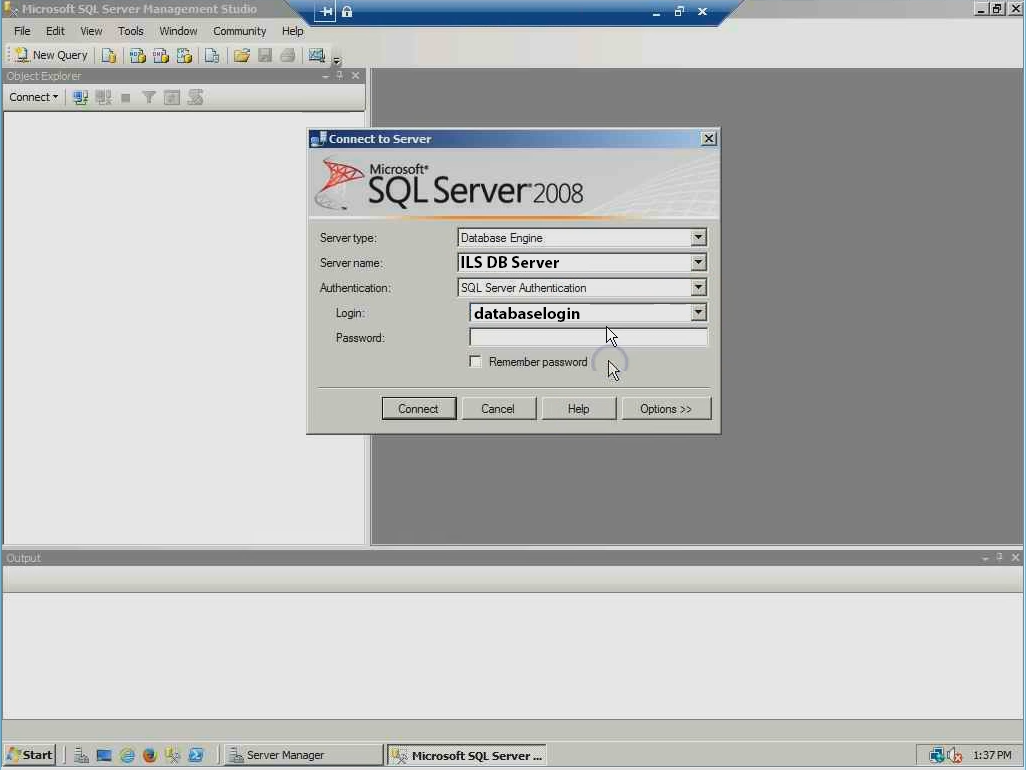
The Horizon ILS has a list of holds where the report is run but if the list is not kept it is lost and you have to run a sql script to recover the list.  You will require sql studio, and a login to the database.  Once logged in.

Select your ILS DATABASE using SQL Studio or change "$ILSDatabase" in the script below to be the name of your ILS Database and it will automatically select the database for you.


 USE [$ILSDATABASE]

 GO

update request set fill_date = NULL, fill_location = NULL,
fill_item# = NULL where
fill_date = datediff(dd,'01 jan 1970',getdate())

and fill_location = '$location' and request_status = 0


Below is a sample of what the script looks like in SQL Studio.


In the script change $location with your location code that is setup in Horizon to recover the branch pull list.


Wednesday, January 06, 2021

iTiva import error from Horizon ILS generated notices file

illion i-tiva automated phone software is pretty good but it is quirky.  After disabling the Phone Holds in the iTiva software we started getting import errors; but it wasn't a consistent failure.  As shown in the activity log shown below there was a successful import then 2 failures.


After further investigation by looking at the past notices located in the i-Tiva archive folder, I determined that i-Tiva requires a 1:1 mapping for the notices export from the ILS (in this case Horizon) to the notice.csv file.  When is imported into itivia.   With the covid-19 shutdown it was decided that we would disable the software from making calls when holds were available.  This was not disabled in the ILS and was being included in the generated notices.csv file. With the holds block "$HOLDSBLOCK" being included in the file, the import fails.


"V","","$HOLDSBLOCK","$HOLDSBLOCK","2222200*******","","Frist Name","Last Name","780-***-****","","**","Library Location","3222200*****","13/1/2021","Book Title.","*****-******"

After testing if the the file only had the block "$OVERDUEBLOCK" the import was successful.

"V","","$OVERDUEBLOCK","$NOTICEBLOCK1","2222200*******","","First Name","Last Name","780-***-****","","**","Library Location","3222200*******","19/12/2020","Book Title /","*****-*****"

To fix the export you have to make an edit in the Horizon Table Editor on the Telephone Messaging Control Block.


To apply the fix disable the For: hold notice.  It should appear unchecked as shown below.  That will fix your issue.


A special thanks to Mary Schmidt at SirsiDynix who worked with me as we determined the cause of the issue.

Monday, October 30, 2017

How to update a Horizon ILS Training Database

If you're a SirsiDynix Horizon library using SQL server this tutorial is for you.  I will cover how to restore a training database with a backup from the production database and then make changes in the Horizon Client to make those differences visible.

This tutorial assumes you have the proper permissions for both your ILS database and the Horizon client.  With this you can easily update your training database with the latest up to date information and depending on your hardware it can take as little as 5 - 10 minutes.

  1. Log into the Microsoft SQL Management Studio on a workstation that has access to the backup or on the server itself.

  2. Select your training database if not already made. Then select Tasks -> Restore -> Database

  3. Make sure you have the database you want to restore the data to selected.   Then change the source to "From Device" and select your backup database file.  In this case Z:\DBBackup\$DATEOFMYBACKUP.bak


  4. Make sure you check and make sure that Restore is checked.  Then go to options and check Overwrite the existing database. 

    ***IMPORTANT***
    - Make sure the "Restore As" Data and Log files are for the database you have selected otherwise you could overwrite production data. 

    Since we are using the Training_DATA and Training_Logs we know that we are not using the production data because lets assume that the production db is called production.  With our production database called production lets assume our Rows Data is called production_data.mdf and the logs production_log.ldf.


  5. The restore process will take about 5 minutes.  Then you can exit out of SQL Management Studio then open the Horizon Client with an account that has administrator access.

  6. You will get a Middle Tier Error on login. Just note the error and click ok.  We will be fixing this

  7. Once you are logged in go to Administration -> Table Editor -> Matham

  8. Double click on the line in the box.

  9. You want to find and edit two items shown below highlighted in Yellow

    Horizon App Server Version -> Select NO Horizon Application Server.  You don't need to put anything in the Horizon Application Server URL because we just disabled the URL.  I find it is a good idea to put TRAINING or something like that

  10. Now we want to close that window and repeat steps 7 and 8 but now we want to select location

  11. Double click the location line (this will be the name of the production database because we restored the training database from a backup.)

  12. The next thing you want to edit is the Location NAME.  When you change this it will update the Horizon Client Window with a new header.  So I put ***TRAINING*** - $PUTWHATYOUWANTHERE.  You can see it is in the top left corner of the Horizon Client Window


Fix a windows network printer that is offline

How to fix a network printer that get's installed and shows offline. By default SNMP is set to public, so when you are installing a netw...