Showing posts with label Windows. Show all posts

Tuesday, September 22, 2026

Fix a windows network printer that is offline

How to fix a network printer that get's installed and shows offline.

By default SNMP is set to public, so when you are installing a network printer; you need to ensure you have all the information about the printer.  If you don't configure the SNMP of your print driver to the same as the printer it installs but shows up offline.  It also takes forever to install.

There are two ways to approach a resolution to this problem.  Install the driver then change the SNMP in the driver or setup the port and add the printer.  In my case I added the printer first so then I'm going to update the port.


Get the properties of the printer you want to edit in my case the 2525AC and go to ports select the port in use and configure port


Change the SNMP Status from public to what it you need it to be


Hit OK and close the printer properties.  It will take a few seconds but then the printer status will change from offline to ready.


Monday, April 27, 2026

Error Accessing Active Directory Tools in a Domain

I came across a strange error when trying to connect to active directory users and computers where I could not access the domain tool.

The error it's self was pretty generic, as shown below.


It turned out that there was an issue with a sysvol registration, we had just setup a new AD Controller and demoted and removed an old one.  To fix the issue modify the SysVolReady from 0 to 1 as shown below.

 Computer\HKEY_LOCAL_MACHINE\SYSTEM\CurrentControlSet\Services\Netlogon\Parameters


Then you will be able to access your active directory tools again; and you can verify using run net share.  You should see a result like below if it is working properly.


Thursday, April 16, 2026

Upgrading Windows 11 From 23H2 to 25H2 causes error 0x800f0991

 I had a heck of a time upgrading my Windows 11 Pro System from 23H2 to 25H2 and I really did not want to do a clean install.  I really shouldn't have had a problem but it was; the issue had to do with Hyper-V and Windows Subsystem for Linux.

My system is an AMD Ryzen 9 with all the bells and whistles, and it was constantly failing windows update where the error was 0x800f0991.


Running DISM & SFC did not help at all with the results displaying everything was fine with the system.  Booting from USB and trying an offline scan also proved to be useless.

I do a lot of work with Hyper-V and upgrading from 21h2 to 23H2 was painless which is why I was so puzzled why I couldn't go from 23H2 to 25H2.  I figured it had to be something with windows virtualization; it was the only thing it could be.  I have a number of 3rd party software installed a game or two but with the changes in Hyper-V, the network virtualization stack, it made the most sense that was going to be the best place to start.

So I backed up my VM's exporting them before removing Hyper-V.  I had to remove Data Center Bridging, Hyper-V, Virtual Machine Platform, Windows Hypervisor, and Windows Subsystem for Linux.

Before removing the virtualization components in windows it failed the 6 times when I tried to upgrade though a booted USB and PC Health Check.


Once that was done I was able to upgrade using PC Health Check.


Now that I'm updated to Windows 11 25H2; unfortunately Hyper-V will not work and causes a continuous boot loop.  However the upgrade to 25H2 from 23H2 worked very well so long as Hyper-V was removed.

Saturday, September 02, 2023

Fixing Windows Network Connection when nothing appears to be wrong

How to fix a network connection on Windows when nothing appears to be wrong.

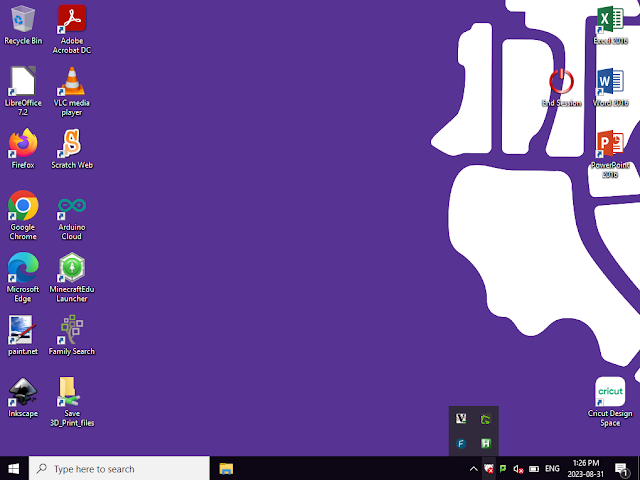
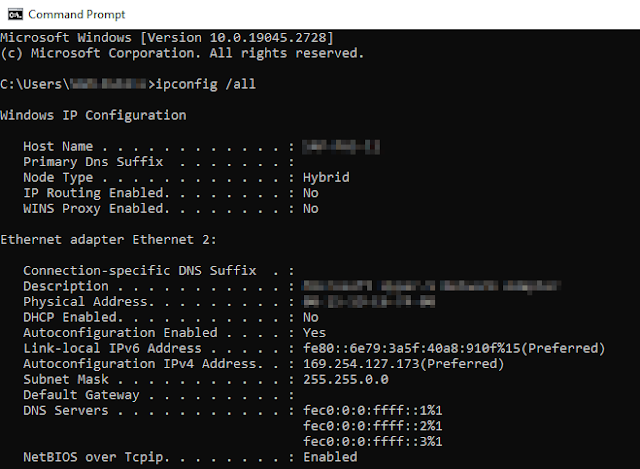
So recently a system running Windows 10 22H2 just lost it's network connection on boot up.  The PXE boot worked fine but when the system got into windows it would just get a 169.X.X.X address when running a ipconfig


Upon further investigation it appears the RPC Server has stopped working


While there are a number of reasons why this can happen, the fix that worked for me was restarting the services in order.

Restart Services

  • Application Layer Gateway Service – Manual Triggered
  • Network Connections – Manual
  • Network Location Awareness  –  Manual
  • Plug and Play – Manual
  • Remote Access Auto Connection Manager – Manual
  • Remote Access Connection Manager – Automatic
  • Remote Procedure Call (RPC) – Automatic
  • Telephony – Manual

After that run these command as administrator though powershell or cmd prompt

net localgroup administrators localservice /add

net localgroup administrators networkservice /add

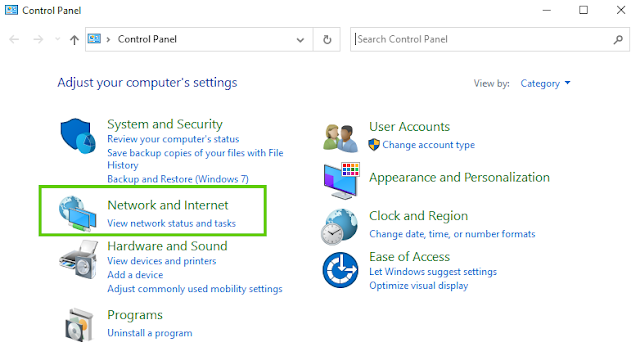
Then in explorer go to the networking settings in control panel


Then go to Network connections and run the diagnose and repair.


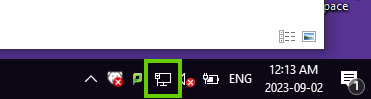
Once that has been run, and the system is rebooted you should get an ip address and the network icon should be showing up in the taskbar.


Sources

https://www.thewindowsclub.com/the-dependency-service-failed-to-start-on-windows-10#google_vignette

Friday, June 23, 2023

Using Powershell to Fix AD Time Drift.


Time syncing AD Controllers is an on going bane.  Since I've been working as a system administrator; Active directory time sync has been a problem in most places I've been; with the system time being off by a few seconds up to 15 minutes.  

I wrote a post back in 2001 about fixing AD Time drift using a registry entry for clients and servers, which has worked fine for the most part.  Recently though the power was shut off in our main data center; so we shut down all our systems for the night till power was to be restored because we didn't have a UPS systems that could run for the length of the outage.  

When the outage was over and I turned the servers I had one active directory controller off by 5 minutes and the other off by 7 (using my watch as the source for time).  I fixed the clocks manually so they were within a few seconds of each other but wanted a better solution.

So I decided to write a powershell script to update the time.  On the AD Controllers in my org W32tm is stopped and not running.  So I am going to setup task scheduler to run this on a schedule that I have yet to determine.  For now though I've written this script; where $TimeServer is a network time server such as time.windows.com or time.apple.com or some other ntp server or IP.

updatetime.ps1

net start W32time

W32tm /config /manualpeerlist:$TimeServer,0x8 /reliable:yes /update

w32tm.exe /config /update

W32tm /resync /force

net stop W32time

So you have to make sure powershell scripts are permitted to run.


To run the powershell script with task scheduler I use a bat file to execute it.

@ECHO OFF

powershell.exe -executionpolicy remotesigned -File $PATH/$TOSCRIPT.ps1

Now after running my powershell script on both AD Controllers they are now in perfect sync.


Sources:

https://optionkey.blogspot.com/2021/01/ad-time-drift-and-how-to-fix-it.html

https://www.checkyourlogs.net/windows-time-sync-the-fixes/

https://learn.microsoft.com/en-us/services-hub/health/remediation-steps-ad/configure-the-root-pdc-with-an-authoritative-time-source-and-avoid-widespread-time-skew

Thursday, March 31, 2022

How to disable Windows updates in Windows 10 Pro


Open the services app and disable the windows update service.


Then Right Click and Get the Properties of the Windows Update Service and change the startup type to Disabled.  Then apply the changes and hit ok.


Now we are going to add a registry entries to disable the Windows Update Medic Service 

Open the Registry Editor


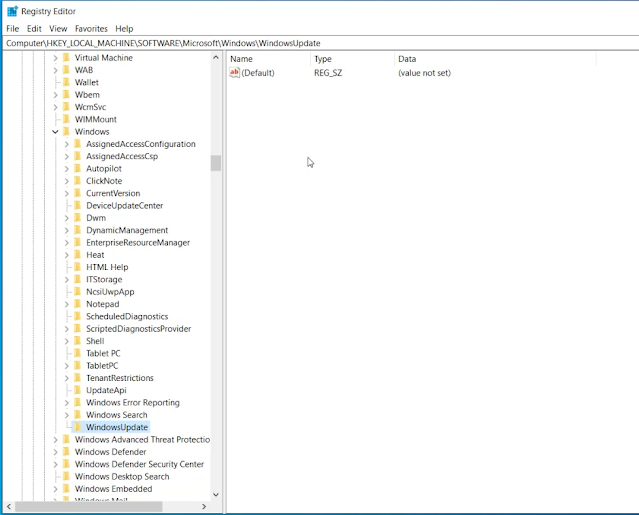
Go to "HKEY_LOCAL_MACHINE\SYSTEM\CurrentControlSet\Services\WaaSMedicSvc"


Modify the "Start" DWORD Entry and change it's value to 4


This will disable the Windows Update Medic Service

Next we will go to

 "HKEY_LOCAL_MACHINE\SOFTWARE\Policies\Microsoft\Windows"
Right click on the Windows folder and select new Key


  1. Name the new key WindowsUpdate and press Enter.


Now make another new Key under WindowsUpdate call it AU


    Right-click the AU key, select the New, and choose the DWORD (32-bit) Value option.


    1. Name the new key NoAutoUpdate and press Enter.


    1. Double-click the NoAutoUpdate key and change its value from 0 to 1.


    Now go to "HKEY_LOCAL_MACHINE\SOFTWARE\Policies\Microsoft\Windows"

    Right-click the Windows (folder) key, select New and choose the Key option. Name the new key WindowsUpdate and press Enter.


    Right-click the newly created key, select the New submenu, and choose Key and name the new key AU and press Enter


    Right-click the AU key, select New and select the DWORD (32-bit) Value and name the new key AUOptions.


    Double-click an AUOptions and change the value to 2:


    The following are the different value for AUOptions
    • 2 — Notify for download and auto install.
    • 3 — Auto download and notify for install.
    • 4 — Auto download and schedule the install.
    • 5 — Allow local admin to choose settings.
    • 7 — Auto Download, Notify to install, Notify to Restart.
    • These options are the same as the Group Policy settings, and option 2 is the closest to disable Windows Update permanently.

    Now your computer will not be able to update Windows.


    You can leave it here but below are entries you can make to your local group policy.

    Go to "Computer Configuration -> Windows Components -> Windows Update" Open "Configure Automatic Updates"


    Change the setting to "Disabled" and apply the setting then hit ok.


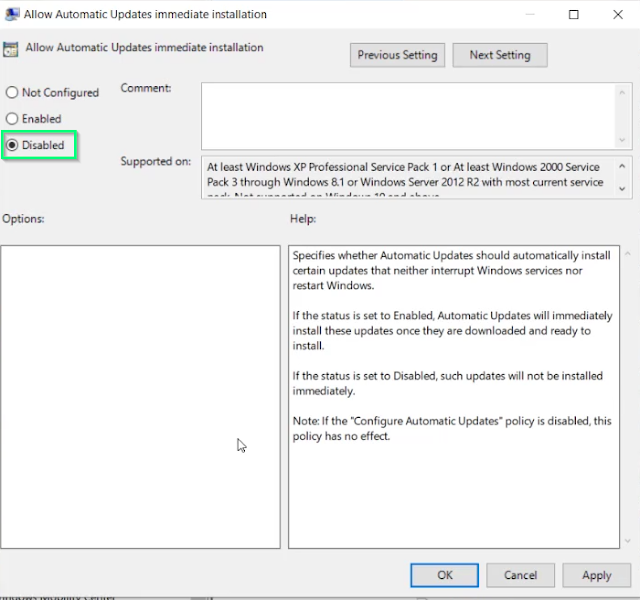
    Next we will edit the "Allow Automatic Updates immediate installation"


    Set the setting to Disabled.  Apply the setting and hit ok.  

    Please note that if you edit the "Configure Automatic Updates" setting and change it to "Disabled" this setting should have NO effect.


    That is it your system should no longer receive windows updates. I will be posting a script to apply this shortly. In the mean time I have also produced a video if you want to see the full process https://youtu.be/Iyx1jkMZYKY

    Thursday, March 10, 2022

    Disable windows server automatic updates

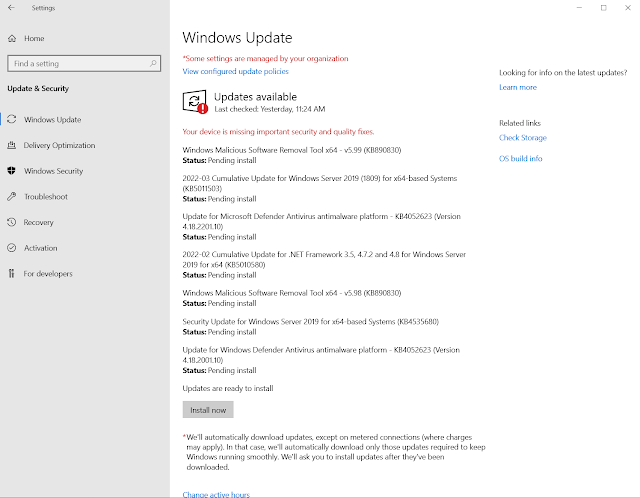
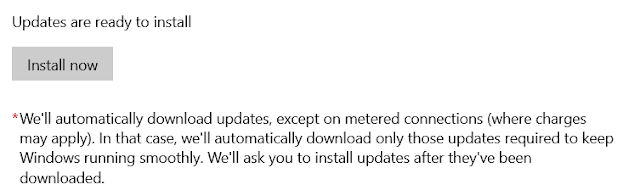
    Automatic updates can be a huge bane for IT Administrators, especially if it is a server you have to have up and you don't have any scale to keep the service up while your reboot servers.  I have some specific server I have to manage that get rebooted at specific times but there are some services that have to shutdown manually or the software on the server gets very cranky.  To that end here is how you go about disabling windows update by changing Windows Update to manual.  By default Automatic updates are automatically configured as shown below.


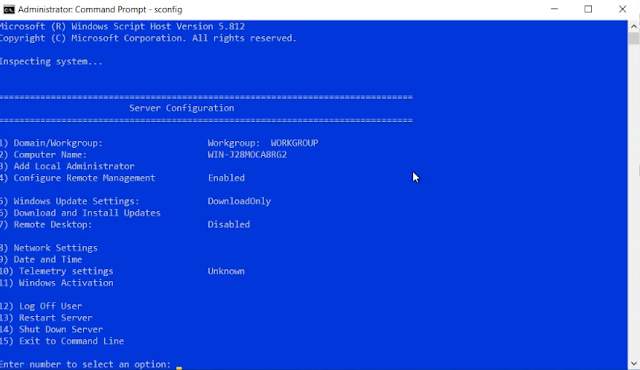
    There are two snapins we are going to work with SCONFIG and GPEdit an we are going to change all the windows updates to manual.  Type the command SCONFIG in run, powershell, or cmd 

    1 – SCONFIG

    1. Open a CMD PROMPT as an Administrator
    2. Type SCONFIG and press ENTER
    3. Type 5 and press ENTER
    4. Type M for Manual (or D for Download Only) and press ENTER


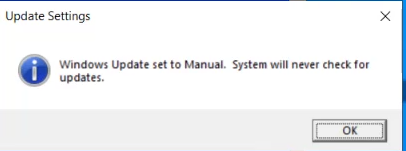
    When the computer is finished you will get a prompt saying updates are sent to manual.


    GROUP POLICY


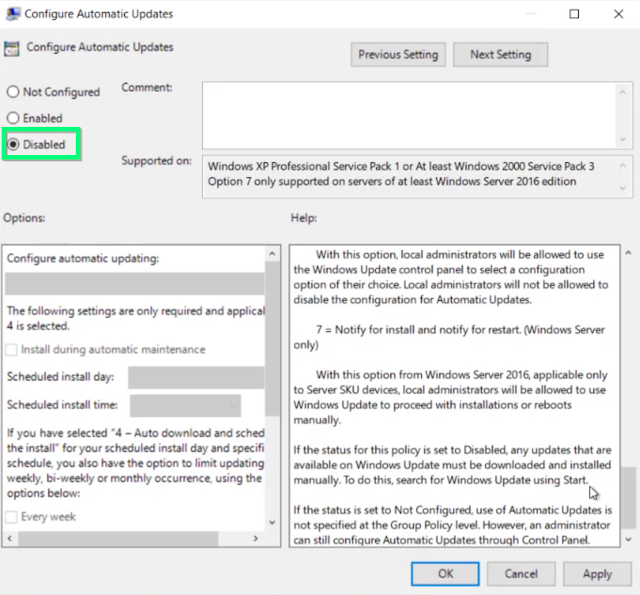
    1. Click START and type GPEDIT.MSC and press ENTER (or open the GROUP POLICY MANAGEMENT CONSOLE and open an existing GPO or start a new one)
    2. Expand COMPUTER CONFIGURATION > ADMINISTRATIVE TEMPLATES > WINDOWS COMPONENTS > WINDOWS UPDATE
    3. Double click on CONFIGURE AUTOMATIC UPDATES
    4. Select either DISABLED (equivalent to MANUAL) or ENABLED and select what you would like from the drop down list


    Then hit apply and ok.
    1. Now Double-click "No auto-restart with logged on users for scheduled automatic  updates Installation”


      Select the Enabled option and click “Apply.”

    2. Then enable the Turn off auto-restart for updates during active hours


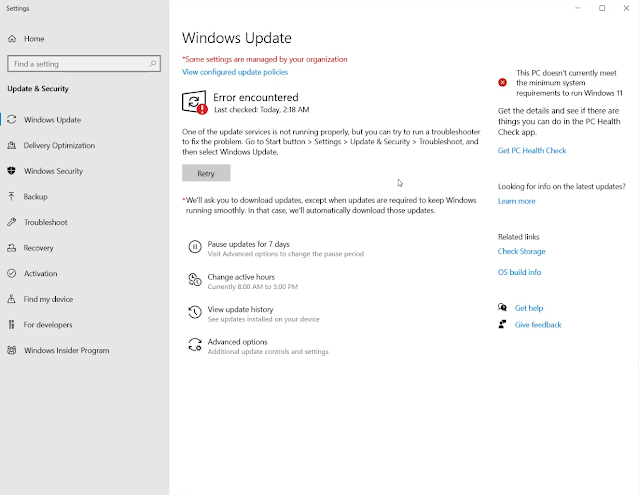
      That's it.  If you go into your windows update, you should now see the updates are paused.
      That's it Windows updates should be now disabled.

      You can view the YouTube video here.  https://youtu.be/vQ4fBBlbTdA


    How to make google calendar more secure

    With the rash of spam and phishing attempts lately, I would recommend making the following changes to your google calendar settings to secur...