Showing posts with label Ubuntu. Show all posts

Thursday, July 23, 2026

Crontab changes in Linux 26.04 vs previous versions

I use a small Linux server to control the turning on and shutting off our client stations with crontab.  The system I typically use is Ubuntu Server running on Hyper-V, I setup the server, enable WOL to turn them on and NET RPC to shut them down. I have been doing this since ubuntu 12.04.  and this is the first time where I've had to reconfigure my scripts to make it work.

Here is a sample of the crontab on versions of Ubuntu Linux (before 26.04)

00 21 * * 1-4 $USER    $PATH/$Script.sh

My crontab is setup so at 9:00 pm on Monday though Thursday the script "$Script.sh" is run as $User that is located located at $PATH 

However in Ubuntu 26 it throws an error when running the script as the $USER, so once I removed the user from the crontab now looks like this.

00 21 * * 1-4 $PATH/$SCRIPT.sh

Terminal of Cron throwing an error


Created a log file to catch the error.  Add >> /$PATH/$LOGFILE.log to crontab


After looking at the log it is erroring out on the user?

Once the error is resolved


After troubleshooting and finding out that the user in the crontab was causing the error; I removed the user and crontab started running the scripts.  I was able to acknowledge that the script was running as the log filled up with the commands.  I was going though documentation for Ubuntu 26.04 and I either missed or I can't find the changes made in crontab.  It is interesting the little changes that though such a big monkey wrench into a system that really hasn't changed for years.  At any rate the issue has been resolved and the system is running the scripts as expected.

Friday, September 11, 2020

Installing a small footprint version of Ubuntu Desktop for Ubuntu Server

When I install a Linux server like Ubuntu Server, I occasionally do require a desktop but I don't want all the additional software that comes with the gui like LibreOffice, Thunderbird, etc.  Don't get me wrong, this is all great software for a client desktop but it isn't something that one might want on a server.  To achieve a small desktop footprint I do the following:

  • Get and install updates
    "sudo apt-get install update"
  • Get and install upgrades
    "sudo apt-get install upgrades"
  • Install lightdm
    "sudo apt-get install lightdm"
  • Install Unity
    "sudo apt-get install unity"
  • Install ubuntu desktop

    *** Important update ****
    When I went to setup a new lite version of ubuntu server when I tried to use the latest version of Ubuntu Server 20.04.02 and ran 

    "sudo apt-get install --no-install-recommends ubuntu-desktop"

    I got the following error

    "Command line option --no-install-recommends is not understood in combination with other options"

    In previous versions of Ubuntu the command works fine such as in 16.04.07 but in Ubuntu 20.04.02 I had to use

    "sudo apt-get install ubuntu-desktop-minimal"

    So please note this important change if you are trying to create a minimal version of a linux desktop; this may also affect other distros.

    Then continue with the other installs


    "sudo apt-get install compizconfig-settings-manager"
    "sudo apt-get install firefox"
    "sudo apt-get install net-tools"

If you want to pin the terminal application to the launcher, but the launcher won't show up in your applications though the gui.

No Terminal Application showing up

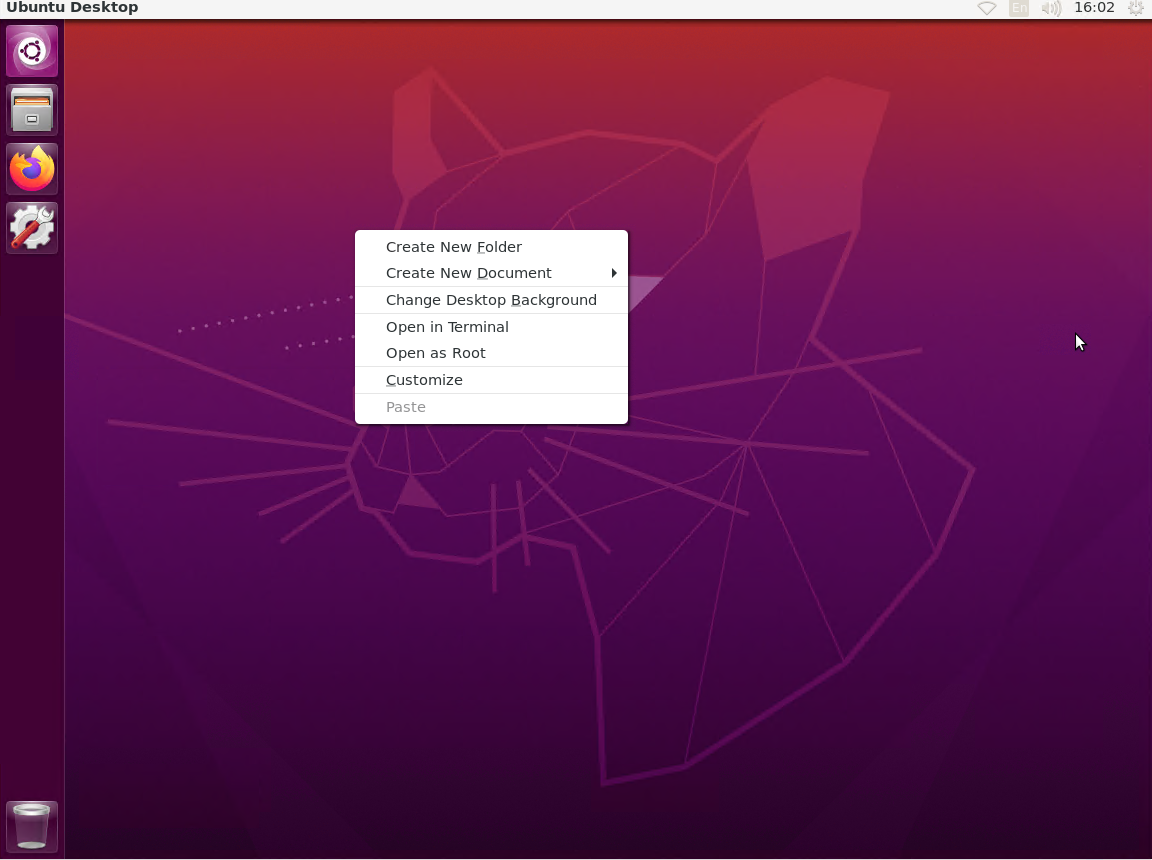
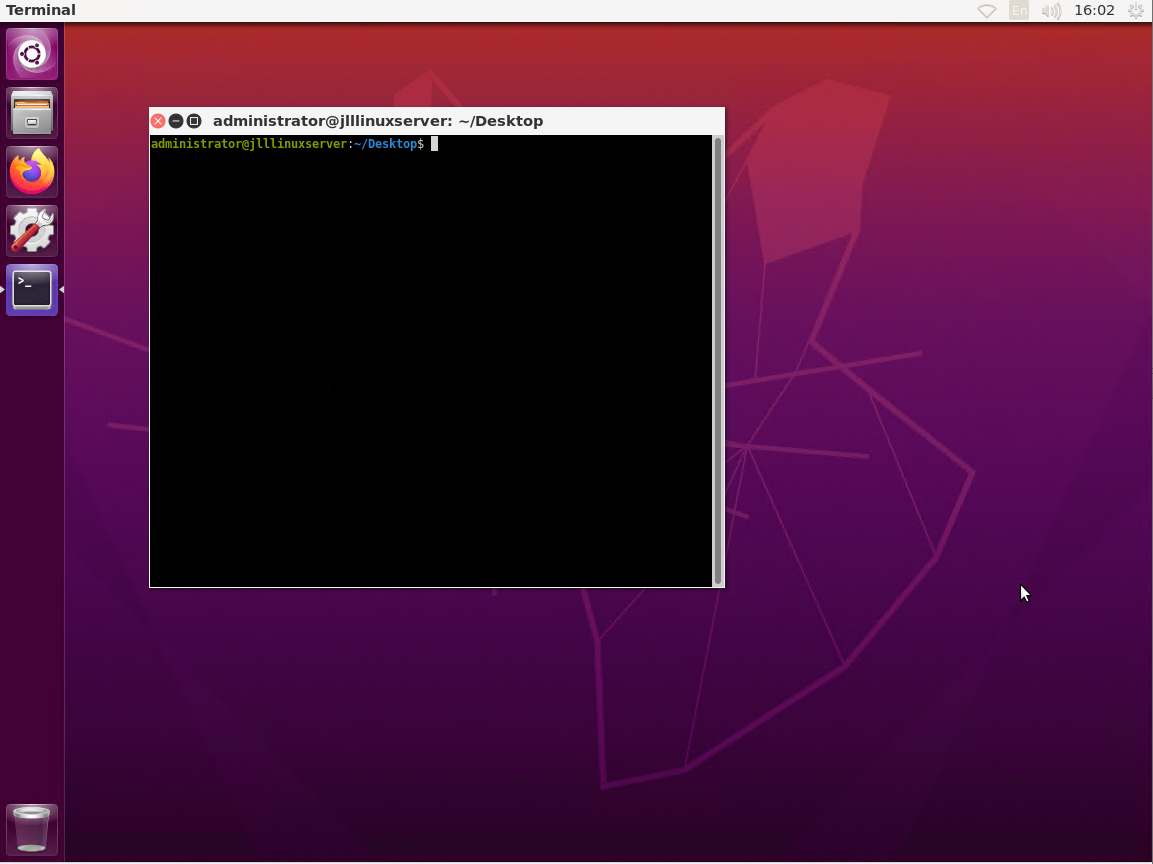
To add the terminal to the launcher is to right click on the desktop and open the terminal


Once the terminal is open right click on the terminal in the launcher and lock to launcher


Friday, September 04, 2020

Setting up Papercut print release system for Linux

Ramsey Public Library Envisionware Print Release System
In December of 2019 an organization was expanding and opening a new location.  This post is part 1 of a 4 part series which will go though the investigationThey offer public printing services and were using a public printing solution from Envisionware called LPTONE.  I did a previous post on this software in 2018 with setting up a release station with the Envisionware LTPONE software.    

However after investigating upgrade options and the cost for adding an additional location and coinop for the release station it was not a cost effective solution since new hardware would be required for both locations and there was just not the budget for it.  Not to mention the difficulty of managing two release systems that were non-centralized.


Ramsey Public Library uses an envisionware print release system, I know from the experience I've had with it; it's ok but it is quite lacking and expanding they system it is currently on to windows server from windows 10 pro would be quite the expense as it would require more then 2 machines with server if we ever got over 30 clients and we were right on the cusp of being.  


ITC 5400 COINOP
The organization had service contracts with Toshiba for managing the maintenance and materials of their printers which also included a ITC 5400 coinop, which was attached to one of the copiers for paid copies; so I investigated if that company had any kind of print management software that could use the same coinop and if the coinop could do double duty for the coping and the printing.  After contacting ITC and verifying that yes indeed the 5400 coinop can do double duty for the printing and coping payment; however they use a 3rd party software for the print management called papercut.

Now Papercut is a centralized print management solution, that works on Linux or Windows and is actually pretty light on system requirements.  At a glance you would think for just managing client side printing the NG version would all that is required however it didn't quite do all that was desired from the printing side so it was decided to go with the MF version.  The project started with a decision to go with a Ubuntu 18 LTS virtual server on Hyper-V to host the papercut MF software.


You can view Papercut's System Requirements I found on Hyper-V these settings work pretty good for a workgroup of of about 40 clients.


Processor: 2 Core


Minimum 4GB of Ram (max of 16GB) Dynamically Assigned


Disk Space: 
3GB for Log, 100GB free disk space, between 60 and 500GB recommended.


Here are the CDN links for the papercut software if you want to try it yourself.


Linux:

https://cdn1.papercut.com/web/products/ng-mf/installers/mf/19.x/pcmf-setup-19.1.5.52403.sh

Setting up Papercut on Ubuntu Server 18.03 LTS / 20.04 LTS


There are a couple things you need to know before you can install papercut on Linux.

  1. The "ROOT"/Administrator must be called papercut
  2. The user must have sudo access for the install
So when you install your username must be papercut, otherwise you will have serious issues with your install, with permissions etc.  

For this install I'm going to use the following credentials:

  • username: papercut
  • password: papercut
and I am installing open ssh and powershell.

Once we have finished our base install we will need to install the following (for a slimmed  down version):
  • Get and install updates
    "sudo apt-get install update"
  • Get and install upgrades
    "sudo apt-get install upgrades"
  • Install lightdm
    "sudo apt-get install lightdm"
  • Install Unity
    "sudo apt-get install unity"
  • Install ubuntu desktop
    "sudo apt-get install --no-install-recommends ubuntu-desktop"
    "sudo apt-get install compizconfig-settings-manager"
    "sudo apt-get install firefox"
    "sudo apt-get install net-tools"
If you don't want a slimmed down version just use "sudo apt-get install ubuntu-desktop"
  • restart
  • Install and configure cups
    "sudo apt-get install cups (should be already installed)"
  • add the papercut user to the printer admin for cups
    sudo usermod -a -G lpadmin "$USERNAME"
  • Install Samba
    "sudo apt-get install samba"
  • add the papercut user to the sudoers list
    sudo vi /etc/sudoers
    papercut ALL=(ALL:ALL) ALL
  • Install papercut
    chmod 777 "PATH TO PAPERCUT".sh
    sudo ./"PAPERCUT INSTALLER"
You can watch a video on the full process on my youtube channel here. https://youtu.be/9re8L6uWc94


Tuesday, November 25, 2014

How to install and Remove Java on Ubuntu

Install Oracle Java in Ubuntu by PPA 


This provides instructions on how to install the Oracle Java JDK (which includes Java JDK, JRE and the Java browser plugin). The PPA provides the full Oracle JDK package. 

To add the PPA and install Oracle Java 7 in Ubuntu use this: 


sudo add-apt-repository ppa:webupd8team/java

sudo apt-get update
sudo apt-get install oracle-java7-installer 

To add the PPA and install Oracle Java 8 in Ubuntu use this: 

sudo add-apt-repository ppa:webupd8team/java
sudo apt-get update
sudo apt-get install oracle-java8-installer 


If you want to see your version of java run the following command in the terminal: 

java -version

It should return something like this 

Java version "1.7.0_51" (version 7) or "1.8.0" (version 8) 
Java(TM) SE Runtime Environment (build 1.7.0_51-b13) - version 7
Java(TM) SE Runtime Environment (build 1.8.0-b132) - version 8
Java HotSpot(TM) 64-Bit Server VM (build 24.51-b03, mixed mode) - version 7
Java HotSpot(TM) 64-Bit Server VM (build 25.0-b70, mixed mode) - version 8 

If the Java version in use is not 1.7.0, you can try to run the following command in the terminal: 

sudo update-java-alternatives -s java-7-oracle 

The installer requires you accept the Oracle license before the installation begins. This is only required once. If you need the installation to be automated, you can run the following command to automatically accept the Oracle license: 

Version 7

echo oracle-java7-installer shared/accepted-oracle-license-v1-1 select true | sudo /usr/bin/debconf-set-selections 

Version 8 

echo oracle-java8-installer shared/accepted-oracle-license-v1-1 select true | sudo /usr/bin/debconf-set-selections 

Setting Java environment variables To automatically set up the Java 7 environment variables, you can install the following package:

sudo apt-get install oracle-java7-set-default 

 If you've already installed oracle-java6-set-default or oracle-java8-set-default, they will be automatically removed when installing oracle-java7-set-default (and the environment variables will be set for Oracle Java 7 instead). Switch back and forth between Java 7 and 8

Switch to Java 7

sudo update-java-alternatives -s java-7-oracle 

 And, switch back to Oracle Java 8 using: 

 sudo update-java-alternatives -s java-8-oracle 

If you get some warnings when running these two commands, ignore them.


How to Remove Oracle Java To remove java on your system and want to go back to OpenJDK or remove java completely, all you have to do is remove the Oracle JDK7 Installer and the previous Java (OpenJDK, etc.) version will be used: 

sudo apt-get remove oracle-java7-installer 

sudo apt-get 
remove oracle-java8-installer    


Special thanks to webupd8.org for their great tutorial for which this is based.

Tuesday, November 18, 2014

Disable Encryption on Ubuntu VNC Server

In Ubuntu starting with 14.04 a change was made in the VINO server (VNC) to have encryption on by default. Of course this breaks many of the VNC Clients on windows, so to allow windows users access to the linux server via VNC there are 2 ways to update the VINO server to disable encryption.


Option 1 - Command Line:

edit ~/.bashrc and on the last line add

dconf write /org/gnome/desktop/remote-access/require-encryption false

save the file and reboot the system

Option 2 - GUI

On the linux server open the terminal and install dconf-editor

sudo apt-get install dconf-editor 

Open the program it Navigate to: 

org  >>  gnome >> desktop >> remote-access and Disable "require encryption"


After doing this your windows VNC client will have no problem connecting to the Ubuntu Server using Screen Sharing.

Troubleshooting Tip:  If your having problems with the screen redraws make sure your using the XORG driver.  Using the proprietary driver can cause redraw issues with VNC

How to make google calendar more secure

With the rash of spam and phishing attempts lately, I would recommend making the following changes to your google calendar settings to secur...