Saturday, November 23, 2019

How to enable slip and receipt printing on Horizon ILS

This is a how to for enabling receipt and slip printing in Horizon.  This article assumes that the station
you are enabling this on has a network or local receipt printing installed.


Login to horizon and go to Circulation -> CKO Window


Go to CKO Window -> Tools -> Receipt Options.


This is a how to for enabling receipt and slip printing in Horizon. This article assumes that the station you are enabling this on has a network or local receipt printing installed.
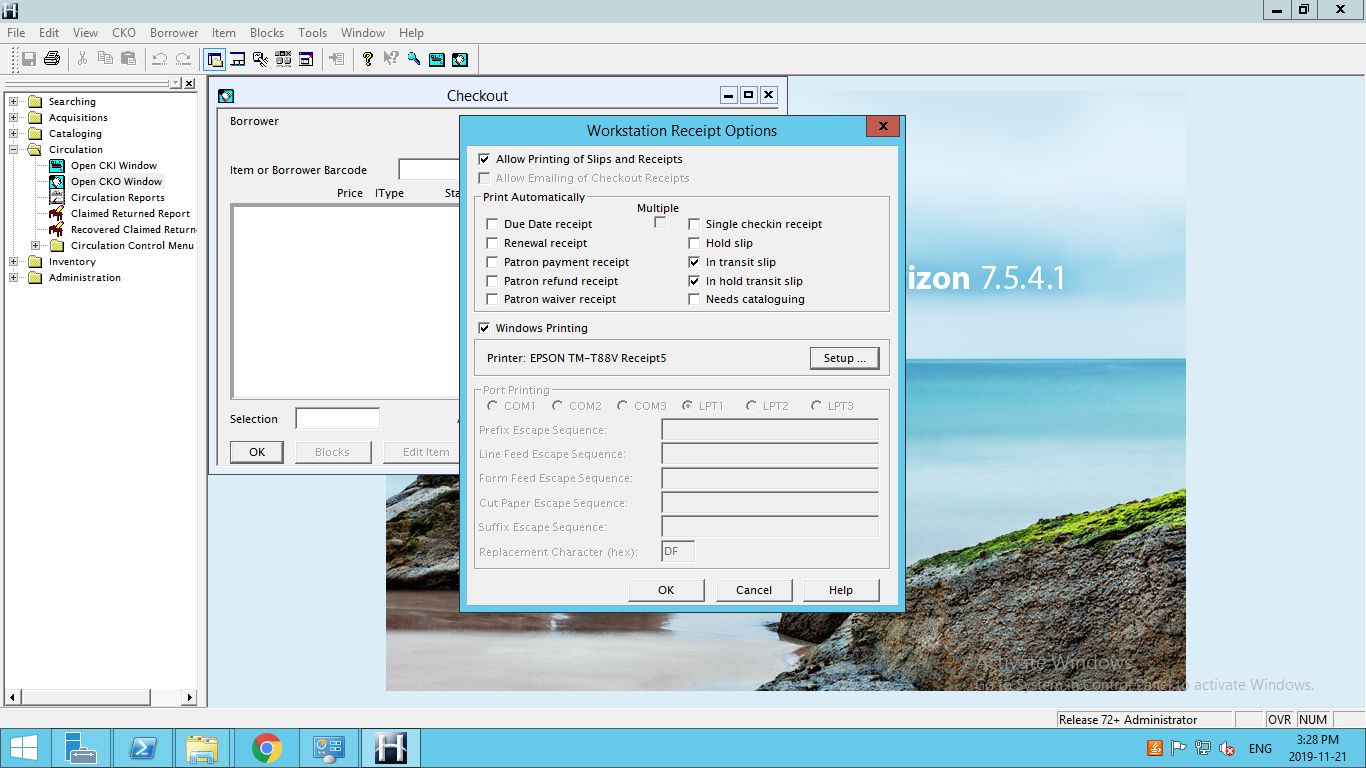
Enable “Allow Printing of Slips and Receipts”


Select the Slips you want to print as shown below.


Enable printing in Windows -> select the receipt printer you want to use.

NOTE: That you may get a font substitution warning.  You must resolve this before being able to continue.  I prefer using Arial as a substitute font.


Select the receipt printer you want to use


Now you should be able to print slips and receipts in Horizon.

Wednesday, July 24, 2019

Kobo Arc - Fixing a startup boot loop

Kobo Arc stuck in a boot loop
A friend of mine had their Kobo Arc suddenly stop working.  The device would start booting then not make it past the boot animation (hang and not make it to the OS).  Of course they followed all the typical troubleshooting found on Kobo's Website with the link below.

https://help.kobo.com/hc/en-us/sections/360002811734-Troubleshoot


However this doesn't help typically when you can't get to the OS level and my friend even booted into fastboot/recovery and did a full Factory Reset of the device.

However this doesn't help you if there is an issue with a corrupt file or if the built in storage is starting to degrade.  Remember it's 2019 and this device was released November 2012.

However I like a challenge and had a look at it.  Since it could get into fastboot we have some options.

There are Roms on XDA we could play with and help us troubleshoot

https://forum.xda-developers.com/showthread.php?t=2507886

We can re-flash the OS and see what happens which can be found here

https://help.kobo.com/hc/en-us/articles/360019865014-Manually-update-your-Kobo-Arc-software

We chose to just to re-flash the stock OS, which is fine by me, but we have to have an android dev setup on a device, which I happen to have.  If you don't you will need a PC with the Following setup

Download and Install the Android Dev Studio

https://developer.android.com/studio

Once Completed Under Appearance & Behavior -> System Settings -> Android SDK -> enable the Google USB Driver

Enable Google USB Driver
Now you can get the ADB tools from the SDK Manager but for my workflow and using the command line I like putting everything in one place so I went and downloaded the Platform-tools from the link below and extracted it to C:/ and renamed the folder to adb.

https://developer.android.com/studio/releases/platform-tools.html

Open CMD prompt as an Administrator and CD to C:\adb  (Keep this open were going to need it later)

ADB Directory for working out of for flashing
I downloaded the Stock ROM for the Arc from Kobo's website and copied it from my downloads folder to the adb folder on C:\ as shown below.

ADB Directory on C:\


Then I booted the Arc up into fastboot and connected it with a good USB cable (I had issues with 2 cables hooking up the kobo as it was only charging and not detecting the adb connection).

IMPORTANT!!!  Windows should see the Kobo in fast boot mode but it won't be accessible.

Select Apply Update From ADB
Once you select apply update from ADB you will see the following screen on the kobo

Now send the package you want to apply to the device with "adb sideload "
From your administrator command prompt window type the following command

adb sideload "zeus-ota-781.zip"

If your kobo is seen by Windows, you will see the following

ADB Push
Once that has been pushed to the device it will verify and either install or abort installation.  In my case it installed the firmware without an issue and we have a working Kobo Arc.

A working Kobo Arc

Tuesday, July 23, 2019

Where have all the Adobe Updates Gone?

Adobe Creative Suite Patches
For anyone not on creative cloud and are holding on to their old Adobe Creative Suite versions for dear life, having the original disks or images of the disks are fine but there are updates that are helpful for making the programs more stable.  To that end and until Adobe takes these links down you can get your software updates for your old creative suite programs from these two links.


Mac Adobe CS Updates
https://supportdownloads.adobe.com/product.jsp?product=39&platform=mac

Windows Adobe CS Updates
https://supportdownloads.adobe.com/product.jsp?product=39&platform=windows

Wednesday, July 03, 2019

Adding mx records to a webhost for sendmail use for Google Apps & Office 365

If your a google apps user or an organization that uses google apps and you would like to use a sendmail form on your 3rd party hosting provider such (greengeeks, bluehost, justhost, etc) you will need to add the following information to your hosting provider to allow your gsuite email to accept mail from the webhost.

If you don't do this your host will try to deliver the mail locally as the default is to associate all domain settings with the host, typically with a @ mx record for the localhost.  Below is a sample failed email from a webhost without the google mx records setup.

EMAIL FAILURE SAMPLE

Return-Path: <>
Delivered-To: webhostusername@mtl-node3.websitehostserver.net
Received: from mtl-node3.websitehostserver.net
by mtl-node3.websitehostserver.net with LMTP id 8GQACpV7fVynYi8AqIeWRg
for ; Mon, 04 Mar 2019 14:25:09 -0500
Return-path: <>
Envelope-to: webhostusername@mtl-node3.websitehostserver.net
Delivery-date: Mon, 04 Mar 2019 14:25:09 -0500
Received: from mailnull by mtl-node3.websitehostserver.net with local (Exim 4.91)
id 1h0tD3-00D8fw-3q
for webhostusername@mtl-node3.websitehostserver.net; Mon, 04 Mar 2019 14:25:09 -0500
X-Failed-Recipients: yourdomainemail@domain.ca
Auto-Submitted: auto-replied
From: Mail Delivery System
To: webhostusername@mtl-node3.websitehostserver.net
Content-Type: multipart/report; report-type=delivery-status; boundary=1551727509-eximdsn-1324812479
MIME-Version: 1.0
Subject: Mail delivery failed: returning message to sender
Message-Id:
Date: Mon, 04 Mar 2019 14:25:09 -0500
--1551727509-eximdsn-1324812479
Content-type: text/plain; charset=us-ascii
This message was created automatically by mail delivery software.
A message that you sent could not be delivered to one or more of its
recipients. This is a permanent error. The following address(es) failed:
  yourdomainemail@domain.ca
    No Such User Here
--1551727509-eximdsn-1324812479
Content-type: message/delivery-status
Reporting-MTA: dns; mtl-node3.websitehostserver.net
Action: failed
Final-Recipient: rfc822;yourdomainemail@domain.ca
Status: 5.0.0


To enable google mail forwarding we need to setup mx records that point to google to do this you go into you login to your cpanel


You need to modify your domain zone on the host.  Select Zone Editor


If there are any MX records setup, delete them.  Then add the following using zone editor. (change domain.ca to your domain).  You can also reference this google kb https://support.google.com/a/answer/140034?hl=en


Name TTL Class Type Record
domain.ca 14400 IN MX Priority: 1
Destination: aspmx.l.google.com
domain.ca 14400 IN MX Priority: 5
Destination: alt1.aspmx.l.google.com
domain.ca 14400 IN MX Priority: 5
Destination: alt2.aspmx.l.google.com
domain.ca 14400 IN MX Priority: 10
Destination: alt3.aspmx.l.google.com
domain.ca 14400 IN MX Priority: 10
Destination: alt4.aspmx.l.google.com

then save your changes.  You should now be able to send email to within your organization, but to make it a little bit more secure you should login to your google admin account and limit the scope of your third party hosted server.  To do that go to


Apps > G Suite > Settings for Gmail > Advanced settings

Add a SMTP Relay service

Now you would need to verify that your host supports pear php if you want to use smtp authentication as for TLS you will need to verify your host supports that as well. 


The same applies to Office 365 if your using it 


NameTTLClassTypeRecord
@3600INMXPriority: 1
Destination: MS=ms XXXXXXXX 
**Note:**This is an example. Use your specific Destination or Points to Address value here, from the table in Office 365. 
How do I find this? 

There are other settings you can include such as SPF if your host supports it.

These settings should allow you to email use php sendmail for google apps and office 365.

References:

https://support.google.com/a/answer/140034?hl=en
https://docs.microsoft.com/en-us/office365/admin/get-help-with-domains/create-dns-records-at-any-dns-hosting-provider?view=o365-worldwide
https://docs.microsoft.com/en-us/office365/admin/dns/create-dns-records-at-godaddy?view=o365-worldwide

Tuesday, July 02, 2019

How to renew the Apple Push Certificate for Cisco Meraki MDM

With Apple equipment when used with a MD such as Cisco meraki you have to update your push certificate every year otherwise your connection between the devices and your MDM will break and then you will be doing manual updates until you get the devices reset with your MDM.  Here is how you update your apple push certificate to your apple devices before the expiration date so you don't lose the connection between your MDM and your apple devices.


1 - Login to your Meraki MDM


2 - Select MDM Network -> then under the Organization menu under "Configure" select MDM


3. Once here select the Update/Renew Certificate button.


4.  Download your CSR File.  If you don't keep a clean house (or download folder) note the name and date of the file as it is very important.  In my case it is "Meraki_Apple_CSR (4).csr"


5. Then click on the link for the Apple Push Certificate Portal and login with the ID you are going to use or using with the MDM.  (It is the ID is tied to the CSR) so in this case mdmaccount@domain.ca.  Don't forget that you will need your 2FA device to be able to login.


6.  Select Renew on the Certificate you want to renew.  Then upload the CSR; this is the file from step 4 - "Meraki_Apple_CSR (4).csr"


7.  Then once done you will download your new Certificate to use with your MDM.  Again make note of the name and date if you don't keep things tidy.  In my case it is "MDM_ Meraki Inc._Certificate (1).pem" 


8. Now go back to your meraki mdm and enter in the email address and upload the certificate we got from apple (MDM_ Meraki Inc._Certificate (1).pem


9. Save the settings (this is usually on the bottom of the page or on the bottom right)

10.  Now your certificate expiry should be from 1 year as shown below


You can view a youtube video of the process here


References:

Thursday, June 13, 2019

Configuring Android Devices with Cisco Meraki

A while ago I did a post on how to setup iOS with the Cisco Meraki MDM, and now I'm going to setup 16 Azus Zenfone 4 Max with the Cisco Meraki MDM.  I did do a post on how to setup android for work with the Feronics Deep Freeze MDM; Now given the major issue with this MDM that we found is it would take hours for the MDM to sync changes if it did at all.  My organization thought we could save some money by going with them and it was ok at first taking about 15/20 minutes for changes to sync.  After a while though it turned into hours.  The differences in the Meraki MDM settings between Android and iOS are determined by the nature of the platforms such as the close source nature of iOS; there are things we can do to iOS that we can't on android so it takes a little bit more time to setup android devices.  However for 80% of the features everything we need is there in Meraki, and the rest of the options that we want are local to the phone so it takes more of my time to setup but once setup and properly documented should be very manageable.

The setup for the android phones are for the purpose of being able to add and remove applications quickly, and these devices are to be used for makerspaces, and by non device owners, so we want to make sure organization information and accounts can not be used or accessed unless it's something we want them to be able to allow.  IE - No email access via app, restricting add/removing accounts.  Allowing the use of the camera and connecting to a computer to transfer video/pictures.

First I'm going to go over the settings for the Cisco Meraki

first follow this guide Cisco has created.  It is great documentation for setting up Android for work, up until you choose using a Google Managed Domain.  This guide will cover setting up a Google Managed Domain with Meraki.

Step 1 - Go to Orgainization → MDM


Step 2 - Generate and Android EMM Provider selecting Google Managed domain.


Step 3 - To get the token you will need to login to your google admin and generate the token.  Once you have done that you will add the domain and the token to your Meraki.


Step 4 - Then setup your meraki with the info provided and enroll your organization.


Step 5 - Configure Meraki Settings for Android.  Go to System Manager → Settings


Step 6 - Add Profile


Step 7 - Add Device profile (default)

Step 8 - Configure the Profile.  For the Android setup I have 8 different settings for the Android profile


Step 9 - Restrictions


Step 10 - Passcode Policy

Step 11 - WiFi Policy (you can have as many as you need)


Step 12 - Privacy

Step 13 - Android Device Owner

Step 14 - Android Restrictions


Step 15 - Android System Apps

This can be setup to be black or whitelist.  For the purposes I need using the whitelist is preferred.


Step 16 - Setting Up Devices

You have 3 options when configuring Android Devices.
https://developers.google.com/android/work/overview

  1. A work Profile (typically used when a user has a personal device)
  2. Device Owner (typically used for devices owned by the organization)
  3. Knox Enrollment (More info here)

Now the one I'll be using for these devices are device owner because I want complete control of the device (please refer to the Android Enterprise Deployment Guide for exact differences).  When you go to assign the phone an account type in afw#meraki then put in the 10 digit code or scan the QR Code.  This will add the device to the Meraki MDM.  You will be prompted to add an account; the default will be Android Enterprise, but because this is not a meraki managed account, we need to use a different account to adding the device to the MDM which I have pre-configured in the Google Admin Console


Step 17 - If the device is not new Factory reset the device.  Select the language as English US and English Canada

Step 18 - Set Internet Connection for Only WiFi Connection

Step 19 - Connect to a network

Step 20 - Accept Privacy Rights Terms

Step 21 - Setup As a New Device

Step 22 - Put in afw#meraki for the Google Account.  This will start the android for enterprise enrollment.

Step 23.  Sign in with an domain account you want associated with the device.

Step 24 - Accept the terms from the Google Device Admin and Install

Step 25 - Accept all elevation permissions from meraki and google device admin.  Go to Settings -> Accounts and Remove the Android enterprise account.

Step 26 - Run all system updates applicable and install

Step 27 - Double check the keyboard by going Settings -> Language and Input -> Virtual Keyboard.  You should See ZenUI Keyboard.  Go to Manage keyboard and Disable Google Voice Typing. (This you will have to fix after security patches seems to been a ZenUI issue with Meraki)

Step 28.  Disable Notifications by going to Settings -> Sound & Vibrartion -> enable do not disturb.  Set to Until you turn this off.  Disable - all from the allow list.  Enable - Block when screen is on.  Disable Notiification.


Enabling Java Virtual Console on Windows 11 and Windows Server

I wrote a post about bypassing Java MD5 to run Java KVM viewer, well now to get it to run on the latest version of java and Windows you ne...