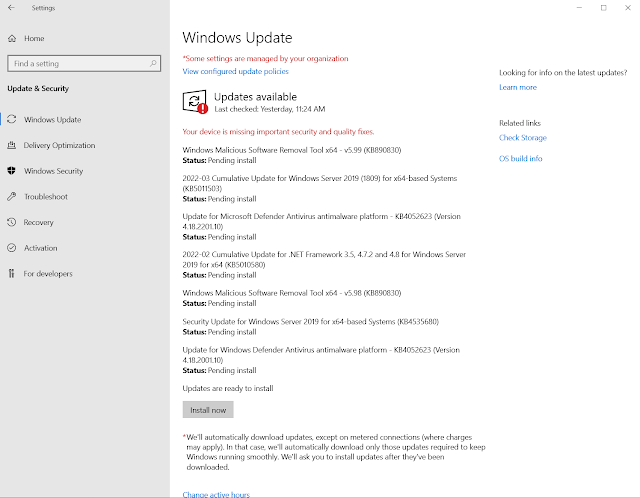
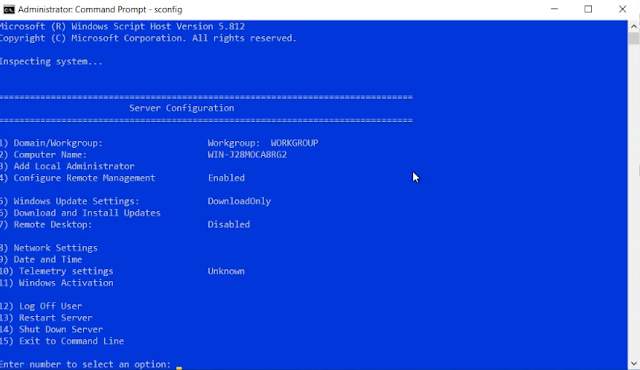
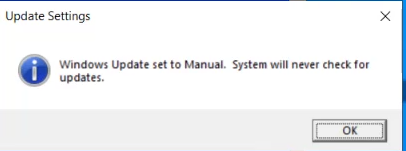
Open the services app and disable the windows update service.


Now we are going to add a registry entries to disable the Windows Update Medic Service
Open the Registry Editor

Go to "HKEY_LOCAL_MACHINE\SYSTEM\CurrentControlSet\Services\WaaSMedicSvc"


This will disable the Windows Update Medic Service
Next we will go to
"HKEY_LOCAL_MACHINE\SOFTWARE\Policies\Microsoft\Windows"
Right click on the Windows folder and select new Key

- Name the new key WindowsUpdate and press Enter.
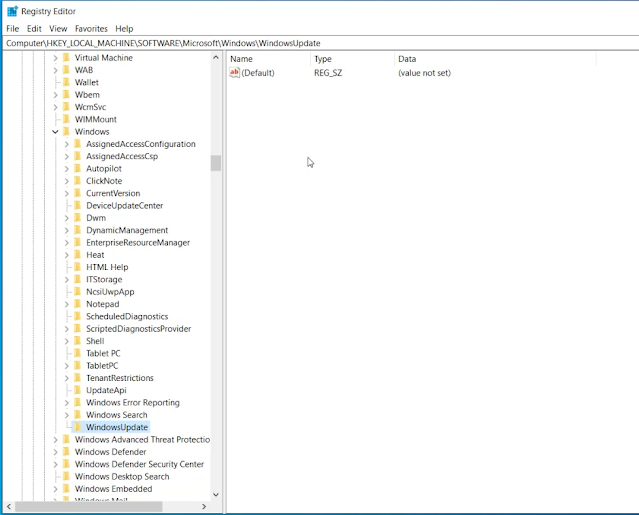

Now make another new Key under WindowsUpdate call it AU


- Name the new key NoAutoUpdate and press Enter.

Double-click the NoAutoUpdate key and change its value from 0 to 1.

Now go to "HKEY_LOCAL_MACHINE\SOFTWARE\Policies\Microsoft\Windows"
Right-click the Windows (folder) key, select New and choose the Key option. Name the new key WindowsUpdate and press Enter.

Right-click the newly created key, select the New submenu, and choose Key and name the new key AU and press Enter

Right-click the AU key, select New and select the DWORD (32-bit) Value and name the new key AUOptions.


Double-click an AUOptions and change the value to 2:

- 2 — Notify for download and auto install.
- 3 — Auto download and notify for install.
- 4 — Auto download and schedule the install.
- 5 — Allow local admin to choose settings.
- 7 — Auto Download, Notify to install, Notify to Restart.
- These options are the same as the Group Policy settings, and option 2 is the closest to disable Windows Update permanently.
Now your computer will not be able to update Windows.
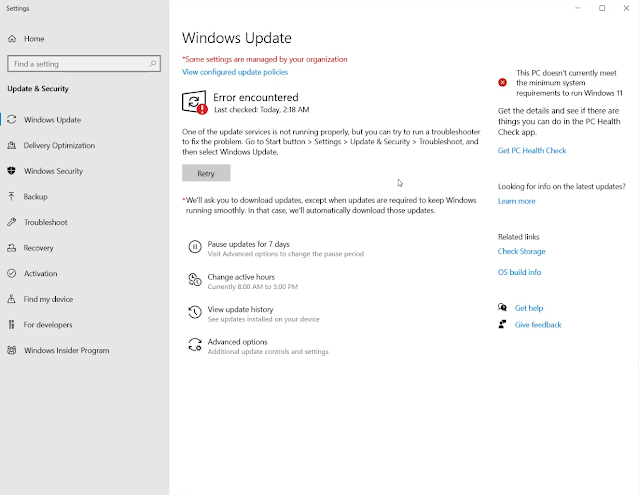
You can leave it here but below are entries you can make to your local group policy.
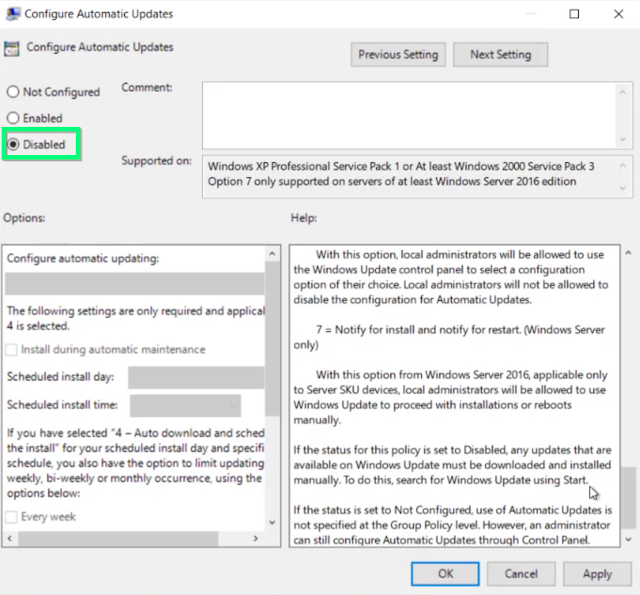
Go to "Computer Configuration -> Windows Components -> Windows Update" Open "Configure Automatic Updates"

Change the setting to "Disabled" and apply the setting then hit ok.

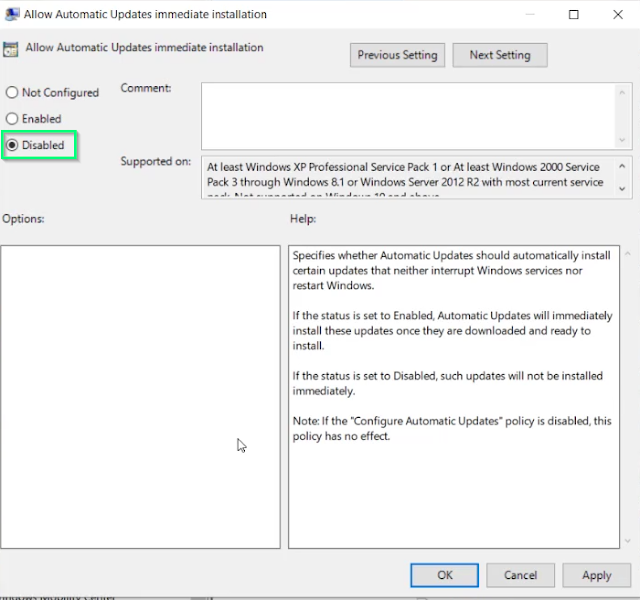
Next we will edit the "Allow Automatic Updates immediate installation"

Set the setting to Disabled. Apply the setting and hit ok.
Please note that if you edit the "Configure Automatic Updates" setting and change it to "Disabled" this setting should have NO effect.
That is it your system should no longer receive windows updates. I will be posting a script to apply this shortly. In the mean time I have also produced a video if you want to see the full process https://youtu.be/Iyx1jkMZYKY