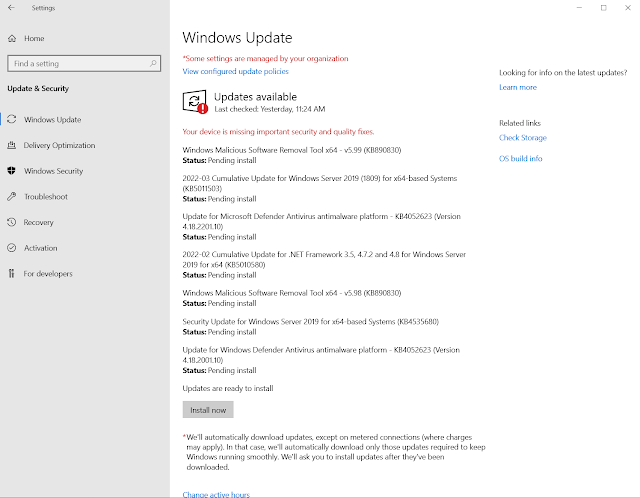
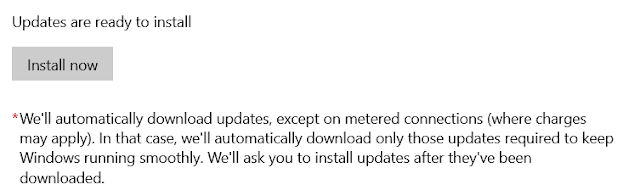
Automatic updates can be a huge bane for IT Administrators, especially if it is a server you have to have up and you don't have any scale to keep the service up while your reboot servers. I have some specific server I have to manage that get rebooted at specific times but there are some services that have to shutdown manually or the software on the server gets very cranky. To that end here is how you go about disabling windows update by changing Windows Update to manual. By default Automatic updates are automatically configured as shown below.
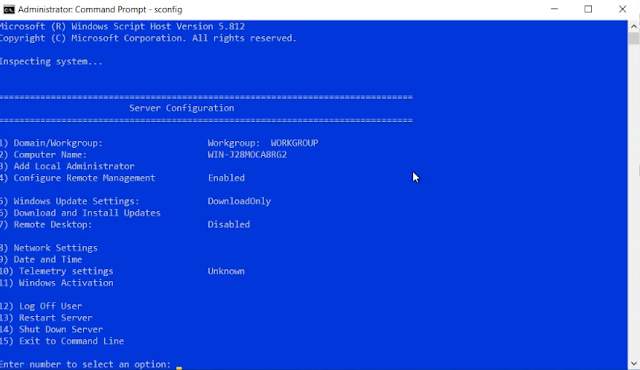
There are two snapins we are going to work with SCONFIG and GPEdit an we are going to change all the windows updates to manual. Type the command SCONFIG in run, powershell, or cmd
1 – SCONFIG
- Open a CMD PROMPT as an Administrator
- Type SCONFIG and press ENTER
- Type 5 and press ENTER
- Type M for Manual (or D for Download Only) and press ENTER
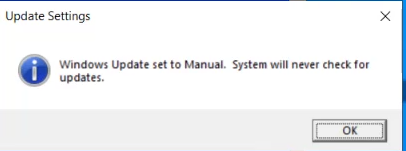
When the computer is finished you will get a prompt saying updates are sent to manual.
GROUP POLICY
- Click START and type GPEDIT.MSC and press ENTER (or open the GROUP POLICY MANAGEMENT CONSOLE and open an existing GPO or start a new one)
- Expand COMPUTER CONFIGURATION > ADMINISTRATIVE TEMPLATES > WINDOWS COMPONENTS > WINDOWS UPDATE
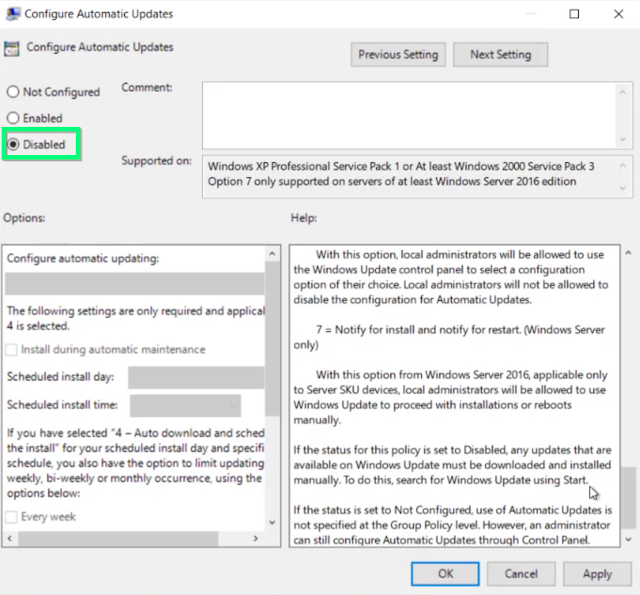
- Double click on CONFIGURE AUTOMATIC UPDATES
- Select either DISABLED (equivalent to MANUAL) or ENABLED and select what you would like from the drop down list
Then hit apply and ok.Now Double-click "No auto-restart with logged on users for scheduled automatic updates Installation”
Select the Enabled option and click “Apply.”Then enable the Turn off auto-restart for updates during active hours
That's it. If you go into your windows update, you should now see the updates are paused.
You can view the YouTube video here. https://youtu.be/vQ4fBBlbTdA