Showing posts with label backup. Show all posts

Tuesday, August 09, 2022

Hyper-V VM Backup using Powershell (VM-Export)


One of the many things I've been working on is an automated script to do VM backups.  I've been doing a lot of work automating processes with PowerShell recently so I thought I would just sit down and finish hammering out this little script I was working on.

This PowerShell script exports Hyper-V VM's to a directory; and sends an email notification when the export completes or if there is an error.  I am not 100% there with the backup as there are still a few bugs like sending an email when the entire script finished but I am confident enough of this working that I am going to pass this along for anyone to use if they wish.


##########BACKUP VM SCRIPT##########
#Set Variables for count, date and VM's you want to backup
$BackupNum = 0;
$TimeStart = Get-Date;
#Set the names of the computers you want to backup
$ComputerNameArray = '$VM1','$VM2','$VM3','$VM4','$VM5','$VM6','$VM7','$VM8','$VM9';
#Get the Number of Computers you want to backup
$BackupTotal = ($ComputerNameArray.count -1);
#Set the Path to save the backups
$SavePath = "$PATH TO FOLDER";

#Run the backup while the backup number is less then the backup total
while($BackupNum -le $BackupTotal){
#Set the first computer to be backed up
$ComputerName = $ComputerNameArray[$BackupNum];

#Check to see if there are previous backups
if (Test-Path -Path $SavePath\$ComputerName) {
#if the computer name is not blank remove the previous backup
if ($ComputerName -ne ""){
Remove-Item -Path "$SavePath\$ComputerName" -Force -Recurse
}
}

#Get the start time of the backup
$TimeStart = Get-Date;

#Export Backup
$ExportJob = Export-VM -Name $ComputerName -Path $SavePath;

#After the export runs get the time finished and send an email notification
$TimeFinished = Get-Date;
Send-MailMessage -From '$MAILFROM' -To '$EMAIL' -Subject "VM Backup for $ComputerName was Successful" -Body "The VM $ComputerName was successfully backed up. It started at $TimeStart and Finished at $TimeFinished" -smtpserver '$SMTP_SERVER'
#Auto Increment the export so we can get the next computer name
$BackupNum++
}

#While the jobstate is running or not started; get the progress
while( $ExportJob.State -eq "Running" -or $ExportJob.State -eq "NotStarted"){ 
$progress = $ExportJob.Progress.PercentComplete;
Write-Output ("[Export] " + $($ExportJob.Progress.PercentComplete) + "% complete"); 
} 

#If the backup state is not Completed and errors out
if($ExportJob.State -ne "Completed") { 
#Get the time finished
$TimeFinished = Get-Date;
#Send an email that the export did not finish
Send-MailMessage -From '$MAILFROM' -To '$MAILTO' -Subject "Backup For $ComputerName Failed at $progress % complete" -smtpserver '$SMTPSERVER'
Write-Error ("Export Job did not complete: " +$ExportJob.State);
throw $ExportJob.Error;
}
##########END SCRIPT###########

Resources

Thursday, September 21, 2017

Use powershell to do an export of a running Hyper-V Guest.

Export a live VM using Powershell
You can do lots of things with powershell in hyper-v one of the great ones is automating an export of your virtual machines.

To do that you use a very simple powershell script

Export-VM -Name $VMNAME -Path $PATH

Now you can use this in a loop script to export your VMs to a network storage location, external drive, what ever you need.

Tuesday, May 09, 2017

Server 2012R2, Veeam and FreeNAS SMB Backup Server

Veeam Backup and Replication allows backup to a SMB storage device, as a user of FreeNAS this to me seems like a no brainier to setup a dedicated NAS Appliance for keeping a full nightly backup that is not apart of the replication server.  This posts assumes you have a basic install of FreeNAS already setup and ready to go.

So what I have is an older AMD 945 Phenom 2 with 8GB of Ram.  The NAS has a 128GB SSD LARC Cache, and 4x500GB Drives in a RAIDZ and 4X1TB Drives in a RAIDZ.  This allows for a Total 2 Disk Redundancy for the ZPOOL or 1 disk per pool.


Now I'm not using an AD for this I have a specific use case however Veeam does have a webinar where if you want you can learn about using Veeam with AD.


Now for this I am going to be using a user called Veeam and for the purposes of this blog post let's say the password is P@ssw0rd! ;)  This server is on a isolated network.


So lets create the Veeam user so we can use our SMB Share.  I made the user a member of the nobody group.


Now I'm going to give the veeam user exclusive ownership of the main store.

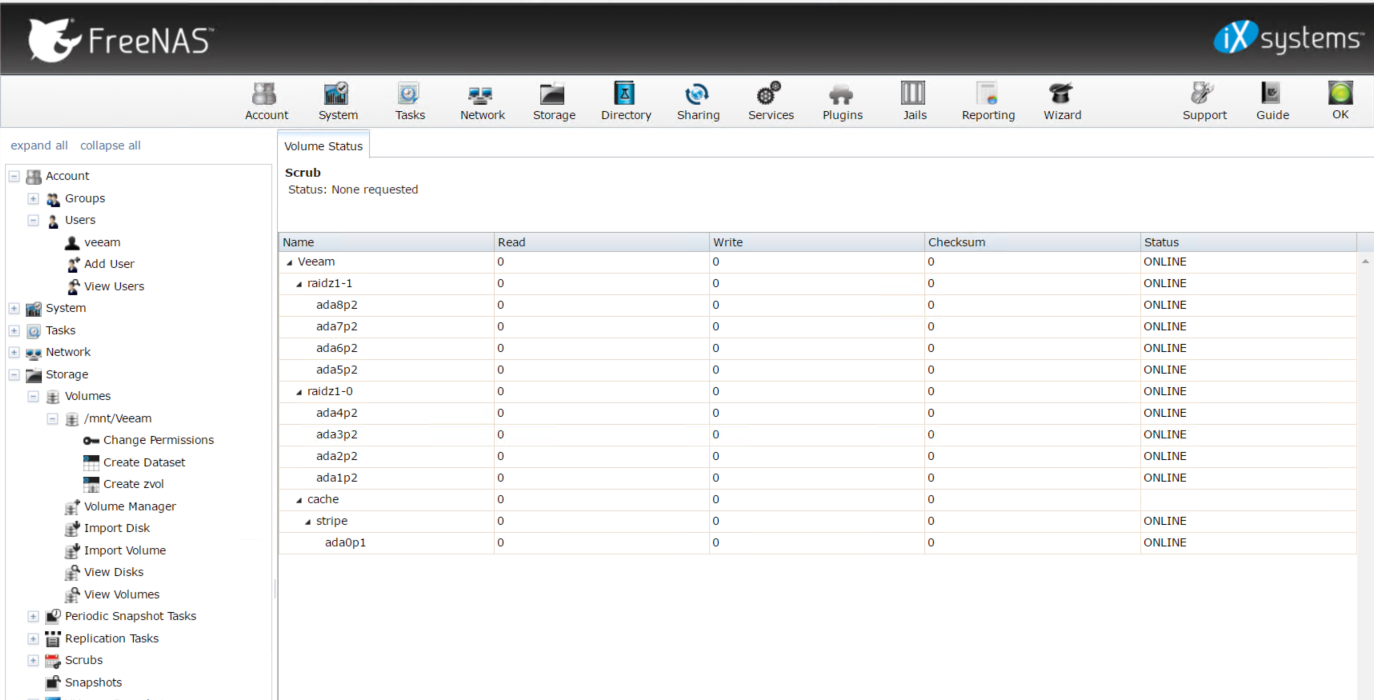
Under Storage -> Volumes -> /mnt/Veeam -> Change Permissions


We want the permission type to be a Windows ACL.  If we were to use a DATASET we wouldn't have to make this change but this is a dedicated box.  Once that is done go to sharing and map the path to the folder we are going to share.  In this case /mnt/Veeam

I added a couple VFS objects that are suppose to help with SMB Connections.
  • streams_xattr
  • aio_pthread
  • acl_tdb
  • acl_xattr
  • shadow_copy
  • shadow_copy_test
  • xattr_tdb

 Once our path is specified we can then edit our share by going under services -> SMB
I'm using pretty much all the default settings, and am binding the SMB Service to a particular IP on the network range we have restricted access to.  I've made the user Veeam the guest account but since we don't have guest accounts enabled it doesn't do anything.


Once all this is configured turn on the service and connect the windows host.

The drive should now mount and you can create and move/delete files.  That concludes the FreeNAS part of our setup now we apply the settings to our Veeam Software.


Next we want to add our backup repository.  I called this Veeam.

Select Backup Infrastructure -> Right Click and Add Backup Repositiory

Specify a Name for the Backup Repository

Specify the type of Server in this case we want Shared Folder

Fill out all the info required to get access to the share.  In our case we need to specify that this share requires credentials and we need to add/modify the account to add our username/password for the share login.  For our NAS it is veeam/veeam with the password P@ssw0rd! ;)

This server has spinning drives so we want to make sure everything is optimized for that.


Shows that the share is showing up properly with the amount of disk space.


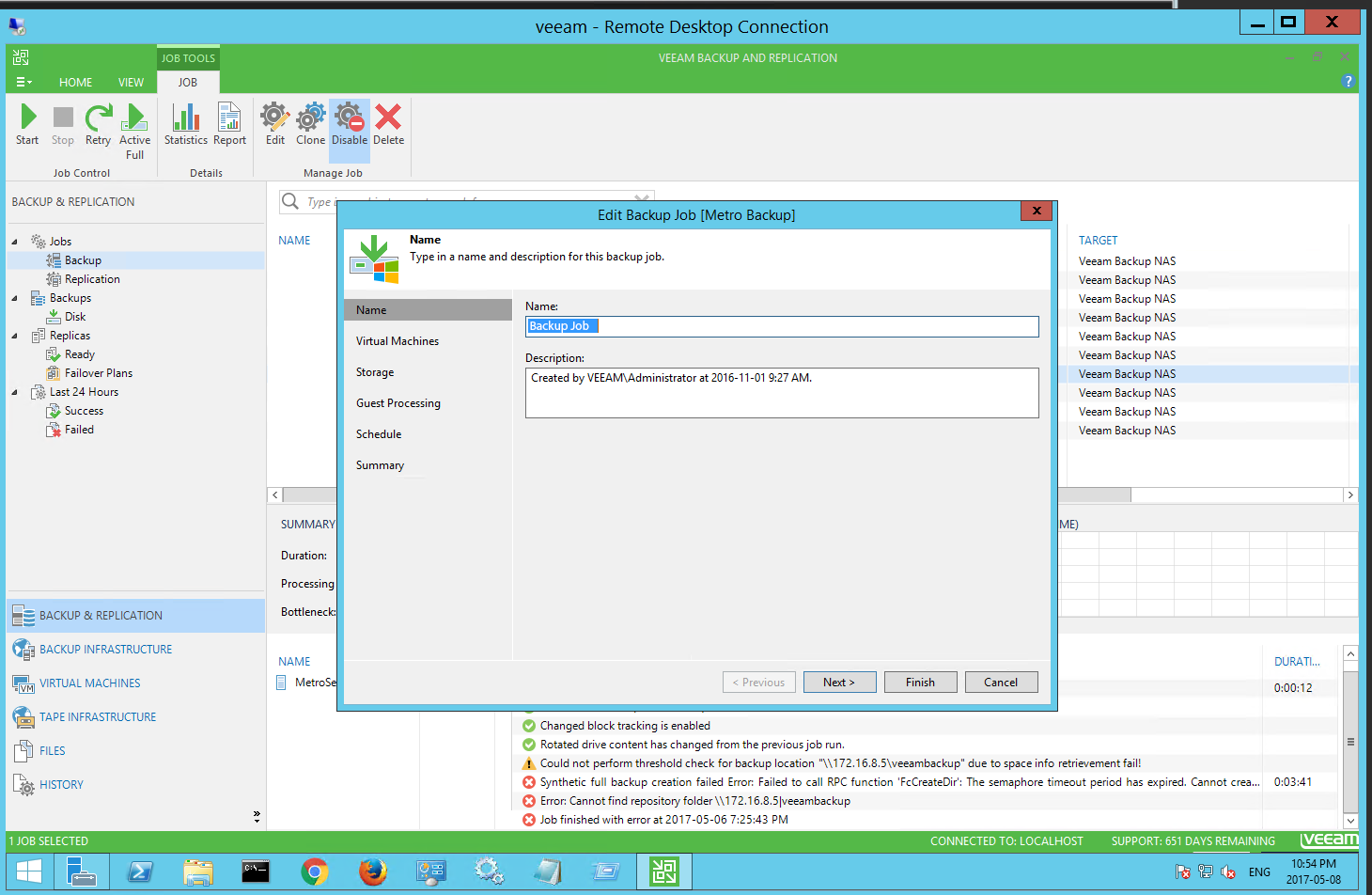
Now that the Backup Repository is added we can now Create a backup job.


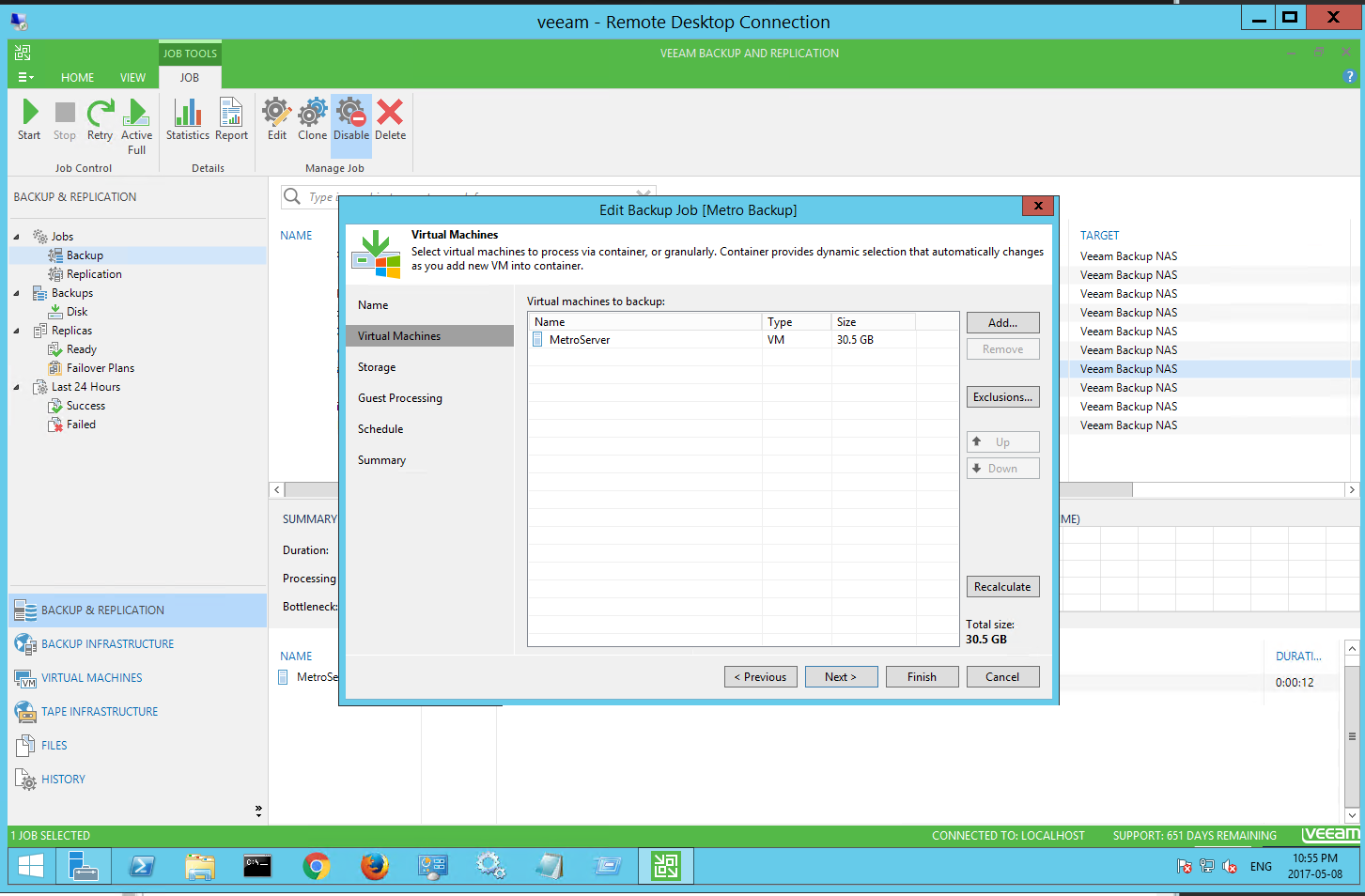
Select the virtual machine(s) we wish to backup.


Select the Backup Repository - In this case the FreeNAS Server we have just setup.


Modify some advanced settings for Dedup and backup verification.


Setup guest aware processing (if possible) so the VM can continue to run while the backup happens.


Define your Schedule if desired


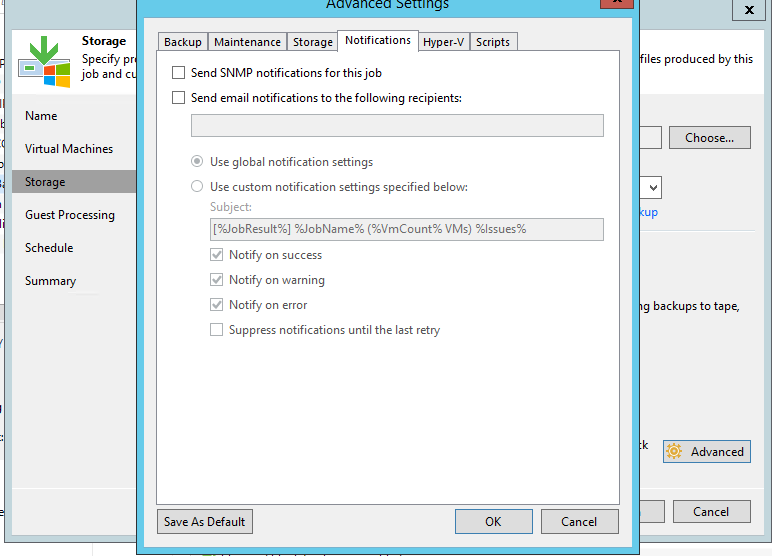
That's it your done.  You can run the backup manually on schedule etc.  You can also setup email based alerts in both FreeNAS and Veeam to help you keep an eye on your NAS and the backup job status. 


Thursday, June 16, 2016

Fixing Veeam Hyper-V Replication Failure Caused By VSS Writer


I just had an issue with the Veeam Backup and Replication Software where a replication job was failing.  I have Veeam setup to email error logs to me and I started getting error messages with a replication job where it was not reconciling the differences in the disk on the fail-over server.

Here is a sample of the email error.


After getting a few of these emails I checked the server and discovered on of the VM replication jobs appeared to be stuck on in progress.

A Sample of the log on the Veeam Server

VM {VMNAME} task has finished with 'InProgress' state.
Task details: Failed to create snapshot (Microsoft Software Shadow Copy provider 1.0) (mode: Veeam application-aware processing) Details: Writer 'Microsoft Hyper-V VSS Writer' is failed at 'VSS_WS_FAILED_AT_PREPARE_SNAPSHOT'.

The writer experienced a transient error.  If the backup process is retried,
the error may not reoccur.
--tr:Failed to verify writers state.
--tr:Failed to perform pre-backup tasks.

Make sure VM does not have 'iSCSI Software Target Storage Provider' feature installed.
Retrying snapshot creation attempt (Writer 'Microsoft Hyper-V VSS Writer' is failed at 'VSS_WS_FAILED_AT_PREPARE_SNAPSHOT'.

The writer experienced a transient error.  If the backup process is retried,
the error may not reoccur.

--tr:Failed to verify writers state.
--tr:Failed to perform pre-backup tasks.)

Task has been rescheduled


Googling the issue I only found this blog http://www.insidetechnologies.eu/en/blog/veeam-br-resolve-hyper-v-vss-writer-error/  and after double checking that his solution wouldn't bring down my Hyper-V Server by checking Microsoft Technet https://social.technet.microsoft.com/Forums/en-US/69e6dcbd-fbe3-43e0-a7b3-65111fbdf00a/will-the-running-vms-be-impacted-if-i-restart-the-hyperv-virtual-machine-management-service?forum=winserverhyperv

I disabled the replication jobs and stopped the Hyper-V Virtual Management Management Service on the primary server; while it took a while for the management service to stop but once it did and I restarted it everything came back no problem and the replication jobs started, reconciled and finished without an issue.

Saturday, June 11, 2016

Setting Up Veeam Backup and Replication in a Hyper-V Enviroment

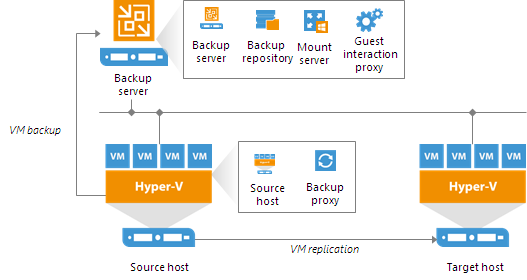
This is a modification of a Veeam backup and Replication setup I have done that is in production.  This system is setup in a WORKGROUP enviroment.   This was done for 2 reasons, all the virtual machines are in a non-domain setup, and I didn't have the resources to setup a full domain for the Veeam setup.  I also have some recommended reading that I would suggest you do before you start to implement the Veeam Backup and Replication System.  This post is going to be a variation of the Simple Deployment Model based on the Veeam user guide.


Veeam Hyper-V Simple Deployment Model

I do have some recommendations that I would suggest putting in place if your organizations budget can handle it.


  1. Two physical active directory controllers and 1 virtual read only controller if your using a clustered hyper-v system (Mostly used for the Cluster System)
  2. A cluster system for the Veeam Backup and Proxy Server which are virtualized.  Having a separate server for the Guest interaction proxy and backup proxy will take load off the source host.
  3. Freenas or other high storage and performance NAS System with dual power supplies and battery backup with at minimum 2 disk redundancy (for freenas known as RAIDZ2).
  4. Smart switches with LACP LAGG and vlan support

For the purposes of this post we are going to assume a few things.  You have all the necessary licences you require for Microsoft Windows Server 2012R2 or better including all CALS, SQL Server, SQL Server Cals, Veeam licences etc.  There is have a working infrastructure in place and for our purposes we are going to use 192.168.42.x network.  This is a setup for a SMB with no available offsite hosting capabilities, this is just an onsite redundant setup for when the virtualized servers needs to be put into a maintenance mode or  have had some sort of failure either in the VM or the Hyper-V Host.


The setup

We are going to use a workgroup setup and the VM's don't need to be on the same network as the host or the storage essentially what you really need to talk to each other is the NAS, Veeam Server, the Primary and Fail-Over servers and the gateway/router.   For my sanity on this post everything is just on the same network.  If you use a domain you can simplify a lot of this due to having a domain level admin on all systems attached to the domain.


Gateway/Router
Primary Host
Failover Host
Veeam Server
VM 1 (SQL Server)
VM 2 (Apache Server on internet)
VM 3 (3rd party connection server)
VM 4 (report server)
FreeNAS SMB
192.168.42.1
192.168.42.2
192.168.42.3
192.168.42.4
192.168.42.5
192.168.42.6
192.168.42.7
192.168.42.8
192.168.42.9


In Veeam when you setup a VM for replication the wizard gives you a variety of questions to answer.

1. Create a new replication job


2. Select your failover host and specify the save location.


3.  Verify The Job Settings.  Next I will be going though Advanced Settings


4.  This Veeam setup is on the same LAN, so optimizing for low bandwidth is not as important but you should always optimize your replication job for which ever environment your in.  In this case a LAN Network Target Server for Failover and Production.

5.  I've setup my Veeam instance for Application Aware Image Processing.  Guest Processing, which will allow you to create a transitionally consistent backup, configure transaction log handling settings, and enable guest file system indexing.

6.  Veeam also has the ability to excite PowerShell scripts when running fail-over/replication jobs.  I haven't set anything up yet but it is possible to do.

7.  If I had setup an off-host proxy server that would be handling the majority of the backup and not the Primary host server which does create quite a bit of additional load.  Currently as per the diagram in the beginning of this post there is the Veeam Server, The Primary Production Server and the Fail-Over/Backup Server.  I will be adding a off-host proxy server to take most of the load off the production server in an effort to speed up the backups and the replication time.

8.  If you have a copy of the VM on the backup server you can do what's called Replica Seeding.  This will significantly reduce the amount of bandwidth used.


9.  Here is where you define the guest processing for the Veeam Backup and Replication Server.  It is recommend that you set this up.


10.  Configure you backup/replication schedule


11.  This is the summary screen, it will tell you everything about your backup/replication job and it is pretty easy to find configuration errors.  One done your Veeam replication job is ready and running.


I would definitely recommend Veeam for any company that is looking for a easy fail-over solution especially if they need to be up 24/7.  The backup jobs work much the same way and when I have done testing of the fail-over I've setup it appears as just a blip in the process, and is not really noticed.  A few of my personal goals for this is to get an off-site proxy server set up, and move the backup server offsite and setup the reconfiguration ip addresses which Veeam is capable of.

I definitely recommend going though Veeam University https://www.veeam.com/university.html

Tuesday, May 26, 2015

Veeam Backup and Recovery

If you need to make a name change to the server that is installed with your veeam backup and recovery software there are a couple things you will need to change if you don't want to uninstall and reinstall the software.

For the Backup Service you need to change these two registry keys
Veeam refers to the local computer name in a couple of registry entries and promptly stopped working.
The keys for the backup service are:
HKLM\SOFTWARE\Veeam\Veeam Backup and Replication\SqlServerName
HKLM\SOFTWARE\Veeam\Veeam Backup Catalog\CatalogSharedFolderPath

For the SQL database service it is in
HKLM\SOFTWARE\Microsoft\MSSQLServer\LASTCONNECT

How to make google calendar more secure

With the rash of spam and phishing attempts lately, I would recommend making the following changes to your google calendar settings to secur...