Showing posts with label Remote Desktop. Show all posts

Monday, September 26, 2022

RDP Periodically Freezes in Windows 10 and Windows Server

I work with windows a lot and have found I had been having connection issues with Remote Desktop on most of my Windows Servers and some Windows 10 Machines.  After some research I found that Windows Server version 1809 (2022) and Windows 10 versions 1806 - 21H2, I have had issues with Remote Desktop freezing.  I would have several stints where the RDP client froze on my workstation or computer I am remoting in from.  This wasn't the only computer that was having an issue.  Another user which also had remote desktop on a workstation (for specific reasons) had also been intermittingly been having the same issue.  I also found that in some instances AV also causing some issues.

https://docs.microsoft.com/en-us/answers/questions/664026/2022-rds-session-freezing-randomly.html

https://blog.techinline.com/2021/01/08/remote-desktop-keeps-freezing-windows-10/

After some testing; I found a way to mostly stop the disconnection and freezing from the Remote Desktop Client and Server by Disabling UDP and using only TCP.  To do this we are going to add a registry key and modify a group policy setting.  Let's do the registry key entry first.

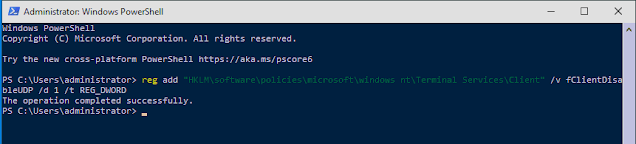
On your remote desktop client open and type in the following in cmd promt or powershell as administrator

reg add “HKLM\software\policies\microsoft\windows nt\Terminal Services\Client” /v fClientDisableUDP /d 1 /t REG_DWORD


Now group policy.


Run gpedit.msc. then Navigate to Computer Configuration > Administrative templates > Windows components > Remote Desktop Services > Remote Desktop Connection client.

Enable the Turn off UDP on client setting.

Now that takes care of the remote desktop client.  On the Remote Desktop server on the machine you are wanting to connect to go to:

Computer Configuration > Administrative templates > Windows components > Remote Desktop Services > Remote Desktop Session Host.

Select Transport Type -> USE ONLY TCP


Thursday, May 21, 2020

How to install, setup and deploy a remote desktop server

I put this blog post and video together to document setting up a basic RDP Server for setting up access for organizations that need to quickly move users from an on site workstation based setup to a mobile VPN based work environment.  I had set this up in anticipation that my organization would be required to work from home because of CORVID-19.  To take care of the VPN I used our PFSENSE firewall to handle the VPN connection.

How the setup was done you can find the documentation here for site2site VPN  https://optionkey.blogspot.com/2019/12/setting-up-site-to-site-vpn-on-pfsense.html or  client2site VPN https://optionkey.blogspot.com/2017/03/setting-up-pfsense-with-openvpn-using.html.  Almost all users were setup using client to site.

For the setup of the server 2019 Hyper-V virtual I machine, I downloaded the Server 2019 ISO on a trial basis from microsoft https://www.microsoft.com/en-us/cloud-platform/windows-server-trial (RDP is 120 day trial).  The server was configured with the following specs 24 Gigabytes of dynamic ram (use non-dynamic setting for better performance), a quad core CPU and 127GB disk.  You can view a full video of the install, setup and configuration on my youtube channel https://www.youtube.com/watch?v=mQG8TN_yf6Q

What this post will do:

This post will help you get a RDP server setup without a domain and it will explain the process of letting local users to connect and use the RDS server, and then connect it to a domain to get some additional features such as App-V, additional user permissions, etc.


Setup:

After your initial install of Windows, you will want to go to the add and remove features tab in server manager.


Select a Role-based or feature-based installed


Install roles and features you want for a RDP Server I use the following:

● .net 3.5
● Multipath IO
● Network Load Balancing
● Remote Server Admin Tools
● Remote Desktop Services
● Remote Access
● Multipath IO

● Network Load Balancing
● Remote Desktop Licensing Diagnoser Tools
● RAS Connection Manager
● Windows Internal DB
● Windows Standards Based Storage Management
● Simple TCP/IP Services


When installing the services select the following:

● Remote Desktop Session Host
● Remote Desktop Connection Broker
● Remote Desktop Gateway
● Remote Desktop Licencing
● Remote Desktop Web Access


To install all these features you will need to specify the additional source as well in my case it is D:\sources\sxs


Installing these services and features will take several reboots.  Once the installation is finished local machine users can login to the server with remote desktop services.  However without a domain, we can't really use services like App-V.  The App-V service is available by ip/machine dns resolution https://$IPADDRESS/rdweb/ but will not have any published apps available.  If your setting up a remote desktop server your doing this because you have multiple users that need to login to your network remotely so most likely your going to use active directory for managing this.  So to get all the features for the remote desktop services you will need connect your system to the domain.  I renamed the machine from the auto generated WIN-HM7LU99C2OG TO RDSv8 and connected the server to the domain controller I was using.


Once you've rebooted the system and are on the domain, go manage -> Add Roles and Features


Select "Start the Remove Roles and Features Wizard"


Now select Remote Desktop Services Installation


Since we are using a single server select our server RDSv8 select the Quick Start.


We want to still use our session-based desktop deployment


Select the RDSv8 server


Once everything has finished installing reboot the server


After reinstalling the services after renaming the machine and connecting to the domain, you can then access remote app and published applications by the URL https://$COMPUTER.DOMAIN/rdweb.    Now your regular RDP session server is available but no you also have App-V and by default the calculator, paint and wordpad are default apps that are available for use.


Something which I recommend doing if your using the RDP server the traditional way instead of using app-v, I would recommend disabling the server manager at login.

Disable server manager on login:

Click on Start > Run.
Type GPEDIT> MSC > hit OK.
The Local Group Policy Editor snap-in will open.
The policy that we are interested in can be found by expanding the following: 

Computer Configuration\Administrative Templates\System\Server Manager.


Now if users can connect to the network using the VPN, you should be able to access the remote desktop server and have access to all the apps that are available on the server.

Once I finished installing the server, I installed Office 2019 as a trial.  Now we had got it licensed before the licence period expired; so I included a link in the Reference Links to how to extend the trial (though I have not tried it myself)


Reference Links


Friday, May 11, 2018

Oracle CredSSP Encryption Error

I remotely manage about a dozen or so Hyper-V servers from a remote workstation and my post on how to setup and configure it is here.  However that changed this morning when I logged in and tried to connect to one of my remote Hyper-V servers using the console and got the error 

Remote desktop would not connect, giving the following error
An Authentication error has occurred.
The function requested is not supported.
This could be due to CredSSP encryption oracle remediation

After doing some checking it appears to have come from the last series of windows updates around May 8, 2018.

The resolution is a registry entry on the machine your connecting from.

[HKEY_LOCAL_MACHINE\SOFTWARE\Microsoft\Windows\CurrentVersion\Policies\System\CredSSP\Parameters] "AllowEncryptionOracle"=dword:00000002


You will need to make the keys CredSSP and Parameters as shown above.  Then add a 32bit dword with the value of 2.

You will NOT need to reboot, you will be able to connect to the console right away.

Sunday, October 29, 2017

Managing vPro Systems

When you are a sysadm in a small shop for about 100 machines for 2 locations your find efficiencies to make your job easier.  I had an idea for using VPRO as a remote IT support solution.  I know vpro has it's issues such as being proprietary and there are solutions such as remote assistance, remote desktop, and teamviewer to name a few why would I use vpro?  

Well when you use remote desktop it blocks out the screen of the user your trying to help; remote assistance isn't the easiest process to use, and teamviewer users get confused with the ID and the username and password part of the teamviewer UI.  With VPro this is secured to an internal intranet network this allows me to turn machines on when I need to do work on those systems remotely, do remote support, see any issues they are having with any software where logs don't provide enough detail' and I can see the bios boot and logs if required.  I know vpro has it flaws and a number of major security issues lately but it does make my life easier with being able to remotely configure the system, check logs and even make changes to the bios without physically being there (unless someone unplugs the network cable).
Meshcommander

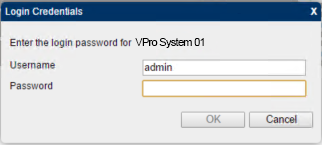
First you need to make sure that the vpro system is provisioned and you have set a username and password to access the vpro system.

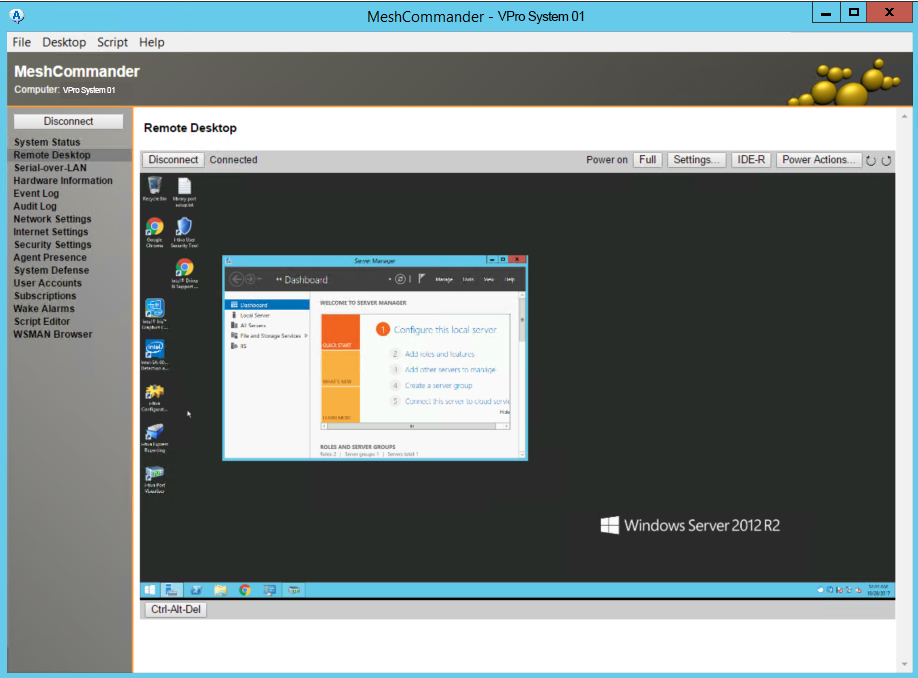
To that end that's why I use meshcommander it is open source, works with vpro and I have 2 different ways of using the software.  The current version of meshcommander uses everything in a built in UI.  It is nice and easy to use but disconnects more then I like, probably because it is all browser based.


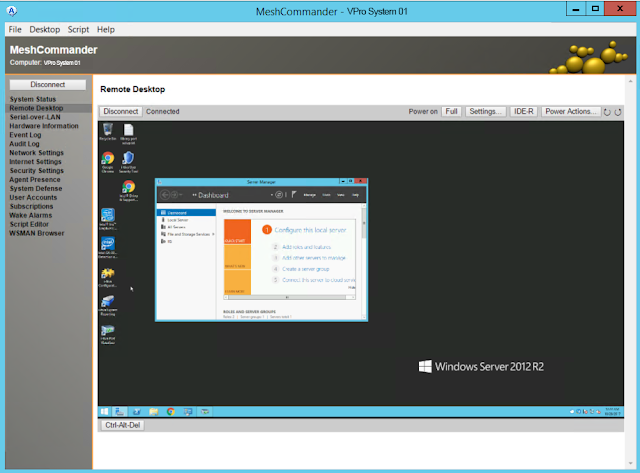
Meshcommander UI and System List


Mesh Commander offers a simple single UI where you can remotely manage all your VPRO based systems.  It's all integrated and easy to use.  Pro or Con you can only use one system at a time.

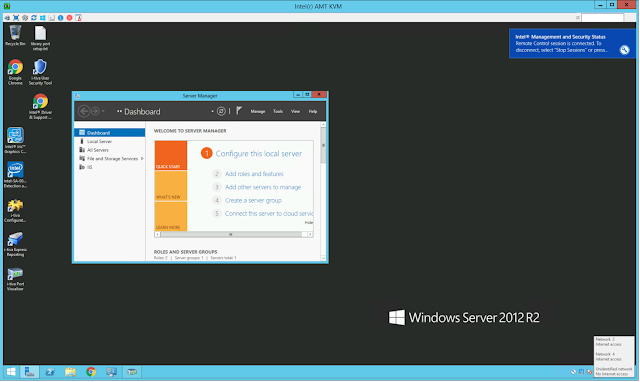
The other part which is depreciated by the same project is the Manageability Commander Tool.  This is kind of the piece meal solution before Mesh Commander.  The Manageability Commander Tool allows you to specify a VNC client for the connection.  I use Ultra VNC Viewer.


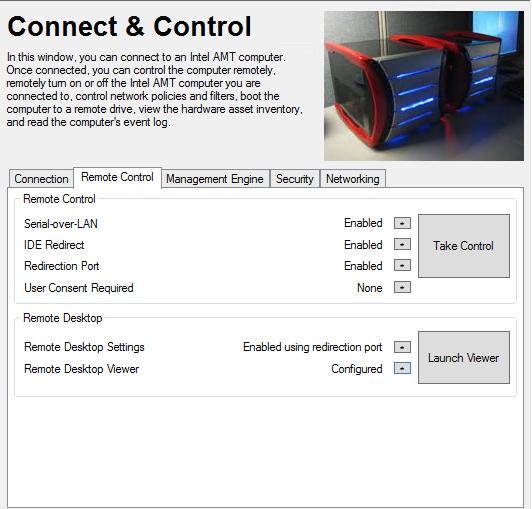
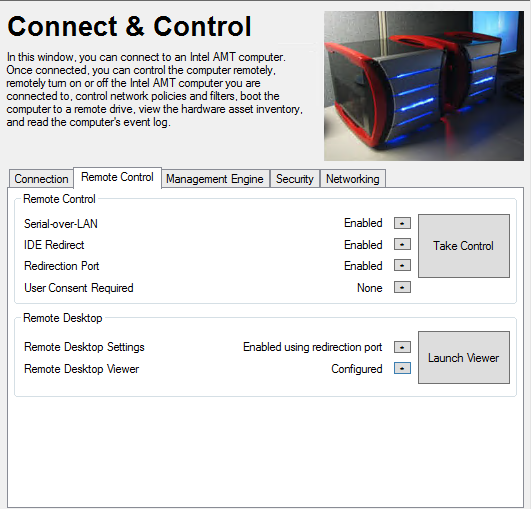
Mesh Commander Tools gives you a tab based interface.  Useful if you want to work in multiple windows.  For here you can launch the vpro management and access it from the browser.
The Mesh Commander Tool tab Remote Control allows you to specify how you want to connect.  You configure the remote desktop viewer to the VNC Viewer you want to use by browsing to the executable on your system.
You can specify which VNC client you would like to use.  UVNC viewer I have found works really well and you don't have to pay for any licencing which you have to for VNC Viewer.
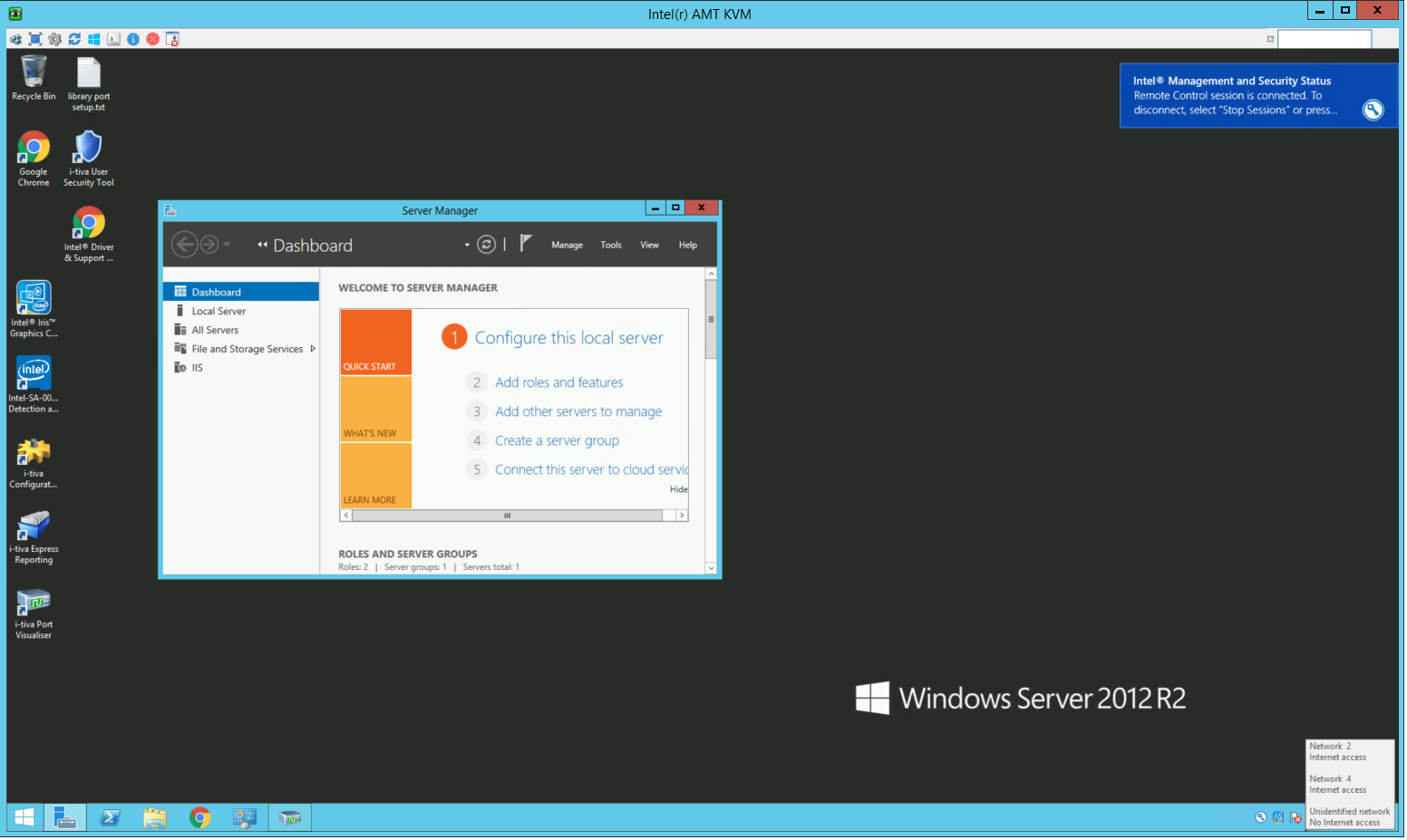
Mesh Commander Tools Launches the VNC Program in a separate window and you can have multiple windows open at once which you can't with Mesh Commander

Updating your godaddy certs during the G2 intermediate hierarchy to the TLS Root CA - R1 hierarchy

  If you use godaddy TLS certificates you should be aware of some changes during the transition from the G2 certificates to the new R1 Certi...