The requirements
To have a "guest" account on a specific system; but staff on the active directory have to be able to login and access the data they need such as mounted drives and network shares while the "guest" has access to save files to the computer and has no access to any network resources except internet. The Guest user must be setup as the default user and auto login. For making this setup I am using an administrator account, specifically a local admin account, and the computer is already attached to the domain. This computer is also going to be hooked up to a large sound system and will need to be muted on reboot as well at the end of the day if the sound had been left enabled if someone had been using it. Finally we will have to ensure that no files had been left behind; so we will need a way to delete them.
The User Account
The user account is a domain user; and therefore has to be placed in the local machine guest group for proper privileges to apply. On the active directory controller I setup a OU called Guest, I will add a GP to this later, but here we want to block inheritance, to stop any global GP from being applied which is what the ! means. The user and the computer will be placed in the Guest OU.
Auto Login
I don't want to enable a global "guest" or "visitor" account to the entire org which is why I don't have the AD Guest account enabled. So I created a user in AD called lets call them "org guest"; and on a specific computer that the org guest will be able to login to I also want it to auto login to that account for ease of use. I also need to ensure that the user is in the proper local group so they get the proper restrictions which is really quite restrictive; I don't want them to be able to access any of the organizations network resources such as any network drives. All I want them to have is the internet and the ability to copy from a USB drive to the local computer.
So to do this we are going to use regedit to make the following changes to the following registry location.
Computer\HKEY_LOCAL_MACHINE\SOFTWARE\Microsoft\Windows NT\CurrentVersion\Winlogon
Find the following entries we will need to edit them
AutoAdminLogon
DefaultPassword
DefaultUserName
if you don't have them we will need to make these entries and set the following values, these are all string entries and will need the following values
AutoAdminLogon and set the Value data to 1
DefaultUserName and set the Value data to $domainuser
DefaultPassword and set the Value data to $userpassword
Add the user in this case "guest" to our guest group on the local machine.
Local Users and Groups

Group Policy
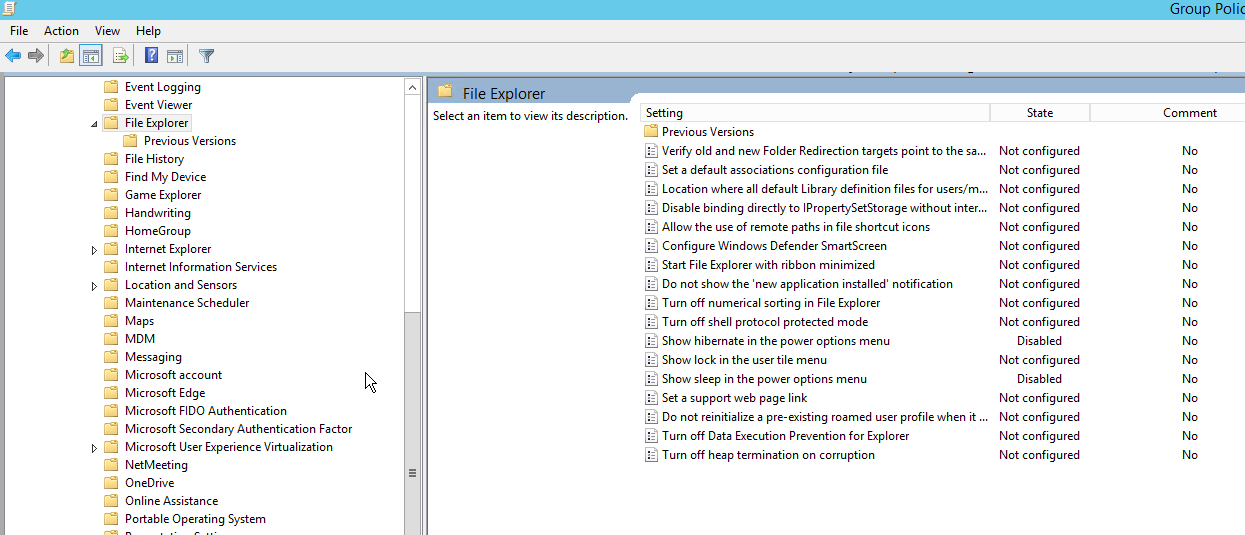
Once complete login to your AD controller and setup the following File Explorer settings under computer management. Computer Management -> Administrative Templates -> Windows Components -> File Explorer
Essentially the only settings we are changing is the hibernate power options menu and the sleep power options menu. We are going to set them to disabled.
Now the user Profile in AD requires a bit more configuration.User Configuration -> Administrative Templates -> Windows Components -> File Explorer
We aren't going to be modifying anything in the following
- Common Open File Dialog
- Explorer Frame Pane
- Previous Versions
We have altered the settings for the file explorer in AD with the following settings as shown below.
With our group policy configured we still have two requirements we have to work though; the audio muting and deleting left over files. We are going to deal with the left over files first.
I created a folder called "orgtools" working out of the C: drive; I have the folder hidden by default and inside it I have a folder called powershell where I have a bat file setup so the powershell script can run, called deletefiles.bat
The bat file is configured to specifically only allow the single script to run.
@ECHO OFF
Powershell.exe -executionpolicy remotesigned -File ./delete.ps1
The powershell file I have configured to delete files and folders in the user (orgguest) directory. The file is call "delete.sp1"
Get-ChildItem -Path C:\Users\orgguest\ -Include *.* -File -Recurse | foreach { $_.Delete()}
Get-ChildItem -Path C:\Users\orgguest\Desktop -Include *.* -File -Recurse | foreach { $_.Delete()}
Get-ChildItem -Path C:\Users\orgguest\Downloads -Include *.* -File -Recurse | foreach { $_.Delete()}
Get-ChildItem -Path C:\Users\orgguest\Documents -Include *.* -File -Recurse | foreach { $_.Delete()}
Get-ChildItem -Path "C:\Users\orgguest\3D Objects" -Include *.* -File -Recurse | foreach { $_.Delete()}
Get-ChildItem -Path C:\Users\orgguest\Contacts -Include *.* -File -Recurse | foreach { $_.Delete()}
Get-ChildItem -Path C:\Users\orgguest\Favorites -Include *.* -File -Recurse | foreach { $_.Delete()}
Get-ChildItem -Path C:\Users\orgguest\Links -Include *.* -File -Recurse | foreach { $_.Delete()}
Get-ChildItem -Path C:\Users\orgguest\Music -Include *.* -File -Recurse | foreach { $_.Delete()}
Get-ChildItem -Path C:\Users\orgguest\Videos -Include *.* -File -Recurse | foreach { $_.Delete()}
Get-ChildItem -Path C:\Users\orgguest\Pictures -Include *.* -File -Recurse | foreach { $_.Delete()}
Get-ChildItem -Path C:\Users\orgguest\Searches -Include *.* -File -Recurse | foreach { $_.Delete()}
rm C:\Users\orgguest\Desktop -r -force
rm C:\Users\orgguest\Downlaods -r -force
rm C:\Users\orgguest\Documents -r -force
rm C:\Users\orgguest\Music -r -force
rm C:\Users\orgguest\Videos -r -force
rm C:\Users\orgguest\Pictures -r -force
rm "C:\Users\orgguest\3D Objects" -r -force
rm C:\Users\orgguest\Contacts -r -force
rm C:\Users\orgguest\Favorites -r -force
rm C:\Users\orgguest\Links -r -force
rm C:\Users\orgguest\Searches -r -force
#Delete Browser History, Cache and Cookies
rm C:\Users\orgguest\AppData\local\Google\Chrome\User Data\Default -r -force
rm C:\Users\orgguest\AppData\local\Google\Microsoft\Edge\User Data\Default -r -force
rm C:\Users\orgguest\AppData\local\Mozilla\Firefox\Profiles -r -force
To run the powershell file I have it setup to run on login; but could be setup to run on logoff, restart, shutdown etc. I have it setup to use task scheduler to run on login of the domain\orgguest user.
Here is a picture of the directory
So the powershell command is fairly simple. I called the file mute.ps1
.\svcl.exe /Mute "Speakers"
and again I have a bat file setup to run the powershell script like our delete files
@ECHO OFF
Powershell.exe -executionpolicy remotesigned -File ./mute.ps1
I have setup a task scheduler to run on login and at 11:30 pm; incase the speakers are left on after an event which would typically be in the evening near close. If there is something during the day it would be up to staff to either reboot the system or mute the speakers after using the system.
So what we have is a system that autoboots and logs in as a specific user who has very restricted access. Below are some screen shots of the logged in user. You can connect a flash drive mount it and copy files off
After the reboot; the copied file is gone
If you were to try copy to a folder you don't have access to you would get the following Error.