Showing posts with label safety. Show all posts

Tuesday, April 25, 2023

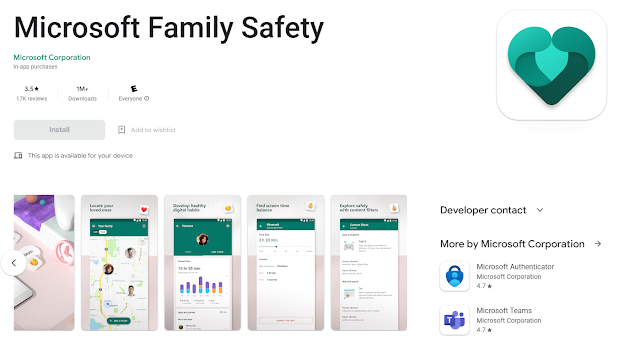
Microsoft Family Safety


What is the Microsoft Family Safety?

It is a free service offered by Microsoft that allows you to manage your family's devices and share information.  Much like the google family link service, but is for use with all of Microsoft's services such as office, xbox game services, screen time tracking, and reporting.

What do you need to use this?  All you need is an email address, it can be from any service.  My wife and I both have Microsoft accounts we are using with the service and the kids have an associated Gmail account (because Chromebooks).


You will send an invite to an already active email; or you will have to create an account.


When you set them up, they will have the option of being setup as a managed user or as a family organizer.  The organizer is an "administrator" and settings for restrictions are not applied to them.  If there is more then one family organizer the only options another organizer has is to remove them from the family group.


Adding a family member as a standard account you have many more features that you can control.


Overview

The overview for the accounts is where you modify a number of the account settings, which is specific to each managed family member.  You can also modify setting though the manage consent settings.


Connecting A Device


The PC Account needs to be a standard user.  XBox, Android and iOS devices are also supported.  If want to setup limits you have to do so for each child there isn't a global setting you can apply to the family users.  Settings have to be applied individually.


You can specify scheduled times, to limit screen time and what games are playable on the devices.


Content Filters

Content filters come in two sections Web and Search then Apps and Games.  You can specifiy specific website to be allowed only or block specific websites.  You can set age limits for games and any apps you don't want your kids to have access to.


The real power in Family Safety is the calendar and one note features for family.  Being able to automatically add everyone to add items for Grocery lists; or having the shared calendars for family to automatically show up for everyone is fantastic.


If you haven't set it up I highly recommend setting this up for your family; keep in mind that all family members will get a basic Microsoft account; which gives them 5GB of one drive space and access to the online versions of Word, PowerPoint and Excel.  The free service is quite comprehensive, and helps me keep an eye on my family.

https://www.microsoft.com/en-us/microsoft-365/family-safety
Friday, July 29, 2016

Pokemon Go, You, Your Child, and Privacy


Pokemon Go is all the rage right now, and if your a parent you might not be to sure how to handle this new app craze that is the Angry Birds of 2016. Pokémon Go is a free-to-play location-based, augmented reality game developed and published by Niantic, Inc. for iOS and Android devices.  What you might not be aware of is some of the privacy issues that you may be exposing you and/or your child to.


As you may or may not be aware the way Pokemon Go! uses two ways to sign up for an account.  Using a Pokemon Trainer Account and tieing it to a Google Account.  If you are signing up a child to play this game I highly recommend you use the Pokemon Trainer account.  If you sign up your child with a new google account there are some issues.

1) The Google Terms of service specifies that a user must be at least 13 years of age.

"At the moment, age restrictions don't warrant a single word in Google's Gmail Terms & Privacy details. Google does, however, spell them out on YouTube, buried down in item 12 of its Terms of Service. “If you are under 13 years of age, then please do not use the Service."

You can use the gmail account setup by the schools if the schools are setup for using google because there are additional privacy protections with those accounts.

2) The Pokemon Trainer account is suppose to compliance with the Children's Online Privacy Protection Rule "COPPA" as is the Google Accounts for schools, and has far more privacy restrictions then with a general Google Account. 

Granted that COPPA is a US based law and according so TWIL Episode 353 it is suppose to offer better privacy protection than your typical google account.

HOW TO CREATE POKÉMON TRAINER CLUB ACCOUNT

1. Go to the Pokémon.com official website or click on this link to go to the signup page https://club.pokemon.com/us/pokemon-trainer-club/sign-up/


2. Once you enter the webpage, below the “Join the Pokémon Trainer Club”” click on “Create an Account” button.
3. Click on the button marked, “Continue,” in the section on the right hand side of the page that is marked, “Sign Up! New to Pokémon.com ? Sign up for an account now!”
4. Select your country of residence from the drop-down menu, then enter your date of birth, Next, click on the button marked, “Continue.”
5. Complete the sign up process as directed to activate your account.
6. Done. Now go back to your phone and start the Sign up process. Please make sure to use your Pokémon Trainer Club Account instead of your Google Account.

Updating your godaddy certs during the G2 intermediate hierarchy to the TLS Root CA - R1 hierarchy

  If you use GoDaddy TLS certificates you should be aware of some changes during the transition from the G2 Intermediate certificates to the...