Showing posts with label hyperv. Show all posts

Sunday, November 27, 2022

Enabling Nested Virtualization on Hyper-V

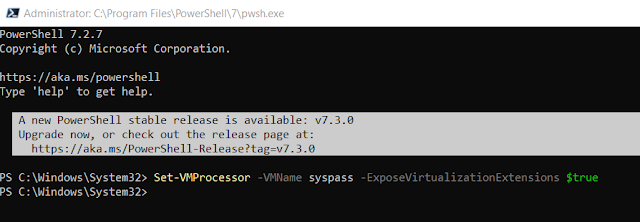
To enable nested virtualization on Microsoft Hyper-V; run the following command from Powershell on your Hyper-V host.  

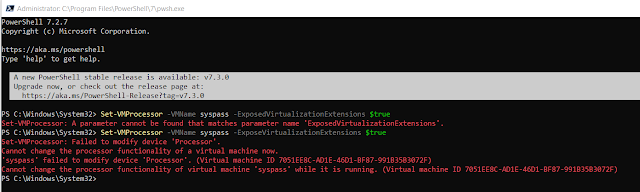
 Set-VMProcessor -VMName syspass -ExposeVirtualizationExtensions $true


If you try running the command while the System is running you will get an error.


When the command is successful; you will be able to run a virtual server on your Hyper-V Host.  You need to run this command on the VM on the host if you are wanting to run Hyper-V nested; KVM or docker on a virtual machine running on the host.

Wednesday, June 30, 2021

How to fix crontab scripts that won't run on Ubuntu 20.04

I've setup what I like to call WOLS (Wake on Lan & Shutdown) servers for a while now; 10 years to be exact.  They are very handy and require little to no system resources; I usually set them up on Hyper-V systems but have also done it on KVM and VMware.  It is very handy if your wanting to schedule systems for auto on and off without buying a commercial server or software.  You also don't have to have it connected to your domain if you don't want it to be.  

I setup a new server on Ubuntu 20.04 for managing the WOL/Shutdown for a remote location and set it up just as I have done in the past; but something was wrong.  It wasn't working.  The system was not turning on or shutting off the systems it was suppose to be.

For the purposes of this post lets say we are going to run all of our scripts out of /scripts/cron

You can use crontab -e or sudo crontab -e to edit cron, I prefer to modify the /etc/crontab file myself.  So when I build my WOLS server and modify the crontab file it usually looks something like this.

After I install the the required tools, WOL, samba tools, etc I white list the, WOL ports, SAMBA and remote desktop/Remote Access ports access though the firewall on both the client and the server. You can also disable the firewalls, though I don't recommend that.

The Startup Script is a shell script called startup.sh and it looks like this


I have found that if I don't put it in the arp cache I tend to have problems if the system has been off for a while.

sudo arp -i -s $IPADDRESS $MACADDRESS #COMMENT

example:

sudo arp -i -s $192.168.0.6 #FF:CC:DD:33:22:00

Then send the WOL Packets

sudo -i -u $SERVERUSER -p $PASSWORD wakeonlan -i $IPADDRESS $MACADDRESS #COMMENT

example:

sudo -i -u serveradm -p password wakeonlan -i 192.168.0.6 #FF:CC:DD:33:22:00

so you use the server usename and password to run the wakeonlan to the ipaddress with the specified mac address. The same is true with the shutdown script but you are using net rpc and you put in the windows client username and password behind the -U in quotes with a % separating the username and password as shown below.

The shutdown script is also a shell script called shutdown.sh and looks like this


sudo -i -u $SERVERUSER -p $PASSWORD net rpc shutdown -I $ipaddress -U "windowsclientusername%password" -t -1 -f 
sudo -i -u serveradm -p password net rpc shutdown -I 192.168.0.6 -U "joedirt%mopboy5" -t 1 -f
With that done, then adding execute permissions to the files and call it a day, as all the scripts worked when I manually executed them. Unfortunately that wasn't the case.  Something changed in Ubuntu 16 that caused files with extensions to not execute.

After troubleshooting and doing some Googling, I found this post with a similar issue to what I was having.  When I did a ls you can see the scripts in the folder.


With my files definitely having execute permission I tried the run-part command 
run-part --test /scripts/cron 
and got the following result


Nothing.  Absolutely nothing listed in the test.  So I did as Pete Fretag suggested and copied my startup.sh and shutdown.sh with out an extension.


Now the startup and shutdown scripts show up in the test.


When I run the scripts using sudo run-part /scripts/cron they also execute where they did not before.
Thursday, November 23, 2017

Hyper-V Virtual Switch Settings

Back in September I got a message from the facebook group VMware vSphere and Microsoft Hyper-V I am a part of and I got asked for some help with an issue with Hyper-V Switches.

The Issue:


The host machine is Server 2012R2 With the Hyper-V Role Enabled. Then a client VM was made on the host and connected it to virtual switch to communicate with my host.
The host operating system is pinging vm but i am unable to ping my host OS from VM .
host and guest vm and virtual switch created in host are all on same subnet and the firewall is off on both systems
So some simple questions about the setup.

Q:   What type of virtual switch?

A:   Virtual switch is internal

Q:   DHCP Server Setup?

A:   Yes on Host

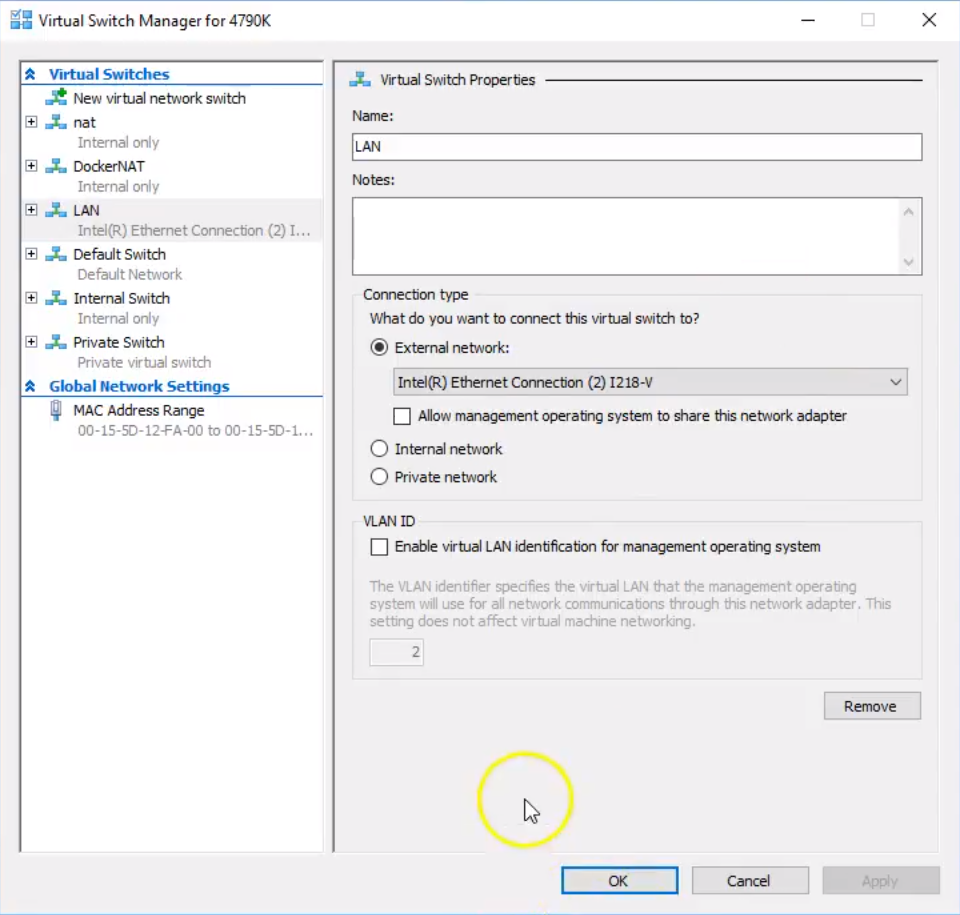
So lets review our Hyper-V virtual switch Types:


External 


A Hyper-V virtual switch in external mode allows communications between virtual adapters connected to virtual machines and the management operating system. It uses single or teamed physical adapters to connect to a physical switch, thereby allowing communications with other systems.


External virtual networks are used where you want to allow communications between
  • VM to VM on the same VM Host
  • VM to VM Host (and visa-versa)
  • VM to externally located servers (and visa-versa)
  • (Optional) VM Host to externally located servers (and visa-versa)
External Virtual Switch


Internal 

A Hyper-V virtual switch in internal mode allows communications only between virtual adapters connected to virtual machines and the management operating system (VM Host).

Internal virtual networks are used where you want to allow communications between
  • VM to VM on the same physical server
  • VM to VM Host (and visa-versa)
Internal Virtual Switch


Private

A Hyper-V virtual switch in private mode allows communications only between virtual adapters connected to virtual machines.
Private virtual networks are used where you want to allow communications between
  • Virtual machine to virtual machine on the same physical server
Private Virtual Switch


Host Network Adapters


Dedicated

Dedicated switches are a physical Network Card on the host just for use just by virtual machines. 

They allow communication between:

Virtual machine to virtual machine on the same physical server
Virtual machine to externally located servers (and visa-versa)
The prevent the VM Host from using the adapter

A dedicated switch is just an external network switch that doesn't allow the host OS from using the adapter.


Dedicated Virtual Switch

According to the what we know the firewall being off and having a DHCP server setup everything should have been working unless we didn't have the DHCP server running on the right network.  The IP range on the host internal network adapter and the VM internal network adapters appeared to be getting different 169 addresses so the DHCP server was not running on the internal network.  Changing the IP address to STATIC IP addresses on the same subnet resolved the issue.  So it was an issue with the DHCP server on the internal network.


Video

I did a full video of the 3 mail virtual network options down below.


https://youtu.be/zI3p1AjZkPU

Sources

https://blogs.technet.microsoft.com/jhoward/2008/06/17/hyper-v-what-are-the-uses-for-different-types-of-virtual-networks/

https://www.altaro.com/hyper-v/the-hyper-v-virtual-switch-explained-part-1/

Thursday, May 18, 2017

Troubleshooting Microsoft Failover Cluster Communication Errors Part 1

Hyper-V high availability clusters are great they allow you to better manage your downtime, updates and improve your productivity dramatically, not to mention the benefits of having systems on VHD/VHDX disks that are faster to backup and recover back to.  However it is important to have good infrastructure setup to accommodate the resources required by the Cluster.

The 6 node Hyper-V cluster I had setup starting acting buggy this is after it had been running rock solid for about 2 years.  I keep this cluster pretty up-to-date with current system patches, and I also use Control Up to monitor the real time status of the cluster and a Standalone Hyper-V Server.  (On a side note Control Up helped me diagnose an I/O issue with my Standalone server.  Read Post)


The symptoms were:

  • slow access to the cluster manager
  • cluster node timeouts/drops
  • DNS Errors
  • iSCSI Target Timeouts/Delayed writes
  • Control Up alerts on NIC Packet Errors/Drops
  • Validating Cluster Test -> Network Failure
  • Cluster Update Errors
After having a quick look at the problem and a reboot of a down node where the only issue seemed to be a generic communication/TCP error a reboot of the node in question seemed to resolve the issue; however the issue seemed to be resolved for the work day but would show up again the next morning with communication errors between the nodes.  All the Server managers, Cluster Manager had logs reporting communication failures, migration failures but nothing really more than that so we just kept rebooting the systems in the morning to keep things going until I could come back and troubleshoot the system more thoroughly, but I had suspected that it was the switch the cluster was plugged into.

Cluster Errors Log


After the switch was rebooted everything was performing much better, all the nodes appeared to be happy everything was running fast I was able to move servers onto different nodes.  However there was one issue that came up after the fact it appeared that one of the nodes had been removed from DNS in Active Directory which was causing an issue with the other nodes being able to communicate.  The only place I seen the issue was on a single node that had gotten it's DNS updated and showed the node missing all IP addresses and Microsoft highlights it in red which is very handy.


After re-adding the missing node to the DNS in AD, everything appears to be resolved.  So if you are getting this kind of error make sure you using a switch that can handle the traffic, and double check your Active Directory controllers for DNS and if your DHCP Server to make sure all nodes are getting the address their suppose to be getting and are available on the network.

Another issue that popped up where the cluster was throwing out this error.  "Cluster network name resource 'cluster name' failed registration of one or more associated dns name(s) for the following reason: DNS Server Failure"


I did doing 2 things to repair this issue and this is all done in the Failover Cluster Manager.


1)  a repair of the cluster

  • Right click on the server name and take it offline.
  • Right click on the server name -> More Actions -> Repair


2)  Move the server to another node with more resources
  • Click on the cluster in the Cluster Core Resources
  • In the Action Panel click on "more Actions" -> Move Core Cluster Resources -> Select Node or Best Possible Node


When you right click on the Cluster Name in the Cluster Core Resources and right click on Properties you will see the window above.  This is what a healthy Cluster should look like.

Go to Part 2 >>


Crontab changes in Linux 26.04 vs previous versions

I use a small Linux server to control the turning on and shutting off our client stations with crontab.  The system I typically use is Ubunt...