Showing posts with label faronics. Show all posts

Monday, July 31, 2023

Using powershell to get the status a a machine using Faronics Deep Freeze


I work with a few organizations that use Steady State software and most of them use Faronics Deep Freeze.  Deep freeze works pretty well for the use case which is securing publicly available computers. So not keeping any passwords, resetting software etc.  However one problem hat has come up with using the software is when doing updates you have "un-freeze" the computer, and even with deepfreeze cloud (at least my experience has been) there is a delay in the system updating if a machine is frozen or thawed.  In some cases taking up to 30 minutes; however that was some time ago and Faronics may have improved that.  However due budget cuts at a few of the organizations I work with they are just using Deep Freeze on Prem with no cloud service.  The only notification you get as to the status of deep freeze is a little bear head on the task bar.


The Bear head with out the X means the system is Frozen (steady stated)  The bear with the X means the system is unfrozen and changes can be made to the system.

There has been more then one occasion that a system has been worked on and left in a un-frozen state after the work has been updated.  So to remedy this problem I created this powershell script 

Freezestatus.ps1

#Get the latest deep freeze log

$event = Get-WinEvent -LogName Application | Where-Object {$_.ProviderName -Match 'Deep Freeze'} | select -first 1

#write the status to an xml file

$event.ToXML() | Out-File -FilePath C:\comptools\status.xml

#wait 3 seconds before you get the item status

Start-Sleep -s 3

#Load the XML file

[XML]$xmlfile = Get-Content C:\comptools\status.xml

#Check the value of the XML file see if it is "Thawed"  If it is send an alert to the IT Department

if ($xmlfile.Event.EventData.Data -eq 'Thawed'){

#Put any alert/code you want to use here in this example I have a window popup; I would recommend sending an email or updating some sort of dashboard with the system status.

Add-Type -AssemblyName PresentationFramework

[System.Windows.MessageBox]::Show('Thawed')

}

Tuesday, July 17, 2018

Approving, Adding and Removing Apps using the Faronics Deep Freeze MDM for Android

This post will go though how to Approve, add and remove apps to your android device using the Faronics Deep Freeze MDM

1. Login to the Deep Freeze MDM


2.  Go to MDM -> Apps


3. If you have approved apps they will be listed as shown below. To approve new apps select add apps


4. This will open up a google play store. Here you can browse or search for apps you want to approve.


5. Select the app you want to approve (in this example MS Word)


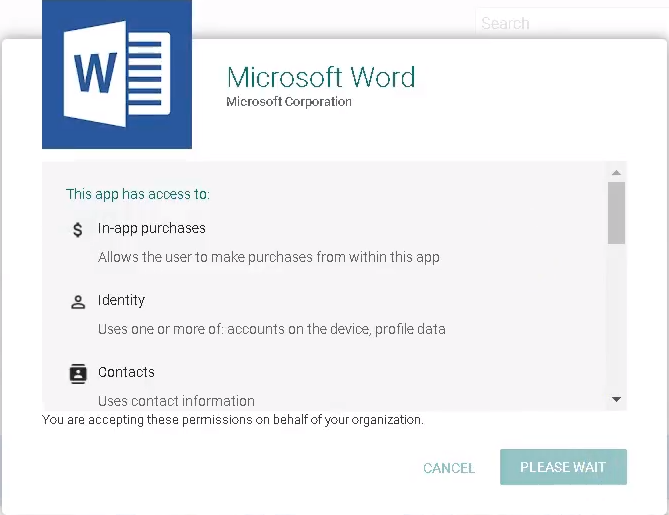
6. Press the approve button to approve the app. You will get additional messages about permissions for the app


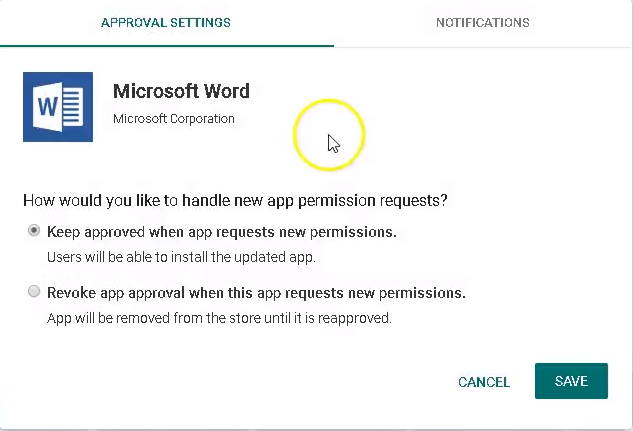
7.  When finally get through the prompts you will have to choose an option when approving apps. You will want to select the first one, as it allows for the device to be updated. The other option you will have to login to the MDM to approve the updates in the app


8.  With the App now approved (or if it doesn’t show up right away use the “Sync” button beside the add apps button. You need to add the app to a group to install and maintain the app


9.  In the groups select the group you want to add the app to. In this case “test group”


10.  Select the Apps Tab and check the apps you want to apply (install) to the group devices


11.  Then hit save located next to the group name


12.  It could take up to 10 minutes for the devices to sync and apply the settings you have changed. You can do a forced sync by going to Devices -> select the device you want to apply and press the Push Assigned Apps button.


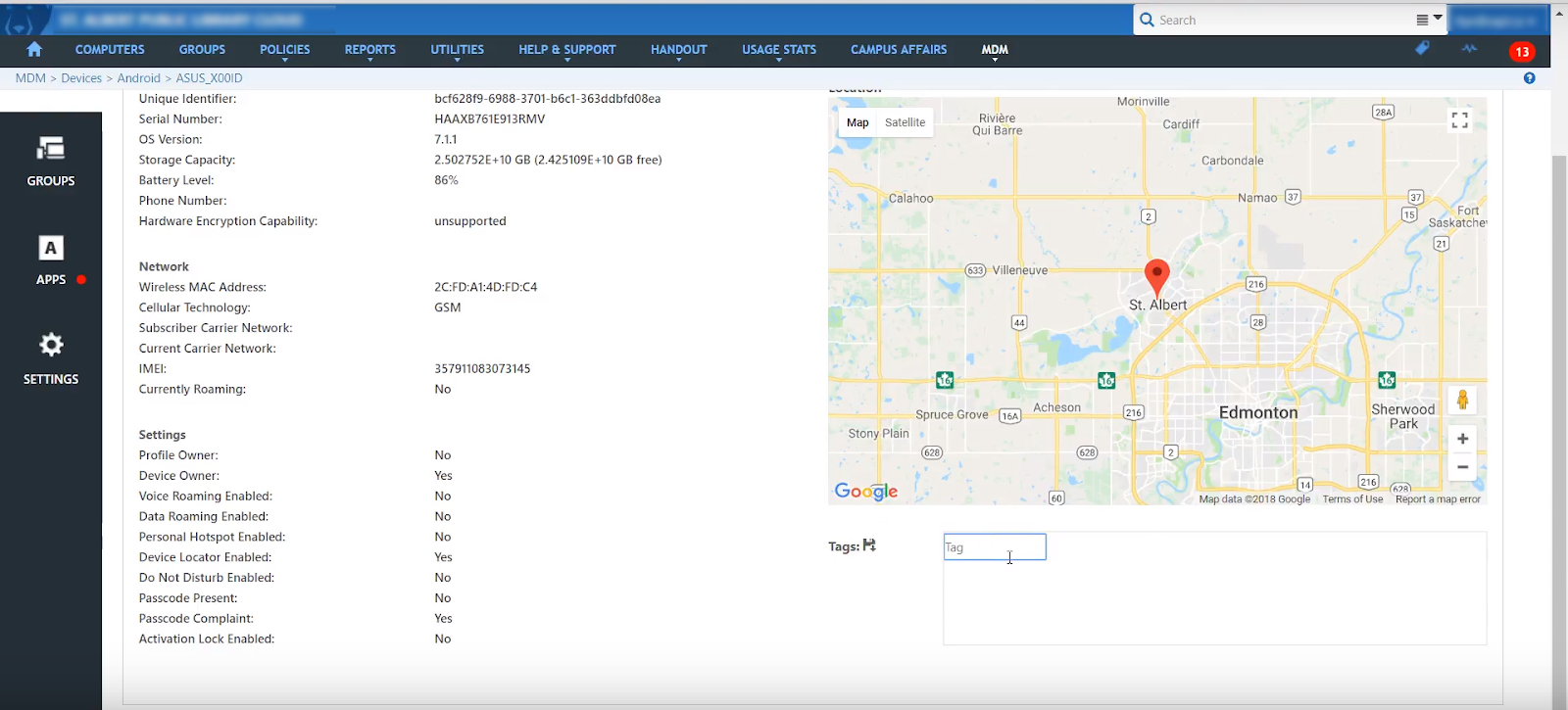
13.  Go to Devices -> Select the device you want to work with and I would recommend adding the TAG for the group and a tag for the name/number of the device.  Faronics MDM doesn't seem to keep the names of the device. 


Fix a windows network printer that is offline

How to fix a network printer that get's installed and shows offline. By default SNMP is set to public, so when you are installing a netw...