Showing posts with label mac os. Show all posts

Wednesday, May 18, 2022

How to download old versions of Mac OS X

I have a 27" sandybridge iMac; which is a perfectly capable machine; I could load and run the latest version of Windows, Linux just fine.  Apple however has decided to drop support for these machines; they are more then 10 years old but for 99% of what they are used for it is fine; I don't really see why apple hasn't included these in their code base besides wanting people to buy new vendor locked in hardware.  I digress; things are what they are.

On a computer with a browser you will want to copy the links and paste them in your URL bar.  It is highly recommended to be using some sort of mac for this.  The OS will download as InstallMacOSX.dmg or MacOS.dmg  I personally rename it to the version I have downloaded and adjust my script for making the USB boot disk.  I was the kind of guy to buy EVERY release of OS X and I do have from OS 9 to Snow Leopard (my favorite version).

The following links below require the apple apps store to download the DMG images for Mac OS 10.  The OS images affected are Mac OS High Sierra to Big Sur require the safari browser to accesses the Apple App Store on MacOS.  Safari finds the old installers in the App Store and allows you to download them. After you download the installer from the App Store, the installer opens automatically.

  • macOS Big Sur can upgrade Catalina, Mojave, High Sierra, Sierra, El Capitan, Yosemite, Mavericks
  • macOS Catalina can upgrade Mojave, High Sierra, Sierra, El Capitan, Yosemite, Mavericks
  • macOS Mojave can upgrade High Sierra, Sierra, El Capitan, Yosemite, Mavericks, Mountain Lion
  • macOS High Sierra can upgrade Sierra, El Capitan, Yosemite, Mavericks, Mountain Lion

Pre-High Sierra can be downloaded on any computer but you have to copy and paste the full link which I have below the bulleted version.  
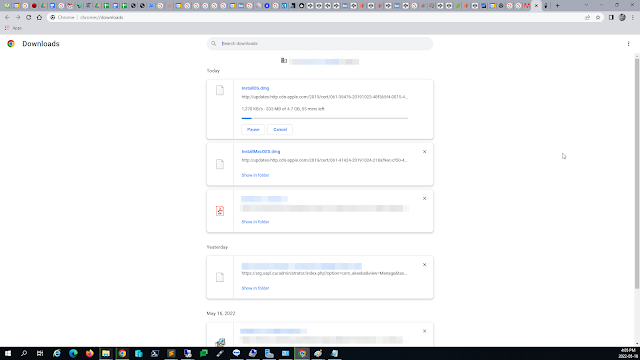

The older installers allows other browsers to download them as a disk image named InstallOS.dmg or InstallMacOSX.dmg respectively. On a Mac the Open the disk image, then open the .pkg installer inside the disk image. It installs an app named Install [Version Name]. Open that app from your Applications folder to begin installing the operating system.


You can also get this info from Apple's Website here https://support.apple.com/en-us/HT211683

Wednesday, November 29, 2017

Create a USB Bootable Disk on OS X

To create a bootable USB Disk in Mac OS X, You must have the Application of the version of Mac OS X that you want to install downloaded and extracted.  Please make sure you have a mac and root access before proceeding.

So for this example we are going to use macOS Sierra.  You must have the "Install macOS Sierra.app" and if your looking for step by step instructions it must be downloaded into your Applications Folder.

To download an older version of MacOS from Yosemite to Catalina, you can download the MacOS App using this url https://support.apple.com/en-us/HT211683


Plugin a Flash Drive; I'm going to use a Verbatim 16GB USB Flash Drive. Open /Applications/Utilities/Terminal.app

sudo /Applications/Install\ macOS\ Seirra.app/Contents/Resources/createinstallmedia --volume /Volumes/STORE \N \GO --applicationpath /Applications/Install\ macOS\ Seirra.app --nointeraction

You can modify this command line to use with any previous version of OS X if you can get a copy of the Install.app and replace the bolded text with the previous version of the OS X install.app  for example "Install\ OS\ X\ El\ Capitan" and you must put \ $text so the mac can recognize spaces in the name.  The \ is an "escape" and tells the OS that there is a "space" character.

***UPDATE***

You can find this on apple's knowledge base for the issue but they removed the application path for the USB installer.

sudo /Applications/Install\ macOS\ High\ Seirra.app/Contents/Resources/createinstallmedia --volume /Volumes/STORE \N \GO

https://support.apple.com/en-us/HT201372

***Pre High Seirra***

sudo /Applications/Install\ macOS\ Seirra.app/Contents/Resources/createinstallmedia --volume /Volumes/STORE \N \GO --applicationpath /Applications/Install\ macOS\ Seirra.app --nointeraction

Below is the log from my terminal screen.  This could take up to 10 - 30 minutes depending on your system, and if may have to make adjustments if your file system is case sensitive or not.

sudo /Applications/Install\ macOS\ Sierra.app/Contents/Resources/createinstallmedia --volume /Volumes/STORE\ N\ GO --applicationpath /Applications/Install\ macOS\ Sierra.app --no interaction
Erasing Disk: 0%... 10%... 20%... 30%...100%...
Copying installer files to disk...
Copy complete.
Making disk bootable...
Copying boot files...
Copy complete.
Done.

At the end of this you will have a bootable USB device that you can do a system recovery, disk image, or a fresh install of your mac with.

Wednesday, November 13, 2013

Connecting A Mac To A Windows Share

Connecting A Mac to a Windows Share


With the exception of mobile devices we still live in a "Windows World" and with the latest version of OS X comes an update on how to connect to a windows share using SMB2 instead of SMB.

On Mac OS X (Pre Mavericks or 10.9) we connected to a windows share using smb.

From the Finder press the "Command" + "K" keys or go to the "Go" menu and select Connect to Server.  In the server address field put in either smb for pre 10.9 or cifs for 10.9

On a workgroup it looks something like this:

smb://thecomputer/sharedfolder

On an active directory the samba setup it looks more like this

smb://domain.ext/dfs/sharedfolder on a domain using a DFS Share

Now on OS X Mavericks we use cifs to connect to the windows shares.

cifs://thecomputer/sharedfolder on a workgroup and 

cifs://theremotecomputer/sharedfolder$ on a domain using a DFS Share

If you are not logged into the domain or if the share doesn't have anonymous access it will prompt you for a username and password.

Removing Show Recent History and Recently Open Documents from Windows Explorer

How to remove the Recent History and Recently Open Documents from Windows Explorer Using the Registry Editor Press the Windows Key + R, type...