The issue is an odd one. A single computer connected to a domain lost it's connection to two DFS file shares. The file shares are wide open for all domain users with nothing that would cause a restriction connecting to the share. The share shows up in the user's share list but gives a permissions alert when clicked on and displays as 0 bytes or as nothing at all.
Issue: An active directory connected workstation (laptop) won't connect to DFS file shares. The two network shares in question have read/write and execute privileges' granted to everyone in the organization. Out of 8 file shares two of them say that domain users do not have permission to access them; and these are shares where everyone has access.

The shares that they should have access to show a 0KB size and they do not have permissions to access the resource but are clearly a member of the security group to get access to the shared resource.
After trying several of the typical ways to fix the issue such as:
- removing the system from the active directory
- a disk check and file system scan
- logging in as a separate user
- logging into another system with the user where the issue exists.
Resolution:
The resolution is a little odd I think it was caused by a corrupt DFS Cache which needs to be removed using local computer group policy. Local computer group policy processing order can be found here. To summarize the processing order can be seen below.
- Local
- Site
- Domain
- OU
Removing the computer from the domain and removing the computer from the active directory was not enough to reset the offline DFS Cache. I had to enable the prevention of the Offline File use to get the issue fixed.
On the local computer
open gpedit.msc
go to local computer policy -> Computer Configuration -> Network -> Offline Files -> Prevent use of Offline Files Folder
Enable Prevent use of Offline Files folder
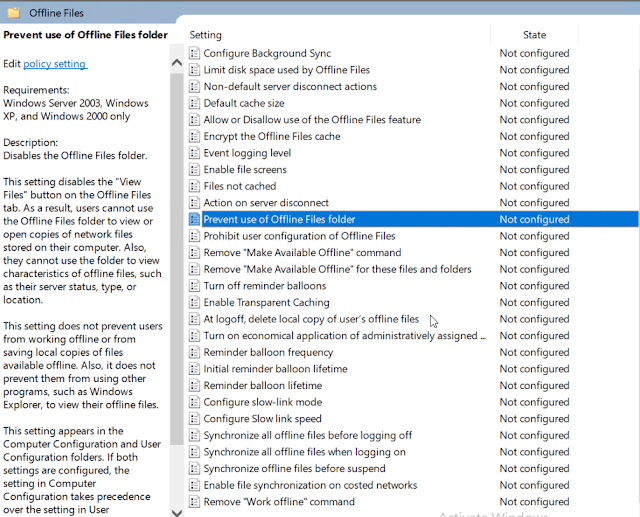
Remove the computer from the Active directory, and login as a local user. Remove any unused users form the System Properties -> Advanced -> User Profiles -> Local User Profiles

Once that was done, I tried to connect to the DFS share from the workgroup computer; using domain credentials and the DFS shares started showing correctly. Then when I reconnected the system to the domain, all users could access all the DFS shares properly. After verifying that the share showed up properly; I then set the Prevent use of Offline Files folder to "Not Configured". Then I verified that the network drives still showed properly and were accessible which they were. It was an odd issue which did not affect the user but a specific machine's connection with specific shares regardless of the user logged in.


