Showing posts with label host. Show all posts

Tuesday, September 14, 2021

Allowing iframes from a shared hosting server

Shared Hosting Providers

Website security is a very important thing these days.  There are lots of reasons to refuse sites from embedding your site via iframe or embed tag.  However if you have or are purchasing a paid for services like an intranet and you don't want to re-write everything to work with that services JavaScript library and security policy, an embed or iframe may just be what you need to use.  

By default, most of the shared webhosts I've used allow configuration with a .htaccess file.  Now I do recommend going though and assessing what you need to setup for your site to get done what you need to get done security wise; but in this case I need to allow for iframes from an igloo intranet site.

Typically if you have experience in setting up something like apache, you would use the x-frame header to do this; however this has changed for modern browsers, and while you may still need to add the x-frame for some legacy browsers, I'm going to be focusing on edge, chrome and firefox.

On igloo I have a embed tag, with the source going to a website which I have on a shared host.  I have a sample that can be seen below.  By default the shared hosting provider refuses the iframe connection by default.

<embed type="text/html" src="https://websiteIcontrol.ca" width="500" height="200">

On your host, edit your .htaccess file and find your mod_headers.c by default it should be something link this below.

## Suppress mime type detection in browsers for unknown types
<IfModule mod_headers.c>
Header always set X-Content-Type-Options "nosniff"
</IfModule>

We want to add the following (the one highlighted in green).

## Suppress mime type detection in browsers for unknown types
<IfModule mod_headers.c>
Header always set X-Content-Type-Options "nosniff"
Header set Content-Security-Policy: frame-ancestors 'self' https://websiteIcontrol.ca
</IfModule>

Once you add that and save the .htaccess file and when you refresh you page on igloo your iframe/embed will show up in igloo. as shown below.

For more information please refer to the links below for more information about .htaccess, x-frames and content-security policy.

https://htaccessbook.com/

https://htaccessbook.com/important-security-headers/#xframe


Monday, May 01, 2017

Managing A Domain Based Hyper-V Servers from a Workgroup Workstation


You may have a situation where for what ever reason you need to manage domain based Hyper-V Servers from a machine not connected to the domain.  Now really best practice you should use a machine connected to the domain but for whatever reason, issue with a domain controller, lost of a security policy etc.  It is possible to remotely manage server 2012R2 Hyper-V machines on a domain from a workgroup host.  To enable this you need to be on the same network and create a local user account on the system you want to manage and add that user the following group.


  • Hyper-V Administrators


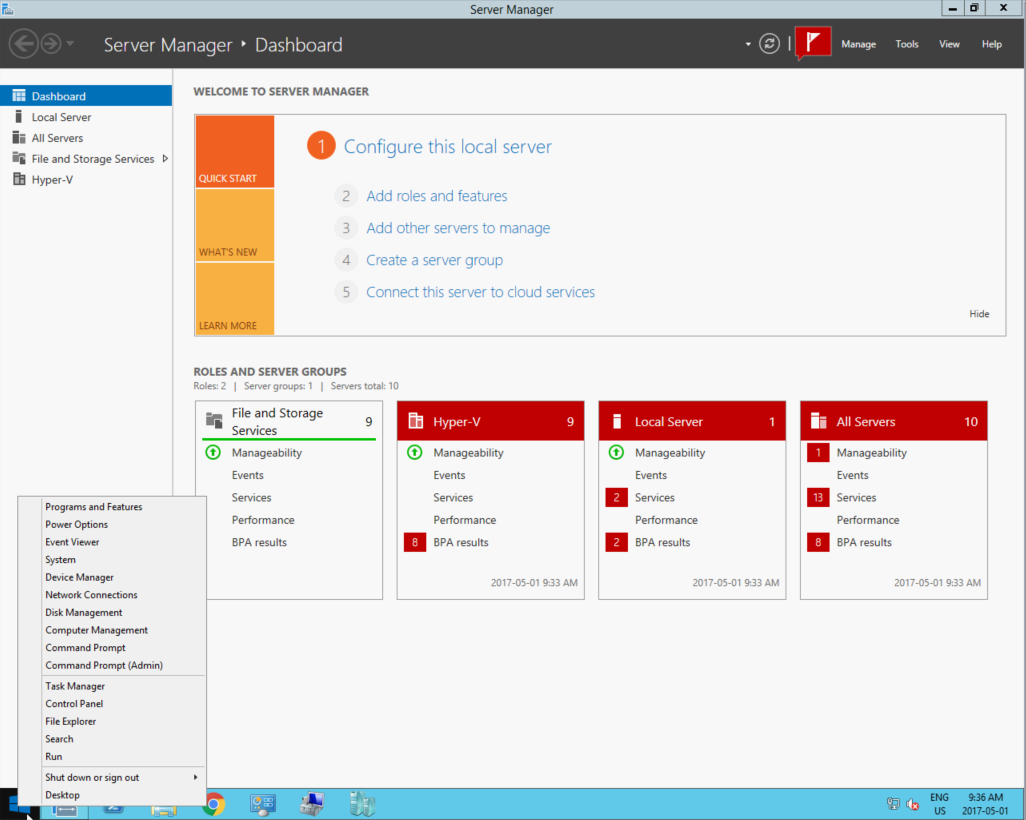
Step 1 - Right Click on the Windows Logo and select Run


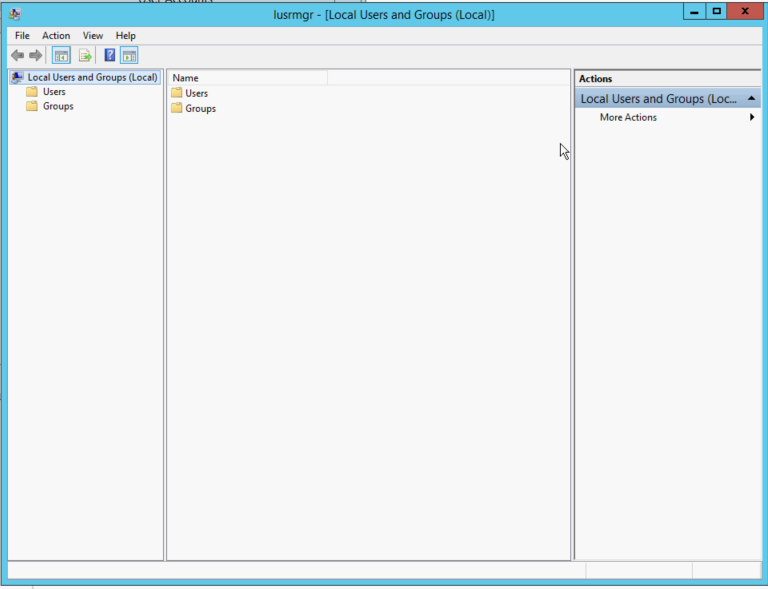
Step 2 - Type in "control userpasswords2" without the quotes.  This will bring up the local users and groups manager.


Step 3 - When the user accounts window opens go to the Advanced Tab.


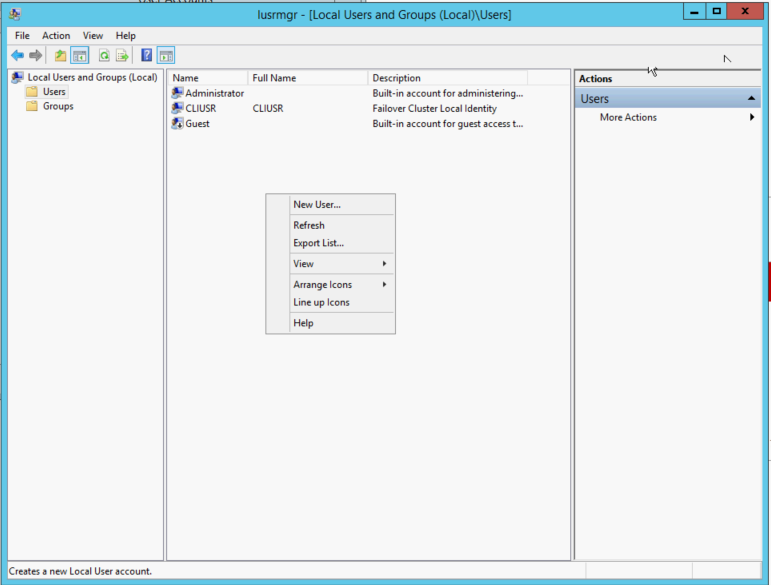
Step 4 - Add a local user this should be the same user your going to use on the local machine to remotely manage your Hyper-V Hosts.


Fill out the your account information and uncheck the "User must change password at next logon" and check the "password never expires" check box.

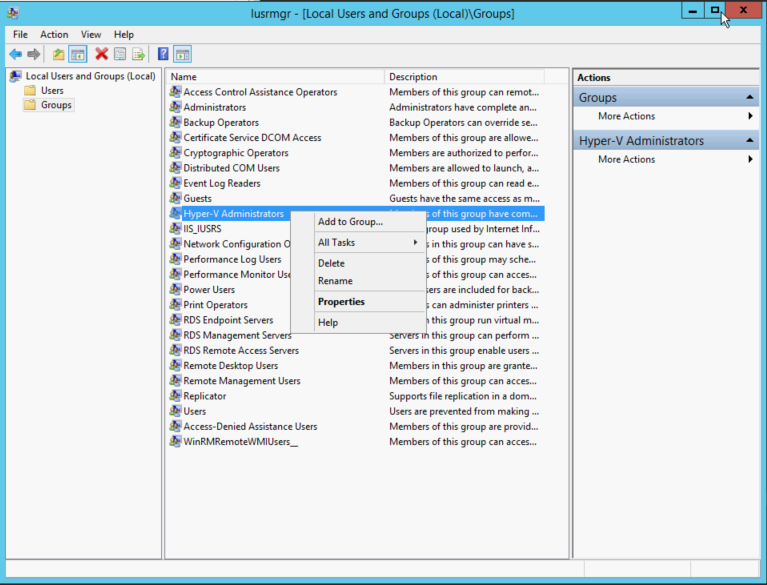
Step 5 - Then go into groups and add the user to the following group.

  • Hyper-V Administrators
Right click on Hyper-V Administrators and select Properties


Add the user to the group, make sure you use the local machine and not the domain.  Then hit OK.

Once that is done you can then go and add the server to your workstation Hyper-V Console.  To do that right click on the Hyper-V Manager and select "Connect to Server..."


Then select "Another Computer" via the radio button and type in the Resolvable Name or the IP Address of the Server you want to connect to and hit ok.

Once complete you will have the Hyper-V host in your Hyper-V Manager and access and management to all virtual machines on that host.


Removing Show Recent History and Recently Open Documents from Windows Explorer

How to remove the Recent History and Recently Open Documents from Windows Explorer Using the Registry Editor Press the Windows Key + R, type...