Showing posts with label Veeam Manual Failover Procedure. Show all posts

Friday, August 21, 2020

Veeam licence error when trying to replicate or backup

My organization uses Veeam as our main backup utility.  It really is a great piece of software but it does have some quirky things about it as everything does.  I do think though this is a bit of an outlier to be fair.  I have 2 production servers that need to be release and support was no longer available for it.  We were hoping that they would last until early next year but the main production server just had one of it's drives in a RAID 10 die so we decided to fail everything over to the backup server and make that the production server.  

Production Server RAID 10 Drive Failure

After permanently failing over the virtual servers, I was trying to setup a new replication job to make the production server the backup.  I reverse my source and destination for my backup jobs, and tried to run my backups and replication and was getting an error.


VM $myVM task has finished with 'Failed' state.

Task details: Failed to process replication task Error: Unable to process workload: license has been exceeded

Even though I have 2 servers the Veeam licence is clearly a one way street, and backing up from the first server to the second server is fine, backing up from the second server to the first one is not.  If I had 4 core licencing instead of 2 this probably would have worked since these are both 2 socket servers.  Regardless of this minor issue, I still want to setup a failover to the server with the bad drive, because stuff happens.

So to reset the license to enable backup and replication, 

Go Menu -> License

Select the "Sockets" tab

Select the server -> Then Revoke.

Once you do this and you update your backup and replication the license will be applied to the other server and your backups and replications will begin working again.

Friday, June 15, 2018

Manual Veeam Failover Procedure for Hyper-V

I was tasked with updating our Hyper-V servers with firmware updates from our vendor.  Unfortunately the firmware on our Hyper-V machines were sorely out of date (by allot) and when I patched the backup server I found it took about 20 - 30 minutes to update each firmware patch.  There were 10 patches at 20 - 30 minutes at a time and there was not a choice in skipping any version of them; so we had to do all 10 and they went from V144 to V452.  At the start of this project we were at V124.  Now having done the setup for the Hyper-V servers and the Veeam Backup and Replication suite.  I like processes and I always learn something and then I try put it into a process if I get hit by the "proverbial bus" or if it is something that will be required to do again at some point.  This time I learned is it doesn't hurt to have a checklist/plan when your dealing with keeping services up when your doing patching.

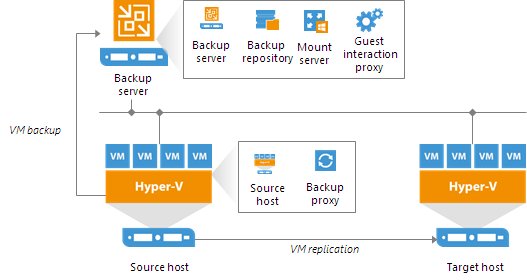
Below is a diagram of a simple Veeam Backup and Replication deployment, the environment I work in has a similar setup. 


Veeam Hyper-V Simple Deployment Model

Now this is great, it works well, in the past I would just failover all the VM's in the order they need to go but what I didn't realize is I didn't need to do that.  The devil is in the details so in this sanitized version of my new process documentation is what needs to happen when you are doing an failover to do maintenance on your primary production Hyper-Visor.

It is a good idea to have a document of what is running on the Hyper-V Server and the level of service the VM is at.  This is a sample of a document I do use.

The mistake I made was failing over the entire VM appliance, which really wasn't necessary but it was nice to make sure that the meltdown and spectre patches I had applied on the Backup Hyper-Visor did not adversely impact our performance (except for the sql server which seemed to have a noticeable impact).  

What I should have done is shutdown the non-essential servers and manually replicated the data on the essential servers before I started.  I had done it earlier that day but I should have done it before I began the failover process.
SQL ServerEssential
Tomcat / Java Server 1Essential
Tomcat Server 2Essential
Windows Cron ServerNon-Essential
Windows Task ServerNon-Essential
Windows Task Server 2Non-Essential
Windows Reporting ServerNon-Essential
SIP2 ServerEssential
Tomcat Server 3Non-Essential
This would have saved me allot of time and headache when failing back to production because I wouldn't have had to fail back all the VM's I could have just turned on the virtual machines I had turned off, especially since this was done mostly during off hours.

So this post essentially comes down to this.

Failover:

  1. Shut off all VM's that can be shut off.
  2. Disable all Veeam Backup & Replication Jobs so they don't run during the process just giving errors
  3. Disable any other backup jobs on the host.  Disable any VM's that are set to auto start.
  4. Run the replication job on the VM you are about to put into failover.  If VM's need to be failed over in a particular order make sure you do so.
  5. Once the Replication job is put the VM into failover
  6. Repeat steps 4 - 6 for any VM's that need to be running during this time.
Proceed with host patching.  Once finished start Failback

Failback:

  1. Failback VM's.   If they need to be failedback in a particular order make sure you do so
  2. Once VM is failed back; confirm failback if there are no issues.
  3. Enable VM auto startup if required
  4. Enable host backup jobs
  5. Enable Veeam backup and replication jobs
  6. Turn on any VM's that have been shut off during the process

Do a services check if required.

Updating your godaddy certs during the G2 intermediate hierarchy to the TLS Root CA - R1 hierarchy

  If you use GoDaddy TLS certificates you should be aware of some changes during the transition from the G2 Intermediate certificates to the...